
WinCC_flexible-用户管理
• 在用户栏内点击空白行即可创建新用户,如 要修改某一选项在其上点击鼠标左键即可。 灰色部分显示的选项是不可以更改的。
30
用户视图在用户管理中的应用 -在运行时通过用户视图管理用户
WinCC Flexible
Hardware Software Workshop
• 如果没有管理员登录,则用户视图仅显示 当前登录的用户。
8
组态用户管理-创建用户组
WinCC Flexible
Hardware Software Workshop
双击“组”选项打开用户组编辑器
• 在编辑器中有两个部分,分别是“组”表、“组权限” 表。 • 在组表中列出了现有的用户组,在组权限表中列出了系 统中现有的所有权限。 • 为每个用户组分配不同的权限是通过在组权限表中的复 选框内打勾实现的。
• 用户必须在首次登录时更改管理员分配的口令。
– 启用“更改退出时间”复选框
• 更改退出时间只需简单用户权限即可。 退出时间是指系 统没有任何输入的持续时间。此时间过后,用户管理将 自动退出用户。如果用户更改了退出时间,则所做更改 将记录在检查跟踪中。
20
WinCC flexible 用户管理
WinCC Flexible
5
•
WinCC flexible 用户管理
WinCC Flexible
Hardware Software Workshop
提纲
• 用户管理的基本概念 • 用户管理的结构 • 组态用户管理
– 创建用户组 – 创建用户 – 运行时安全设置
• 运行系统中的用户管理
– 用户视图在用户管理中的应用 – 组态具有访问保护的对象
9
组态用户管理-创建用户组
WinCC Flexible
Hardware Software Workshop
添加用户组及权限
• 在项目视图的“组”选项上单击鼠 标右键选择“添加组”;或者在用 户组编辑器“组表”中紧邻现有组 的空白行上双击鼠标左键,都可一 添加一个新的用户组。 • 在“组权限”表中空白行内,双击 鼠标左键可以添加新的权限。
Hardware Software Workshop
提纲
• 用户管理的基本概念 • 用户管理的结构 • 组态用户管理
– 创建用户组 – 创建用户 – 运行时安全设置
• 运行系统中的用户管理
– 用户视图在用户管理中的应用 – 组态具有访问保护的对象 – 导出/导入用户管理
21
WinCC flexible 用户管理
Hardware Software Workshop
• “运行时安全设置”编辑器用于组态运行系统中用户口 令的安全设置。 在项目视图中,双击“运行系统用户管 理”组中的“运行时安全设置”打开编辑器。
18
组态用户管理-运行时安全设置
WinCC Flexible
Hardware Software Workshop
在运行时的作用
• 口令组
– 启用口令有效天数复选框
• 口令在经过“口令有效期”域中设置的天数后过期。
– 生成口令域
• 如果用户更改口令,则新口令必须不同于先前指定数量 的口令。口令生成数为1至5。
– 天数警告域
• 在口令过期之前的指定天数通知用户口令即将过期。
• 运行时服务组
– 启用“更改初始口令”复选框
3
WinCC flexible 用户管理
WinCC Flexible
Hardware Software Workshop
提纲
• 用户管理的基本概念 • 用户管理的结构 • 组态用户管理
– 创建用户组 – 创建用户 – 运行时安全设置
• 运行系统中的用户管理
– 用户视图在用户管理中的应用 – 组态具有访问保护的对象
WinCC Flexible
Hardware Software Workshop
运行系统中的用户管理
• 用户视图在用户管理中的应用 • 组态具有访问保护的对象
• 导出/导入用户管理
22
用户视图在用户管理中的应用-作用
WinCC Flexible
Hardware Software Workshop
• 在工程系统中创建用户和用户组,并为 它们分配权限。可为对象组态权限。在 传送到HMI 设备后,所有组态了权限的 对象会得到保护以免在运行时受到未授 权的访问。 • 如果在工程系统中组态了用户视图,那 么当传送到HMI 设备后可以在用户视图 中管理用户。
14
组态用户管理-创建用户
WinCC Flexible
Hardware Software Workshop
在用户编辑其中为用户设置密码
• 在用户编辑其中点击图示按钮弹出密码设置窗口 • 在密码设置窗口输入密码
15
组态用户管理-创建用户
WinCC Flexible
Hardware Software Workshop
WinCC flexible 用户管理
WinCC Flexible
Hardware Software Workshop
1
WinCC flexible 用户管理
WinCC Flexible
Hardware Software Workshop
提纲
• 用户管理的基本概念 • 用户管理的结构 • 组态用户管理
• 运行时,在用户视图中所作的更改立即生 效。 但在运行时所作的更改不会在工程系 统中更新。 当将用户和用户组从工程系统 传送到HMI设备时,将覆盖用户视图中的所 有更改。
31
WinCC flexible 用户管理
WinCC Flexible
Hardware Software Workshop
运行系统中的用户管理
26
用户视图在用户管理中的应用 -在运行时通过用户视图管理用户
WinCC Flexible
Hardware Software Workshop
• 在工程系统中创建用户和用户组, 并将其传送到HMI设备。 • 拥有“管理”权限的用户可以不受 限制地访问用户视图,以便管理所 有用户。 • 用户视图在每一行中显示用户、用 户口令、所属的用户组以及注销时 间。如果没有用户登录,则用户视 图为空。
6
WinCC flexible 用户管理
WinCC Flexible
Hardware Software Workshop
组态用户管理 • 创建用户组 • 创建用户 • 运行时安全设置
7
组态用户管理-创建用户组
WinCC Flexible
Hardware Software Workshop
• 在项目视图中找 到“运行系统用 户管理”条目。 双击它可以列出 子菜单,其中有 三个选项,分别 是是“组”、 “用户”以及 “运行系统安全 性设置”。
10
组态用户管理-创建用户组
WinCC Flexible
Hardware Software Workshop
设置用户组的属性
• 这里新添加了一个“调 试工程师”组,并把 “操作”、“管理”和 “画面浏览(新建的权 限)”的权限分配给它。
新建组的各中属性都由 系统自动生成,可以根 据需要有选择的修改, 但用灰色显示的选项不 能修改,如编号。 修改属性有两种方法 – 直接双击要修改的 选项 – 在属性视图中修改
• 2.在“用户视图”的属性视图中设置用户视 图的各种属性。
25
用户视图在用户管理中的应用-组态
WinCC Flexible
Hardware Software Workshop
• 在画面中组态两个按钮“用户登录” 和“注销用户”。 • 单击“用户登录”按钮用来运行系 统函数“ShowLogonDialog”(显 示登录对话框)。 • 单击“注销用户”按钮用来运行系 统函数“Logoff”(注销当前用户)。
在项目视图中,双击“运行系统用户管理”组 中的“运行时安全设置”
• “运行时安全设 置”编辑器用于 组态运行系统中 用户口令的安全 设置。
• 可在工作区域中 设置口令的有效 时间等属性。
19
组态用户管理-运行时安全设置
WinCC Flexible
Hardware Software Workshop
•
•
11
WinCC flexible 用户管理
WinCC Flexible
Hardware Software Workshop
组态用户管理 • 创建用户组 • 创建用户 • 运行时安全设置
12
组态用户管理-创建用户
WinCC Flexible
Hardware Software Workshop
打开用户编辑器 • 在项目视图中 “运行系统用 户管理”条目 下双击“用户” 选项打开用户 组编辑器
27
用户视图在用户管理中的应用 -在运行时通过用户视图管理用户
WinCC Flexible
Hardware Software Workshop
• 在用户视图中单击鼠标左键,或单击“用户 登录”按钮可以打开登录对话框。
28
用户视图在用户管理中的应用 -在运行时通过用户视图管理用户
WinCC Flexible
4
用户管理-用户管理的结构
WinCC Flexible
Hardware Software Workshop
用户管理的结构
• 在用户管理中,分 为两部分,一部分 是对用户组的管理, 另一部分是对用户 管理。 其特点是权限不是 直接分配给用户的, 而是分配给用户组, 通过设定用户所在 的用户组可以使该 用户获得其所在用 户组的所有权限。 这样使管理变得更 为系统化、高效化。 另外用户的管理和 权限的分配是分离 开来的,这样就使 得操作人员对系统 的访问具有很强的 灵活性。
wincc_flexible组态简介

Wincc_Flexible组态简介WinCC flexible,德国西门子(SIEMENS)公司工业全集成自动化(TIA)的子产品,是一款面向机器的自动化概念的HMI软件。
WinCC flexible 用于组态用户界面以操作和监视机器与设备,提供了对面向解决方案概念的组态任务的支持。
WinCC flexible与WinCC十分类似,都是组态软件,而前者基于触摸屏,后者基于工控机。
HMI由硬件和软件两部分组成,硬件部分包括处理器、显示单元、输入单元、通信接口、数据存贮单元等,其中处理器的性能决定了HMI 产品的性能高低,是HMI的核心单元。
根据HMI的产品等级不同,处理器可分别选用8位、16位、32位的处理器。
HMI软件一般分为两部分,即运行于 HMI硬件中的系统软件和运行于PC机Windows操作系统下的画面组态软件(如WinCC flexible)。
使用者都必须先使用HMI的画面组态软件制作“工程文件”,再通过PC机和HMI 产品的串行通信口,把编制好的“工程文件”下载到HMI的处理器中运行。
HMI人机界面产品的基本功能包括:1、设备工作状态显示,如指示灯、按钮、文字、图形、曲线等;2、数据、文字输入操作,打印输出3、生产配方存储,设备生产数据记录4、简单的逻辑和数值运算5、可连接多种工业控制设备组网HMI的选型指标包括:1、显示屏尺寸及色彩、分辨率、HMI的处理器速度性能、2、输入方式:触摸屏或薄膜键盘3、画面存贮容量,注意厂商标注的容量单位是字节(byte)、还是位(bit)4、通信口种类及数量,是否支持打印功能本模块主要介绍西门子TP 270触摸屏,其接口外形如图3-2所示,接口功能描述见表3-1。
图3-2 西门子TP 270接口排列图表3-1接口功能描述编号描述应用1接地连接用于连接到机架地线2电源连接到电源 +24V DC3接口IF1B RS 422/RS 485(未接地)接口4接口IF1A用于PLC 的RS 232接口5接口IF2用于PC、PU、打印机的RS 232接口6开关用于组态接口IF1B7电池连接连接可选备用电池8USB接口用于外部键盘,鼠标等的连接9插槽B用于CF卡10以太网接口(只用于MP 270B)连接RJ45以太网线11插槽A(只用于MP 270B)用于CF卡触摸屏设备的装载程序1、装载程序图3-6显示了触摸屏设备启动期间和运行系统结束时迅速出现的装载程序。
第8章WinCC用户管理和安全性
2012年4月26日星期四
8
WinCC预置授权 : 预置授权_3 预置授权
停止归档 允许用户停止一个归档过程。 允许用户停止一个归档过程。
允许用户修改档案库变量的值。 归档值编辑 允许用户修改档案库变量的值。 归档编辑 允许用户组态变量记录编辑器, 允许用户组态变量记录编辑器,控制或改 变归档过程。 变归档过程。 允许用户组态全局脚本编辑器,执行和改 允许用户组态全局脚本编辑器, 变脚本。 变脚本。
2012年4月26日星期四
14
说明四
授权表
显示所组态的授权。每行包含一个授权。 显示所组态的授权。每行包含一个授权。白色的圆圈表示 没有授权。双击,可出现红色选项,表示选择了该授权。 没有授权。双击,可出现红色选项,表示选择了该授权。 编号为1000-1099的授权为系统授权,用户不能对其进行 的授权为系统授权, 编号为 的授权为系统授权 设置、修改或删除。 设置、修改或删除。 缺省状态下, 缺省状态下,在“管理员”组中将设置用户的授权1“用户 管理员”组中将设置用户的授权 用户 管理” 该授权不能删除。 管理”。该授权不能删除。 每个授权必须单独进行分配。在用户组中添加新用户时, 每个授权必须单独进行分配。在用户组中添加新用户时, 新用户拥有该组的授权。 新用户拥有该组的授权。 使用“插入授权” 使用“插入授权”和“删除授权”命令可修改授权选项。 删除授权”命令可修改授权选项。
动作编辑
项目管理器 允许用户访问 允许用户访问WinCC资源管理器。 资源管理器。 资源管理器
2012年4月26日星期四
9
用户管理器界面
项目窗口包括浏览窗口和表格窗口: 项目窗口包括浏览窗口和表格窗口: 浏览窗口——浏览窗口包含了对已建立的组和相应注册 浏览窗口包含了对已建立的组和相应注册 浏览窗口 用户的树形结构的浏览。用户名在浏览窗口顶部灰色背景的 用户的树形结构的浏览。 方框中输入。用鼠标右键单击所选择的用户或用户组, 方框中输入。用鼠标右键单击所选择的用户或用户组,打开 弹出式菜单。 弹出式菜单。 表格窗口——表格窗口顶部包含登录名称或用户标识符。 表格窗口顶部包含登录名称或用户标识符。 表格窗口 表格窗口顶部包含登录名称或用户标识符 所有与该特定用户有关的设置均显示在表格窗口中。 所有与该特定用户有关的设置均显示在表格窗口中。
WinCC flexible 2008 SP5 Update 1 用户手册说明书
WinCC flexible 2008 SP5 Update 1 Readme05/2018Legal informationWarning notice systemThis manual contains notices you have to observe in order to ensure your personal safety, as well as to preventdamage to property. The notices referring to your personal safety are highlighted in the manual by a safety alertsymbol, notices referring only to property damage have no safety alert symbol. These notices shown below aregraded according to the degree of danger.DANGERindicates that death or severe personal injuryWARNINGindicates that death or severe personal injury may result if proper precautions are not taken.CAUTIONindicates that minor personal injury can result if proper precautions are not taken.NOTICEindicates that property damage can result if proper precautions are not taken.If more than one degree of danger is present, the warning notice representing the highest degree of danger will beused. A notice warning of injury to persons with a safety alert symbol may also include a warning relating to propertydamage.Qualified PersonnelThe product/system described in this documentation may be operated only by personnel qualified for the specifictask in accordance with the relevant documentation, in particular its warning notices and safety instructions. Qualifiedpersonnel are those who, based on their training and experience, are capable of identifying risks and avoidingpotential hazards when working with these products/systems.Proper use of Siemens productsNote the following:WARNINGSiemens products may only be used for the applications described in the catalog and in the relevant technicaldocumentation. If products and components from other manufacturers are used, these must be recommended orapproved by Siemens. Proper transport, storage, installation, assembly, commissioning, operation andmaintenance are required to ensure that the products operate safely and without any problems. The permissibleambient conditions must be complied with. The information in the relevant documentation must be observed. TrademarksAll names identified by ® are registered trademarks of Siemens AG. The remaining trademarks in this publicationmay be trademarks whose use by third parties for their own purposes could violate the rights of the owner. Disclaimer of LiabilityWe have reviewed the contents of this publication to ensure consistency with the hardware and software described.Since variance cannot be precluded entirely, we cannot guarantee full consistency. However, the information inthis publication is reviewed regularly and any necessary corrections are included in subsequent editions.Siemens AGDivision Digital FactoryPostfach 48 4890026 NÜRNBERGGERMANYⓅ 05/2018 Subject to changeCopyright © Siemens AG 2018.All rights reservedTable of contents1Validity (5)2Solved problems (7)3Installation (11)WinCC flexible 2008 SP5 Update 1Readme, 05/20183Table of contentsWinCC flexible 2008 SP5 Update 1 4Readme, 05/2018Validity1 ValidityThis update is valid for the following WinCC flexible editions:●WinCC flexible 2008 SP5InstallationTo install the update, please follow the instructions in the chapter "Installation".WinCC flexible 2008 SP5 Update 1Readme, 05/20185ValidityWinCC flexible 2008 SP5 Update 1 6Readme, 05/2018Solved problems2 This update contains the following improvements:Empty graphic list entries cause errors during printingWhen there was no graphic in a graphic list entry, it was not possible to create the projectdocumentation.Info texts in WinCC flexibleWith some HMI devices, the maximum number of characters permitted for an information textwas too low.Generator: Project files that are too large prevent transferWith some HMI devices, the generated project could become unusually large so that, in somecircumstances, it was no longer possible to transfer the project.Texts in faceplate instances not editable after migrationAfter the migration of a project, it was no longer possible to edit the texts of faceplate instancesdefined at the interface.STEP 7 integrationAfter ProSave had been uninstalled, it sometimes occurred that the STEP 7 integration nolonger functioned without errors because, under some circumstances, a commonly usedruntime library was also uninstalled.Mobile Panels IWLAN V2The EU image for Mobile Panels IWLAN V2 is not included in WinCC flexible. You can onlytransfer the image present in WinCC flexible to non-EU devices.However, you can download the EU image for Mobile Panels IWLAN V2 from SIOS.After the introduction of the new EU article numbers, the associated image which enablesoperation of Mobile Panels IWLAN V2 is made available.The following individual IWLAN EU devices are supported:●Mobile Panel 277 8" IWLAN V2●Mobile Panel 277F 8" IWLAN V2●Mobile Panel 277F 8" IWLAN (RFID Tag)WinCC flexible 2008 SP5 Update 1Readme, 05/20187Solved problemsYou need to select version 1.4.0.0 under "Device selection > Version of the HMI device".Selecting version 1.5.0.0 will result in a bad configuration of the HMI device.The product announcement "EU order numbers for Mobile Panel 277(F) IWLAN" waspublished under entry ID 109745667 (https:///cs/document/109745667/eu-order-numbers-for-mobile-panel-277(f)-iwlan?dti=0&lc=en-WW) for which theEU image is made available for download under entry ID 109746331 (https:///cs/document/109746331/images-for-mobile-panel-277(f)-iwlan?dti=0&lc=en-WW).You can find the corresponding product information documents online in the Product Support(https:// (https:///cs/start?lc=en-WW)):●Product information "Radio operation within the EU": 109745797 (https:///cs/document/109745797/simatic-hmi-radio-operation-within-the-eu?dti=0&lc=en-WW)●Product information "Radio operation outside the EU": 109745796 (https:///cs/document/109745796/simatic-hmi-radio-operation-outside-the-eu?dti=0&lc=en-WW)●Product information "HMI Device Images for Download in SIOS": 109748151 (https:///cs/document/109748151/simatic-hmi-mobile-panel-277-iwlan-v2-mobile-panel-277f-iwlan-v2-mobile-panel-277f-iwlan-(rfid-tag)-hmi-device-images-for-download-in-sios?dti=0&lc=en-WW)You can find additional information under Industry Support (https:///cs/document/109746331/images-for-mobile-panel-277(f)-iwlan?dti=0&lc=en-WW).Transfer to IWLAN devicesIn 1.5.0.1, you can transfer IWLAN devices with the device versions 1.4.0.0 and 1.5.0.0.If you transfer alternately to a 1.4 and 1.5 device, it can occur sporadically that transfer is nolonger possible.SolutionRestart WinCC flexible if autostart is disabled in the Start Center or end the processTransferTool.exe.Use of Asian fonts●When using Asian fonts, it can occur that various characters are not displayed in Runtime,especially with the "SimSun" font. This problem occurs more often with Windows 10.●When using an Asian locale, in particular the "Chinese (Simplified, PRC)" locale (can beset under "Control Panel > Region and Language > Administrative > Language for non-Unicode programs") and depending on the software installed in parallel, Asian fonts maynot be transferred in full size or at all into CE Runtime. This may cause Runtime to abortwith an error or result in the project not being transferred due to the large file size.In this context, problems with Basic Runtime can also occur if there are characters in theproject path that do not match the current locale. With the "Chinese (Simplified, PRC)"locale, for example, these may be characters such as "ä", "ö", "ü" or "ß".WinCC flexible 2008 SP5 Update 1 8Readme, 05/2018Solved problems●It may be possible to configure the reserved font "WinCC_flexible_smart" if the TIA Portalis installed in parallel. This should not be possible. Instead, only the "WinCC_flexible" fontmay be offered.●The following fonts may be missing, depending on the software installed in parallel:–Siemens AD Sans–Siemens Logo–Siemens Sans–Siemens Sans Global–Siemens Sans SC–Siemens Serif–Siemens Serif SC–Siemens Serif SC Semi–Siemens Slab–Siemens Slab SC–WinCC_flexible–WinCC_flexible_high●Internal generation errors may occur when using the "WinCC_flexible" or"WinCC_flexible_smart" fonts, if they are available.SQL ServerDuring startup of the PC or start of WinCC flexible 2008 SP5, an error message sporadicallyappears that no connection to Microsoft SQL Server 2014 Express can be established. Whenthis occurs, WinCC flexible 2008 SP5 projects can no longer be started from STEP 7. Theseproblems have required manual intervention of the user up to now.The patch corrects a problem with the SQL Server "user instance" that has already beendiscontinued by Microsoft. In it, instead of Microsoft SQL Server 2014 Express, the LocalDBvariant of the SQL Server 2014 Express is used. The independent LocalDB variant of the SQLServer does not require the "SQL Server (WINCCFLEX2014)" service, which is prone to errorsin user instances, and no longer requires administrator rights.RoutingIf transfer via routing is available and active for the current configuration, the project cannotbe transferred due to a validation problem.WinCC flexible 2008 SP5 Update 1Readme, 05/20189Solved problemsWinCC flexible 2008 SP5 Update 1 10Readme, 05/2018Installation3 RequirementsThis update requires one of the following WinCC flexible installations:●WinCC flexible 2008 SP5Install the update on your configuration PC.ProcedureTo install the update, proceed as follows:1.Double-click on the "WinCCflexible2008_SP5_Upd1.exe" file.2.Select "C:\WinCCflexible2008_SP5_Upd1" as the installation directory in the "WinZip Self-Extractor" dialog.3.Enable "When done unzipping open .\setup.exe" and exit the dialog by clicking "Unzip".4.Open your project on the configuration PC.5.Execute a full compilation with the menu command "Project > Compiler > Rebuild All...".6.Transfer the project to the HMI device once again.WinCC flexible 2008 SP5 Update 1Readme, 05/201811InstallationWinCC flexible 2008 SP5 Update 1 12Readme, 05/2018。
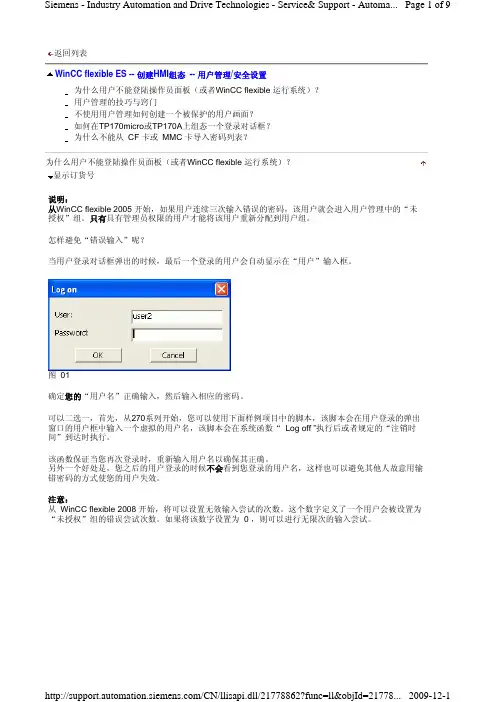
WinCC flexible ES -- 创建HMI组态 -- 用户管理_安全设置
8. 用户/口令设置有何限制?
用户名: 用户名长度可以为 1 至 40 个字符。
口令: 口令必须至少为 3 个字符,最大为 24 个字符。
关键字: 口令,管理员 不使用用户管理如何创建一个被保护的用户画面?
/CN/llisapi.dll/21778862?func=ll&objId=21778... 2009-12-1
Siemens - Industry Automation and Drive Technologies - Service& Support - Automa... Page 5 of 9
MP370 Touch -
Microsoft Windows XP SP2
WinCC flexible 2007 HF3 / HF4 MP370 Touch -
Microsoft Windows XP SP3 WinCC flexible 2008 SP1
MP370 Touch -
关键字: 未授权, 用户名 用户管理的技巧与窍门
补救措施:
z 作为项目的设计者可创建自己的“ service site ”,其只有你才能通过密码进行访问,而不必使用 用户管理。
z 使用“ ProSave ”软件备份/恢复密码。
提示1: 调试之后必须始终备份“ user administration ”。例如保存数据到 CF 卡中或者操作员面板的闪存中。
显示订货号
说明: 画面通常被配置为具有“ ADMIN ”权限的用户才能操作或打开。在这样的画面能够运行用户管理或通 过其访问面板或 PC 的控制面板。例如,“ Open Control Panel ”函数。
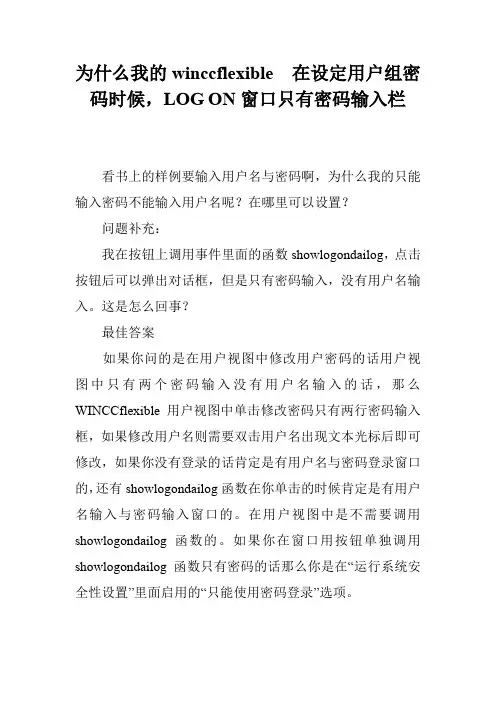
为什么我的winccflexible 在设定用户组密码时候,LOG ON窗口只有密码输入栏
为什么我的winccflexible 在设定用户组密码时候,LOG ON窗口只有密码输入栏
看书上的样例要输入用户名与密码啊,为什么我的只能输入密码不能输入用户名呢?在哪里可以设置?
问题补充:
我在按钮上调用事件里面的函数showlogondailog,点击按钮后可以弹出对话框,但是只有密码输入,没有用户名输入。
这是怎么回事?
最佳答案
如果你问的是在用户视图中修改用户密码的话用户视图中只有两个密码输入没有用户名输入的话,那么WINCCflexible用户视图中单击修改密码只有两行密码输入框,如果修改用户名则需要双击用户名出现文本光标后即可修改,如果你没有登录的话肯定是有用户名与密码登录窗口的,还有showlogondailog函数在你单击的时候肯定是有用户名输入与密码输入窗口的。
在用户视图中是不需要调用showlogondailog函数的。
如果你在窗口用按钮单独调用showlogondailog函数只有密码的话那么你是在“运行系统安全性设置”里面启用的“只能使用密码登录”选项。
WinCC-flexible-用户管理

用户管理-用户管理的结构
WinCC Flexible
Hardware Software Workshop
用户管理的结构
• 在用户管理中,分 为两部分,一部分 是对用户组的管理, 另一部分是对用户 管理。 其特点是权限不是 直接分配给用户的, 而是分配给用户组, 通过设定用户所在 的用户组可以使该 用户获得其所在用 户组的所有权限。 这样使管理变得更 为系统化、高效化。 另外用户的管理和 权限的分配是分离 开来的,这样就使 得操作人员对系统 的访问具有很强的 灵活性。
Hardware Software Workshop
• 在用户视图中单击鼠标左键,或单击“用户 登录”按钮可以打开登录对话框。
30
用户视图在用户管理中的应用 -在运行时通过用户视图管理用户
WinCC Flexible
Hardware Software Workshop
• 管理员登录时,用户视图中显示所有的用 户。 管理员可以改变每个用户的用户名和 口令。 还可以创建新用户,并将其分配到 现有的用户组。
WinCC flexible 用户管理
WinCC Flexible
Hardware Software Workshop
1
WinCC flexible 用户管理
WinCC Flexible
Hardware Software Workshop
提纲
• 用户管理的基本概念 • 用户管理的结构 • 组态用户管理
4
WinCC flexible 用户管理
WinCC Flexible
Hardware Software Workshop
提纲
• 用户管理的基本概念 • 用户管理的结构 • 组态用户管理
西门子WinCC flexible 使用入门-选件
WinCC flexible 使用入门 - 选件 使用入门 , 版本 05/2006
1 欢迎
值班经理可直接从其工作位置对所有工作站进行监视和操作 (1)。 重要用户操作 ( 例如编辑配方 ) 必须经过电子签名确认,并记录到单独的记录文件。 销售经理 使用 MS Excel 查看所选的生产数据 (2)。 当出现故障时将立刻通知负责的现场服 务技术人员,由他们通过 Internet 立即进行维修操作 (3)。 生产数据的采集确 保能够对所有重要的过程数据进行记录和分析 (4)。 该 " 使用入门选件 " 说明了如何使用下列选件来执行先前描述的情况: - 使用 Audit - 使用 Sm@rtAccess - 使用 Sm@rtService - 用 OPC 采集生产数据
本 " 使用入门 " 主要集中介绍 "Audit" 选件。 为了满足 FDA 指南中的要求,必须 更加准确地提供我们果汁搅拌设备的生产过程文档。 电子签名和强制注释域功能 可确保操作员进行自我标识以及通过注释 ( 例如,编辑配方 ) 正确地证实其操 作。 这样,果汁搅拌设备所有者就可以跟踪和分析整个生产过程。
WinCC flexible 使用入门 - 选件
版本 05/2006
A5E00356075-02
不带警告三角,表示如果不采取相应的小心措施,可能导致财产损失。
注意 表示如果不注意相应的提示,可能会出现不希望的结果或状态。
当出现多个危险等级的情况下,每次总是使用最高等级的警告提示。如果在某个警告提示中带有警告可能导致人身 伤害的警告三角,则可能在该警告提示中另外还附带有可能导致财产损失的警告。
4
WinCC flexible 使用入门 - 选件 使用入门 , 版本 05/2006
西门子触摸屏软件Wincc flexible 使用总结
西门子触摸屏软件Wincc flexible 使用总结Wincc Flexible使用:1. 退出系统的命令是Stopruntime。
2. 尽量不要用超级兔子或优化大师清理注册表和系统垃圾,因为会有S7和Flexible的文件一起被清楚掉,这样容易造成使用故障,如组态错误或不能下载,卡巴斯基也不用。
3. Flexible的键控的触摸屏中K键是全局键,其设置要在模板里设置。
1. 使用按钮时,注意:A:颜色变化B:功能实现C:对应的按键2:要使用按钮的动画中的可见性选项,需要设置此变量类型为位0,不行的话就设置为整型。
4. 要想在触摸屏处于运行状态时下载程序,需要在Romate control旁打勾。
5. 可以通过DP口写触摸屏(连到MPI上)的程序,不要这时要启用路由功能。
6. 触摸屏可以通过DP传输,在硬件里组态到MPI上面,实际连接到DP口,编程线也接到DP口上,下载即可,不要启用路由功能。
7. M变量只有释义后才能在Flexible中看到。
8. 如果在编译时出现“无效参数”或类似的查不出原因的错误,就在菜单-----选项里选择删除临时文件,就可以解决这个问题。
9. 对于一些指示变量变化的信号,必须指示传感器的信号,可以添加一个符号库,然后在布局里设置其背景为透明的,填充颜色模式为实心的,设置其前景色、背景色都是灰色的,然后在动画---外观里设置其指向需要显示的变量,设置在不同值时不同的前景色即可。
10. 在屏上显示控制面板时,不能下载。
11. 如果连接的PLC名称改变,可以在选项里选择重新连接,不过前提是PLC 的名称必须和原来变量连接的PLC的名称一致。
12. 按钮的焦点颜色和宽度指的是按钮被激活时,在按钮上显示的边框的颜色和宽度,一般把宽度设为1,颜色无所谓。
13. 如果要实现中英文切换,步骤如下:a,在项目语言里,设置编辑语言和参考语言;b,在画面里做一个按钮,设置单击时的动作是设置-----》Setlanguage,函数选择Toggle的话,表示单击一次改变一下语言,函数选择en-GB的话表示单击后切换到英文,选择zh-CN的话,单击后切换到中文;c,在设备设置-----》语言和字体里设置两种语言的显示格式;d,在语言设置------》项目文本里设置相应的按钮对应的英文翻译。
wincc_flexible学习手册82页PPT
WinCC flexible — 人机界面高效组态
基本组态
组态界面布局 通讯组态 创建画面 画面制作 报警配置 用户管理 使用配方 多语言项目
For internal use only / ?Siemens AG 2011. All Rights Reserved.
WinCC flexible 基本组态
WinCC flexible 基本组态
画面制作
画面模板
For internal use only / ?Siemens AG 2011. All Rights Reserved. Industry Sector
WinCC flexible 基本组态
画面制作
画面对象
图形 库
简单对象
增强对象
For internal use only / ?Siemens AG 2011. All Rights Reserved. Industry Sector
与S7-200通讯: 1、连接电缆:Profibus-DP电缆 2、面板的拨码
For internal use only / ?Siemens AG 2011. All Rights Reserved. Industry Sector
WinCC flexible 基本组态
通讯组态
S7-200通讯参数设置
WinCC flexible 基本组态
创建变量
变量属性
For internal use only / ?Siemens AG 2011. All Rights Reserved. Industry Sector
WinCC flexible 基本组态
画面制作
一般画面
For internal use only / ?Siemens AG 2011. All Rights Reserved. Industry Sector
WinCC-flexible用户管理的组态
• 在用户视图中单击鼠标左键,或单击“用户 登录”按钮可以打开登录对话框。
8
用户视图在用户管理中的应用 -在运行时通过用户视图管理用户
• 管理员登录时,用户视图中显示所有的用 户。 管理员可以改变每个用户的用户名和 口令。 还可以创建新用户,并将其分配到 现有的用户组。
• 在用户栏内点击空白行即可创建新用户,如 要修改某一选项在其上点击鼠标左键即可。 灰色部分显示的选项是不可以更改的。
9
用户视图在用户管理中的应用 -在运行时通过用户视图管理用户
• 如果没有管理员登录,则用户视图仅显示 当前登录的用户。
• 运行时,在用户视图中所作的更改立即生 效。 但在运行时所作的更改不会在工程系 统中更新。 当将用户和用户组从工程系统 传送到HMI设备时,将覆盖用户视图中的所 有更改。
• 在工程系统中创建用户和用户组, 并将其传送到HMI设备。
• 拥有“管理”权限的用户可以不受 限制地访问用户视图,以便管理所 有用户。
• 用户视图在每一行中显示用户、用 户口令、所属的用户组以及注销时 间。如果没有用户登录,则用户视 图为空。
6
用户视图在用户管理中的应用 -在运行时通过用户视图管理用户
• 在第一个画面中组态一个按钮,其功能是 实现在两个画面之间的浏览。
14
组态具有访问保护的对象-按钮
组态系统函数“ActivateScreen”
15
组态具有访问保护的对象-按钮
组态画面浏览功能
16
组态具有访问保护的对象-按钮
组态访问安全性
17
组态具有访问保护的对象-按钮
运行
• 在系统运行时,如 果当前没有用户登 录或者登录的用户 不具有“画面浏览” 权限,则操作该按 钮时自动弹出用户 登录对话框“Log on”。