
Cisco DX80
2018 思科和/或其附属公司。版权所有。本文档所含内容为思科公开发布的信息。
第 3 页,共 14 页
此外,DX系列还可使用基于安卓平台的软件。该软件仅与Cisco Unified Communications Manager兼容。 从2016年下半年开始,DX70和DX80默认配备CE软件。
表 3. Cisco Webex Service和本地部署的共同特性
文档摄像机:DX80屏幕上方的摄像机可以倾斜向下,从而实现物理内容和图纸的共享。 屏幕可倾斜:DX80可以很容易地面对使用者调整为与桌面成40度角,从而为坐下来办公的客户提供最佳的舒适
性。
自动唤醒:自动检测有人进入房间时,DX80自动唤醒,并提供屏幕提示使其轻松地开始使用设备
一键共享多媒体或演示:在呼叫中可以随时看到电脑屏幕并通过屏幕上的一个按键实现即时的全高清共享。 只需点击一下屏幕,即可享受轻松的触控体验。 通过Cisco Intelligent Proximity技术,将内容共享到移动设备,同时实现双流回溯/内容保存,以及从 Mac 和
同时提供HDMI和USB线缆(2米)、以太网线缆(2.9米)以及电源适配器。
23英寸(0.58米) LCD屏幕 分辨率:1920×1080 (16:9) 高对比IPS LED面板 对比度:1000:1(典型值) 可视角度:+/-178度(典型值) 响应时间:5ms (典型值) 亮度:215 cd/㎡ (典型值) 色阶:16.7万 色域:72% (NTSC) 10点多点触控
(或使用Wi-Fi)。通过自助部署设备会自动完成注册,并且通过身份验证完成安装。
身临其境的体验:23英寸的高清屏幕,最佳的视音频能力,这一切使得DX80可以提供栩栩如生的体验。 一流的屏幕:当连接桌面电脑时,DX80同时可以用作扩展显示屏。DX80的屏幕是一块具备高对比度、宽视角
的全触摸LED屏幕。
PC进行无线数据共享。
同时支持高清视频和数据共享。 提供全双工、全频的CD质量音频体验。 配合思科CUCM,思科网真视频通信服务器(VCS)和思科网真管理套件(TMS),实现简便的自动部署和自
助配置。
可以注册至 Cisco Unified Communications Manager (CUCM) 或 思科网真视频通信服务器 (VCS)、Cisco
功能 镜头
端口和插槽
物理按键 可视指示灯
物理尺寸(高 × 宽 × 深) 重量 电源 物理安全 连接 以太网
附件 思科VESA壁挂 安装套件 温度范围 运行温度 相对湿度 存储温度 相关标准
优势
63度水平视角 38度垂直视角 分辨率:1080p30 F 2.2 镜头隐私开关 HDMI 输入接口,用于PC或Mac视频输入 HDMI 输出输出 (未来使用) 高速USB 2.0接口:
高清输入使用逐行视频格式 扩展显示标识数据(EDID)
176 x 144 @ 30 (QCIF)(仅限解码) 352 x 288 @ 30 (CIF) 512 x 288 @ 30 (w288p) 576 x 448 @ 30 (448p) 768 x 448 @ 30 (w448p) 704 x 576 @ 30 (4CIF) 1024 x 576 @ 30 (w576p) 640 x 480 @ 30 (VGA) 800 x 600 @ 30 (SVGA) 1024 x 768 @ 30 (XGA) 1280 x 1024 @ 30 (SXGA) 1280 x 720 @ 30 (HD720p) 1280 x 768 @ 30 (WXGA) 1920 x 1080 @ 30 (HD1080p) 1440 x 900 @ 30 fps (WXGA+) 1680 x 1050 @ 30 fps (WSXGA+) 采样率48KHz 高质量20KHz立体声音频 自动降噪 回声消除 自动增益 (AGC) 请参阅 表5 Bluetooth 3.0 (HFP, A2DP)
系统管理员可为与DX80相连的PC 和电话指定单独的 VLAN (802.1Q),从而提高语音和数据通信的安全性和可
靠性 。
该可选安装套件包括一个替代DX80脚座的VESA 75 × 75mm和100 × 100mm壁挂安装架,允许使用第三方解决方 案进行安装,或本套件附带的基本平整墙面壁挂式安装。
视频特性
说明
H.323/SIP:64kbps - 3 Mbps 768 kbps:720p30 1472 kbps:1080p30 Cisco TelePresence Expressway 技术 H.460.18、H.460.19 防火墙穿越 SIP ICE (Interactive Connectivity Establishment) NAT H.263 H.263+ H.264 针对视频和演示的屏幕布局控制 思科Active Control 布局控制 Self-View 远端摄像头控制
Hosted Collaboration Solution (HCS),以及其他第三方基于H.323/SIP协议的呼叫控制平台
支持注册至Cisco Webex
表 2. 产品规格
功能 设备组件
显示屏
PC输入分辨率 人体工学设计
优势 高度集成的设备,包含:
编解码器 镜头 显示屏 麦克风和扬声器
2018 思科和/或其附属公司。版权所有。本文档所含内容为思科公开发布的信息。
第 4 页,共 14 页
规格 音频标准
音频特性 双流
会议功能
说明
G.711、G.722、G.722.1、G.729a、G.729ab 64 kbps 和 128 kbps MPEG4 AAC-LD OPUS 唇音同步 H.239 (H.323) BFCP (SIP) 分辨率可至1080p 支持即时(Ad-hoc)会议:
2018 思科和/或其附属公司。版权所有。本文档所含内容为思科公开发布的信息。
第 1 白板和标注
优势
创建白板内容并在共享内容上进行标注 与使用Cisco Webex Board或Cisco Webex Teams应用程序的与会者在会议中共享白板内容并进行协作 与会者使用Cisco Webex Room系列终端,会在屏幕上以双流的方式观看到共享的白板并可用与之配对的Cisco
专用的1080p高清视频设备,确保随时在线 为员工提供IP电话功能 用于扬声器和媒体播放的高质量音频系统 一个提供身临其境视频呼叫体验的23英寸16:9显示屏 多点触控电容触摸屏,提供优雅而强大的用户界面 自助式设备部署,确保客户实现“开箱即用” 简便的“一键发起“(OBTP)功能,与常用日历程序相集成 灵活的部署模式:客户自建或注册在云端 通过Cisco Expressway™ 技术,实现安全的远程连接
Webex Teams应用程序进行编辑。Cisco SX/MX系列终端会在屏幕上看到有电子白板共享的提示,并可用在与 之配对的Cisco Webex Teams应用程序上观看/编辑共享的白板内容
该功能仅支持注册于Cisco Webex的设备
设计功能
数据分享功能 功能特点 注册功能
快速完成安装:DX80是一款高度整合的设备,所有的操作都可以在屏幕上完成。您只需连接电源线缆和网线
H.323 和 SIP 点对点 H.235 v3 和高级加密标准 (AES) 密钥自动生成和交换 在双流共享中同样支持 + 拨号(ITU E.164) 添加咨询呼叫 铃声与音量调节 显示屏亮度调节 自动应答 耳机自动检测 呼叫转移 呼叫转移通知 呼叫记录列表 主叫号码显示 企业通讯录 会议(临时) 免打扰(DND) 思科Extension Mobility服务 常用联系人 呼叫保持(和恢复) 加入会议(临时合并) 消息等待指示器(MWI) 静音(音频和视频) 网络配置文件(自动) Self-View(在视频呼叫中) 一键召开(OBTP) 共享线路 转接 语音留言
◦ Cisco Unified Communications Manager Media Resource Group(需要 Cisco Meeting Server 或思科网真服务
器或思科网真 MCU)
思科 Active Control 功能
内置加密 呼叫特性
使用Cisco Proximity应用 进行视频系统操作
3个标准type A接口(用于头戴式耳机和听筒) 1个标准type B接口(未来使用) 1个支持原生RS232的Micro-B USB接口,用于设备调试 每个USB接口提供最大500mA 5V 或 2.5W的电源输出 音量调节 静音 镜头LED指示灯(拨入呼叫,镜头工作) 麦克风LED指示灯(静音) 电源按键LED指示灯(开机、休眠、未读信息、报警)
51.2 × 56. 5 × 8.9 厘米
7.1公斤
额定功率:最大60W 低功率待机模式 支持Kensington Security Slot
内置 2 端口思科以太网交换机通过一个 RJ-45 接口,直接连接到 10/100/1000BASE-T 以太网
(IEEE802.3i/802.3u/802.3ab),同时经由单一局域网连接,来连接电话和位于相同位置的PC。
规格 视频输入
实时视频分辨率
音频特性 WiFi 蓝牙 支持的语言
说明 支持分辨率最高为1920×1080 @ 30 fps(HD1080p30),包括:
640 × 480 720 × 480 800 × 600 1024 × 768 1280 × 720 1366 × 768 1920 × 1080
0 至 40°C 10 至90% (非冷凝) -20 至 +60°C
Directive 2014/35/EU (Low-Voltage Directive) Directive 2014/30/EU (EMC Directive) – Class A Directive 2014/53/EU (Radio Equipment Directive) Directive 2011/65/EU (RoHS) Directive 2002/96/EC (WEEE) NRTL approved (Product Safety) FCC CFR 47 Part 15B (EMC) – Class B FCC Listed (Radio Equipment)
万华化学全球化再加速
思科协作助万华化学全球运营万华化学集团股份有限公司(简称“万华化学”)是一家全球化运营的化工新材料公司,其产品广泛服务于生活家居、运动休闲、汽车交通、建筑工业和电子电器等行业。
万华化学的核心产品 MDI 和 TDI 产能在全球雄踞第一,2016年更推动收入一举突破300亿人民币,成为少数具备全球影响力的民族化工企业。
万华化学今日的成功,有赖于坚持多年的国际化发展战略。
从2011年收购匈牙利博苏化学开始,万华化学的全球化发展在2013年正式提出“中国万华向全球万华转变,万华聚氨酯向万华化学转变”战略后明显加速。
目前万华已在欧洲、美国、日本等十余个国家和地区建立了分支机构,2017年北美技术中心在休斯敦正式投入使用,2017年4月宣布投资11.2亿美元在美国路易斯安那州兴建年产40万吨 MDI 的生产联合体。
万华化学现在全球范围内拥有员工近11000人,近三分之一为外籍员工。
随着企业业务触角伸向世界各地,员工日常沟通的频率不但提高了,对沟通方式的要求也提高了,电话、邮件等已不能满足企业对协作效率的要求。
国际化运营遭遇沟通瓶颈客户简介客户:万华化学集团股份有限公司行业:化工总部:烟台规模:员工总数11000人(2017年)业务挑战传统通信方式已不能满足企业全球化经营的需要部分分公司没法用 IP 电话加入视频会议原有协作系统管理和使用都很复杂需要 IT 人员长时间配置测试原有协作系统扩展性有限,无法满足企业快速发展的需要,万华化学的IT部门也注意到了这个问题,很早就在国内和匈牙利部署了 IP 电话和视频会议系统,初步解决了这些地区同事的协作问题。
但由于当时的技术限制,IP 电话和视频会议系统之间没有整合,导致在美国、日本和印度等没有视频终端,只有 IP 电话的分公司和办事处,没法用 IP 电话加入视频会议。
而且系统使用起来也很复杂,如果要召开一次重要的会议,IT 部门要提前很长时间进行配置和测试,既增加了 IT 部门的工作负担,也无法完全体现出现代化协作工具便捷的优势。
Banner DX80传感器连接指南说明书
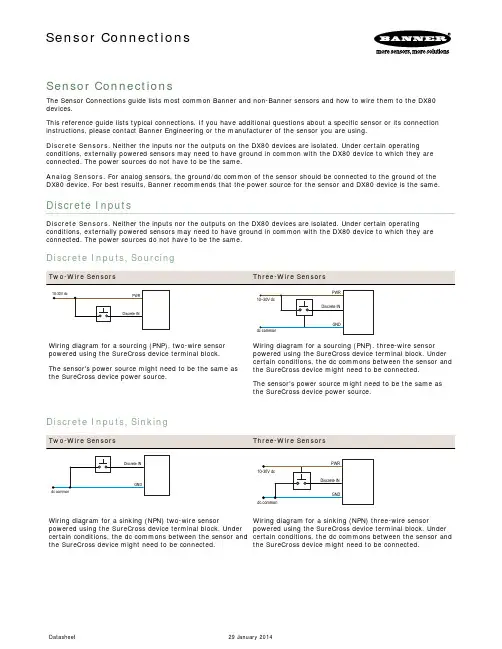
Sensor ConnectionsThe Sensor Connections guide lists most common Banner and non-Banner sensors and how to wire them to the DX80devices.This reference guide lists typical connections. If you have additional questions about a specific sensor or its connection instructions, please contact Banner Engineering or the manufacturer of the sensor you are using.Discrete Sensors. Neither the inputs nor the outputs on the DX80 devices are isolated. Under certain operatingconditions, externally powered sensors may need to have ground in common with the DX80 device to which they are connected. The power sources do not have to be the same.Analog Sensors. For analog sensors, the ground/dc common of the sensor should be connected to the ground of the DX80 device. For best results, Banner recommends that the power source for the sensor and DX80 device is the same.Discrete InputsDiscrete Sensors. Neither the inputs nor the outputs on the DX80 devices are isolated. Under certain operatingconditions, externally powered sensors may need to have ground in common with the DX80 device to which they are connected. The power sources do not have to be the same.Discrete Inputs, SourcingWiring diagram for a sourcing (PNP), two-wire sensor powered using the SureCross device terminal block.The sensor's power source might need to be the same asthe SureCross device power source.Wiring diagram for a sourcing (PNP), three-wire sensor powered using the SureCross device terminal block. Under certain conditions, the dc commons between the sensor and the SureCross device might need to be connected.The sensor's power source might need to be the same as the SureCross device power source.Discrete Inputs, SinkingWiring diagram for a sinking (NPN) two-wire sensorpowered using the SureCross device terminal block. Under certain conditions, the dc commons between the sensor and the SureCross device might need to be connected.Wiring diagram for a sinking (NPN) three-wire sensorpowered using the SureCross device terminal block. Under certain conditions, the dc commons between the sensor and the SureCross device might need to be connected.Sensor ConnectionsDiscrete Inputs, MINI-BEAMTwo-wire MINI-BEAM sensor using a FlexPower Node and powered using the Node’s switch power.Discrete OutputsDiscrete OutputsWiring diagram for a sourcing (PNP) two-wire output load powered using the SureCross device terminal block. Under certain conditions, the dc commons between the load and the SureCross device might need to be connected.Wiring diagram for a sinking (NPN) two-wire output. Under certain conditions, the dc commons between the load and the SureCross device might need to be connected.The sensor's power source might need to be the same as the SureCross device power source.Analog InputsAnalog Sensors. For analog sensors, the ground/dc common of the sensor should be connected to the ground of the DX80 device. For best results, Banner recommends that the power source for the sensor and DX80 device is the same.Analog Inputs, Powered using SureCross Device TerminalsTwo-wire analog sensor powered from a 10–30V dc power SureCross device using the PWR terminal.Do not exceed analog input ratings for analog inputs. Only connect sensor outputs to analog inputs.Three-wire analog sensor powered from 10–30V dc power SureCross device using the PWR terminal.Do not exceed analog input ratings for analog inputs. Only connect sensor outputs to analog inputs.Analog Inputs, Powered from Switch PowerTwo-wire analog sensor or two-wire NAMUR proximitysensor using a FlexPower Node and powered using theNode’s switch power.Do not exceed analog input ratings for analog inputs. Onlyconnect sensor outputs to analog inputs.Three-wire analog sensor using a FlexPower Node andpowered using the Node’s switch power.Do not exceed analog input ratings for analog inputs. Onlyconnect sensor outputs to analog inputs.Analog Inputs, Powered ExternallyDo not exceed analog input ratings for analog inputs. Only connect sensor outputs to analog inputs.Two-wire analog sensor using a FlexPower Node but thesensor is powered externally (not from the SureCrossdevice).Three-wire analog sensor using a FlexPower Node but thesensor is powered externally (not from the SureCrossdevice).Analog Inputs, Temperature SensorsA1+A1−DI1TC Type- Wire+ Wire This wiring diagram applies to a standard three-wire RTDsensor. When using thermocouple and RTD sensors, thequality of the power supply influences the accuracy of thesignal.J red whiteK red yellowR red blackAnalog Inputs, QT50U Long-Range Ultrasonic Sensorpowered using the Node’s switch power terminal. The QT50U output is set to 4–20 mA.Do not apply power to the Ax+ connection.Analog OutputsAnalog Outputs, Three-Wire SensorsThree-wire analog output device powered by the SureCross device.Three-wire analog output device powered externally (not from the SureCross device).Analog Outputs, Drive Motor ControllersDrive/motor controllersAO xGND AI+AI −When the AI- can be referenced to ground, use this wiring diagram for drive/motor controllers.When the AI- cannot be referenced to ground, use this wiring diagram for drive/motor controllers.。
DX80 触摸屏用户指南说明书

DX80 Touchscreen User GuideTable of ContentsTable of ContentsGENERAL USE . . . . . . . . . . . . . . . . . . . . . . . . . . . . . . . . . . . . . . . . . . . . . . . . . .5 Site to Site Calls . . . . . . . . . . . . . . . . . . . . . . . . . . . . . . . . . . . . . . . . . . . . . . . . . . . . . . . . . . . . . .6Connecting to an MBT Site . . . . . . . . . . . . . . . . . . . . . . . . . . . . . . . . . . . . . . . . . . . . . . . . . . . . . . . . . . . .6Add a Site to Favorites . . . . . . . . . . . . . . . . . . . . . . . . . . . . . . . . . . . . . . . . . . . . . . . . . . . . . . . . . . . . . . .6Connecting to a site outside the MBT Network . . . . . . . . . . . . . . . . . . . . . . . . . . . . . . . . . . . . . . . . . . . .7 Far End Camera Control . . . . . . . . . . . . . . . . . . . . . . . . . . . . . . . . . . . . . . . . . . . . . . . . . . . . . . .7Sharing Presentation: Site to Site . . . . . . . . . . . . . . . . . . . . . . . . . . . . . . . . . . . . . . . . . . . . . . . . . . . . . .8Screen Layout: Presentation - Site to Site . . . . . . . . . . . . . . . . . . . . . . . . . . . . . . . . . . . . . . . . . . . . . . .8 Recent Calls and Favourites . . . . . . . . . . . . . . . . . . . . . . . . . . . . . . . . . . . . . . . . . . . . . . . . . . . .9 Multi-Site Event Calls (MCU) . . . . . . . . . . . . . . . . . . . . . . . . . . . . . . . . . . . . . . . . . . . . . . . . . . . .10 Connecting to a Multi Site (MCU) Call . . . . . . . . . . . . . . . . . . . . . . . . . . . . . . . . . . . . . . . . . . . . . . . . . . .10 Screen Layout/Far End: No Presentation - Multi-Site . . . . . . . . . . . . . . . . . . . . . . . . . . . . . . . . . . . . . . .11Sharing Presentation: Multi Site . . . . . . . . . . . . . . . . . . . . . . . . . . . . . . . . . . . . . . . . . . . . . . . . . . . . . . .11Screen Layout: Presentation - Multi Site . . . . . . . . . . . . . . . . . . . . . . . . . . . . . . . . . . . . . . . . . . . . . . . .12 Receiving and Ending Video Calls . . . . . . . . . . . . . . . . . . . . . . . . . . . . . . . . . . . . . . . . . . . . . . . .13 DUAL VIDEO ENABLED EQUIPMENT . . . . . . . . . . . . . . . . . . . . . . . . . . . . . . . .14 TROUBLESHOOTING . . . . . . . . . . . . . . . . . . . . . . . . . . . . . . . . . . . . . . . . . . . . .15 ADDITIONAL TRAINING INFORMATION . . . . . . . . . . . . . . . . . . . . . . . . . . . . . .16 VIDEOCONFERENCING ETIQUETTE . . . . . . . . . . . . . . . . . . . . . . . . . . . . . . . .16Note: other than in this section, the screenshots used in this guide are shown on a DX80 desktop unit.12345Use as a PC monitor by using an HDMI cable to connect your computer to the HDMI socket PC (see below) .Switch between PC monitor and Video screen by tapping the screen . If you do not see all of the menu items along the bottom of the screen, this may indicate that the monitor is in sleep mode . Move the mouse or press a key on the keyboard to wake it up . This only applies when using the unit as a PC monitor .Back of DX80 unitMobile Fixed/wall mountedThe monitorheight can beadjustedGENERAL USEThe following sections will provide instructions for using your DX80 Touchscreen solution to place and receive videoconference calls .Tap Selfview to turn it on and off. Tap anywhere outside the menu to exit .SelfviewTap and hold the Selfview image .When using a mobile cart, you will need to plug the unit in and turn on the power .The selfview appears as a PIP (Picture-in-Picture) .You will see the alternate positions available for the selfview image . Keep holding the image and drag it to the new position, lift your finger to release it .Add a Site to FavoritesSite to Site CallsIf you call the same sites you can save the contact to the favourites list .Tap Call.Tap in the search/dial field to invoke the keypad . Type in the 5 digit number and then tap Call to connect . Tap End to disconnect .5 digit numberConnecting to a site outside the MBT NetworkTap Participants in the top right corner to invoke the list of participants .Tap Call.Type in the phone number that you have been provided . to connect . to disconnect .Taking far end camera control allows you to move the camera at the far end site . Before taking control,always request permission first. You may need to take far end camera control if the person on the other end is unable to operate their own camera .The camera controls allow you to manually control the zoom, pan and tilt of the other site’s camera - this only applies if the other site has a remotely controllable camera and not a fixed camera such as the one on the Far End Camera ControlSite to Site: Adjust the other site’scamera using the pan/tilt arrows and zoom +/- . (Note: This only applies if the other site has a remotelycontrollable camera - unlike the DX80 Tap the site whose camera you want to control and then tap Camera .Screen Layout: Presentation - Site to SiteTap Layout to change the layout .Tap the preferred layout (see options below) . Tap anywhere outside the menu when done .Connect your source and make sure it is turned on .Equal Overlay Prominent SingleYour SiteOther SiteSelfviewTap Stop sharing to stop sharing your presentation .Tap Show PC todisplay your screen locally - it will not be shown to other participants . To hide, tap Hide PC .Tap Share and the content will be shared with the other participant/s .TIPWhen the presenting site exits the presentation, the menu options will default back to End control.Recent Calls and FavouritesSome sites may like this option if they frequently call the same sites .Tap to select the entry (a) and tap Call (b) .Minimize/MaximizeabTap Call (not shown) and then tap Recents or Favorites.You can add a site from the Directory or from the Recent Calls list to the Favorites list . This is helpful for sites who would like to add their most frequently called sites .Tap Recents or Directory or type in the 5 digit number and search for the entry you would like to add to the Favorites .Tap the site and then tap More (...) .Tap Mark as Favorite .You can tap Call if you wish to connect .Note: A Favorite is denoted by a gold star .Multi-Site Event Calls (MCU)Tap Stop sharing to stop sharing your presentation .Tap Show PC todisplay your screen locally - it will not be shown to other participants . To hide, tap Hide PC .Tap Shareand the content will be shared with the other participant/s .Screen Layout/Far End: No Presentation - Multi-SiteScreen Layout: Presentation - Multi SiteEqual Overlay Prominent SingleOther SiteSelfviewTIPTap Layout to view your menu options . These options are only available whilesharing content . When the presenting site exits the presentation, the menu options will default back to Far End control.Minimize/MaximizeTap Layout to change the layout . Tap the preferred layout (see options below) . Tap anywhere outside the menu when done .Receiving and Ending Video Callsautomatically accept all incoming connection then both site to site connections initiated by another site and multi-site connections(Note: Contact your FES to confirm how your particular equipmentEnd to disconnect .DUAL VIDEO ENABLED EQUIPMENTTROUBLESHOOTINGIf you are experiencing any problems with the videoconferencing equipment or have any questions,ADDITIONAL TRAINING INFORMATIONFor additional information on videoconference equipment visit www.mbtelehealth.ca or contact your Facilitator-eHealth Solutions .VIDEOCONFERENCING ETIQUETTEThe following tips on videoconferencing etiquette will help prepare you for a successful session:9Assume that people can see and hear you as the camera and microphone are always “Live” .9Always check your selfview so you are aware of what will be displaying at the far-end site .9Confirm that the other site can see and hear you and identify yourself and anyone else in the room.9Speak directly towards the microphone and use your normal speaking voice .9Try to avoid a lot of movement or shuffling of papers as this may affect the quality of the sound transmission .9Due to the audio delay, pause for clients to ask or answer questions or when they have comments .9Always ensure there are no further questions and that the client is aware of follow-up instructions before signing off.。
Cisco选型价格表
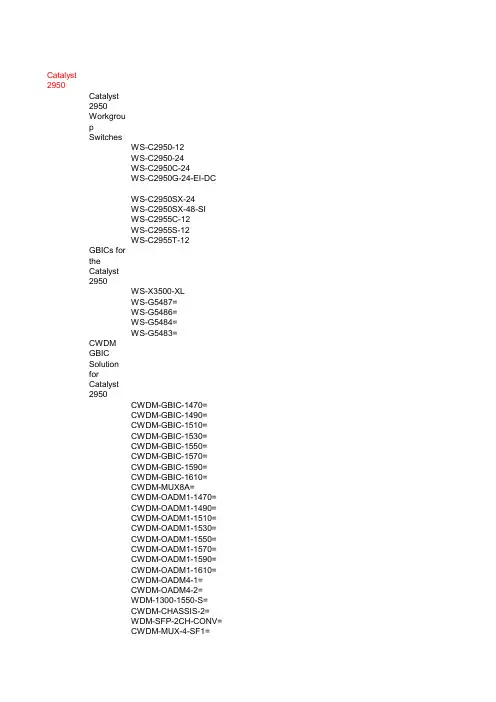
CWDM-MUX-4-SF2= EWDM-MUX8= EWDM-OADM4= EWDM-OADM2= EWDM-OA= Cables for the Catalyst 2950 CAB-GS-1M CAB-GS-50CM RPS for the Catalyst 2950 PWR675-AC-RPS-N1= CAB-RPS-1614= Power Options for the Catalyst 2950 PWR-2955-AC= PWR-2955-CONNECT= Sofware Relicense s for Used 2950 Equipmen t
CAB-RPS2300= CAB-RPS2300-E CAB-RPS2300-E=
BLWR-RPS2300=
C3K-PWR-750WAC=
Catalyst 2900
C3K-PWR-1150WAC=
Modules for the Catalyst 2900
WS-G5484 WS-G5484= WS-G5486 WS-G5486= Modules for the Catalyst 2900 XL WS-X3500-XL WS-G5484 WS-G5486 Software for the Catalyst 2900 XL SSLTTCE2-12320= SSLTTCE2-12322= SSLTTCE2-12321= SSLTTCE2-12317= SSLTTCE2-12406T= SSLTTCE2-12411T= SSLTTCE2-12405 Software Relicense s for Used 2900 Equipmen t LLSA29M4M4= LLC2900SA6EN LLC29Z LL29GL3-IP Catalyst 2900 Accessori es
思科设备型号大全

思科设备型号大全cisco路由的命名规则都是以CISCO开头比如:cisco1721,cisco2621,cisco3662,cisco3745。
这些都是路由器。
比如:cisco2621其中cisco:是品牌,后面的前两位数字是系列号,这款产品属于2600系列,后两位是具体的型号。
其中cisco路由器有以下几个系列:cisco2500系列:cisco2501、cisco2502、一直到cisco2514,这些都是国内能见到的设备,再往上就是国外的了,国内很少见到。
cisco1700:1720、1721、1751、1760cisco1800:1821、1841cisco2600系列:2610、2611、2620、2621、2651cisco2600XM系列:2610XM、2611XM、2620XM、2621XMcisco3600:3620、3640、3660cisco3700:3725、3745cisco3800:3825、3845cisco7200:7204、7206、7204VXR、7206VXR这些都是机箱,使用当中需要引擎的支持(NPE-225、NPE-300、NPE-400、NPE-G1、最新的是NPE-G2)和业务模块的支持东西很多了,这就不写了。
cisco7500:7507、7513 同样也需要引擎的支持(RSP2、RSP4、RSP8、RSP16)和业务模块的支持,7200上的业务模块都能在75上使用,需要一块VIP卡的支持。
在上面就是12000系列:12008,12016这些是目前最高端的。
同样也需要引擎和业务模块的支持。
交换:交换机的命名一般是WS开头这个是固定的,再下一个字母有两种一个是C一个是X,C代表固化交换机或者机箱,X代表的是模块。
比如看到WS- C3750-24TS-S这个型号的时候我们应该知道他是CISCO交换机固化交换机3750系列,24个以太网口,TS表示是以太口+SFP口后面的S表示是标准版的,相映的型号就是E的,属于增强型或者叫企业版。
Cisco Webex DX70 和 DX80 用户指南说明书

D15104.28 Cisco Webex DX70 和 DX80 用户指南 2020 年 4 月本指南内容目录所有目录条目都是可点击的超链接,点击即可打开相应的文章。
要在章节之间切换浏览,还可以单击侧边栏中的图标。
注意:本用户指南中介绍的部分功能可能在某些市场中是可选的,因此可能不适用于您的设备。
简介Cisco DX70 概览......................................................................4Cisco DX80 概览......................................................................5配对蓝牙头戴式耳机 .................................................................6使用您的个人凭证登录 .............................................................7视频呼叫从联系人列表发出呼叫 .............................................................9呼叫之前编辑联系人 ..............................................................10使用姓名、号码或地址发出呼叫 .............................................11来电 ......................................................................................12在通话期间收到呼叫 ..............................................................13从呼叫自行断开连接 ..............................................................14将呼叫置于保留状态和恢复保留的呼叫 ..................................15转接正在进行的呼叫 ..............................................................16更改呼叫速率 ........................................................................17激活免打扰 ...........................................................................18自动前转所有呼叫 .................................................................19在通话期间查看键盘 ..............................................................20将其他参加者添加到现有呼叫 ................................................21断开会议参加者的连接 . (22)Intelligent ProximityCisco Proximity 超声波信号 ...................................................24内容共享在通话中共享内容 .................................................................26在通话期间更改演示布局 .......................................................27预定的会议加入预定会议 ........................................................................29加入 Webex Meeting ...............................................................30联系人收藏夹、最近通话和通讯录....................................................32通话期间,将某人添加到收藏夹 .............................................33非通话期间,将某人添加到收藏夹 .........................................34编辑现有收藏夹.....................................................................35摄像机控制打开和关闭本端视频 ..............................................................37移动本端视频 PiP ....................................................................38远端摄像机控制.....................................................................39设置设置 ......................................................................................41本用户指南适用于 DX70 和 DX80。
CiscoDX80
CiscoDX80产品⼿册Cisco Webex DX80产品概述⼀种全新、愉悦的⼯作⽅式业已⾯世,它简单易⽤、提供⾮凡协作体验。
利⽤虚拟协作体验,将您的桌⾯升级,效果如此不可思议,您会感到⾝临其境,就如同您和其他与会者都共处⼀室。
外观简洁时尚的Cisco ? Webex DX80,是集成⼀体化的桌⾯协作设备,提供⾼清(HD)视频、统⼀通信特性,也可作为笔记本电脑显⽰屏,还具备多项扩展功能,让您摆脱杂乱⽆章的传统办公桌⾯。
专⽤的1080p⾼清视频设备,确保随时在线为员⼯提供IP电话功能⽤于扬声器和媒体播放的⾼质量⾳频系统⼀个提供⾝临其境视频呼叫体验的23英⼨16:9显⽰屏多点触控电容触摸屏,提供优雅⽽强⼤的⽤户界⾯⾃助式设备部署,确保客户实现“开箱即⽤”简便的“⼀键发起“(OBTP)功能,与常⽤⽇历程序相集成灵活的部署模式:客户⾃建或注册在云端通过Cisco Expressway?技术,实现安全的远程连接表 1. 产品功能和特性表 2. 产品规格固件选项和特性Cisco Webex DX80和Cisco MX、SX系列终端都⽀持思科协作终端(CE)软件。
CE软件⽤于Cisco Webex Service,也可⽤于Cisco HCS和本地部署(注册到Cisco Unified Communications Manager、思科视频通信服务器(VCS),或基于H.323独⽴使⽤)。
此外,DX系列还可使⽤基于安卓平台的软件。
该软件仅与Cisco Unified Communications Manager兼容。
从2016年下半年开始,DX70和DX80默认配备CE软件。
表 3. Cisco Webex Service和本地部署的共同特性表4:本地部署或Cisco HCS部署的特性规格说明⾳频标准?G.711、G.722、G.722.1、G.729a、G.729ab64 kbps 和 128 kbps MPEG4 AAC-LDOPUS⾳频特性?唇⾳同步双流?H.239 (H.323)BFCP (SIP)分辨率可⾄1080p会议功能?⽀持即时(Ad-hoc)会议:Cisco Unified Communications Manager Media Resource Group(需要Cisco Meeting Server或思科⽹真服务器或思科⽹真MCU)思科Active Control功能内置加密?H.323 和 SIP 点对点H.235 v3 和⾼级加密标准 (AES)密钥⾃动⽣成和交换在双流共享中同样⽀持呼叫特性?+ 拨号(ITU E.164)添加咨询呼叫铃声与⾳量调节显⽰屏亮度调节⾃动应答⽿机⾃动检测呼叫转移呼叫转移通知呼叫记录列表主叫号码显⽰企业通讯录会议(临时)免打扰(DND)思科Extension Mobility服务常⽤联系⼈呼叫保持(和恢复)加⼊会议(临时合并)消息等待指⽰器(MWI)静⾳(⾳频和视频)⽹络配置⽂件(⾃动)Self-View(在视频呼叫中)⼀键召开(OBTP)共享线路转接语⾳留⾔使⽤Cisco Proximity应⽤进⾏视频系统操作当进⼊⼀个有DX70或DX80的会议室或区域,Cisco Proximity应⽤会显⽰它们已配对或连接。
城云视界 DX70 DX80 桌面终端完全使用手册说明书
协作云终端桌面宝DX70/DX80完全使用手册ce8.3Version 1.5城云视界(杭州)有限公司网站:电话:*************地址:杭州市上城区望江东路332号望江国际3号楼17层版权声明本文档版权归城云视界(杭州)科技有限公司所有,未经城云视界(杭州)科技有限公司书面许可,任何单位或个人不得以任何形式或任何手段复制或传播本文档的一部分或全部内容。
Copyright © 2017 City Cloud Vision (HangZhou) Technology Co., Ltd. All Rights Reserved.This document is proprietary to City Cloud Vision (HangZhou) Technology Co., Ltd., which regards information contained herein as its intellectual property. Under the copyright laws, no part of this document may be copied, translated, or reduced to any electronic medium or machine readable form, in whole or in part, without prior written consent of City Cloud Vision (HangZhou) Technology Co., Ltd.前言在迈向万物互联的时代,视频会议系统为我们提供了随时随地、畅享交流的新办公体验。
作为一种新型的沟通工具,视频会议系统通过逼真的音视频效果为企业带来身临其境的会议感受,帮助各地员工轻松实现“面对面”跨地域的沟通交流,从而节约时间、资源,提高工作效率,让企业在瞬息万变的竞争环境中赢得先机。
思科DX80产品手册说明书
产品手册Cisco DX80产品概述现在,有一种让人觉得善心悦目的全新工作方式,那就是思科提供的使用简单,不打折扣的协作体验。
思科DX80可以提供整合设备可以提供的一切协作体验,而你所需要仅仅是在桌面上摆放一个显示屏一样的设备。
体验最棒的高清视频和扩展协作功能,如广泛应用的统一通信功能,Android应用程序和电子邮件。
∙专用的1080p高清通信设备,确保随时在线∙实现基于思科CUCM呼叫控制平台的全部IP电话通信功能∙高质量的扩音系统∙23英寸的16:9屏幕,提供包括视频呼叫和运行自定义应用程序的融入体验∙多点触摸屏幕提供简洁并强大的用户体验∙安全增强的Android操作系统结合思科端到端安全特性给网络管理员更多信心保障∙思科Extension Mobility特性支持多个用户配置,方便公用办公和工作空间共享∙包含壁纸、widgets和屏幕布局等在内的众多选项,丰富个性化体验,最大化生产力。
同时可以支持多种蓝牙和USB配件∙自助式设备部署,确保客户实现“开箱即用”∙原生支持Cisco AnyConnect VPN,确保从家庭办公到公司网络的安全连接表 1. 产品功能和特性表 2. 产品规格表 3. 视音频规格表 4. 软件功能语言支持∙阿拉伯语,埃及 (ar_EG)∙保加利亚语,保加利亚 (bg_BG)∙加泰罗尼亚语,西班牙 (ca_ES)∙中文,中国 (zh_CN)∙中文,中国台湾 (zh_TW)∙克罗地亚语,克罗地亚 (hr_HR)∙捷克语,捷克共和国 (cs_CZ)∙丹麦语,丹麦 (da_DK)∙荷兰语,荷兰 (nl_NL)∙英语,英国 (en_GB)∙英语,美国 (en_US)∙芬兰语,芬兰 (fi_FI)∙法语,法国 (fr_FR)∙德语,德国 (de_DE)∙希腊语,希腊 (el_GR)∙希伯来语,以色列 (he_IL)∙匈牙利语,匈牙利 (hu_HU)∙意大利语,意大利 (it_IT)∙日语 (ja_JP)∙韩语 (ko_KR)∙拉脱维亚语,拉脱维亚 (lv_LV)∙立陶宛语,立陶宛 (lt_LT)∙挪威巴克摩语,挪威 (nb_NO)∙波兰语 (pl_PL)∙葡萄牙语,巴西 (pt_BR)∙葡萄牙语,葡萄牙 (pt_PT)∙罗马尼亚语,罗马尼亚 (ro_RO)∙俄语,俄罗斯(ru_RU)∙塞尔维亚语,塞尔维亚共和国 (sr_RS)∙斯洛伐克语,斯洛伐克 (sk_SK)∙斯洛文尼亚语,斯洛文尼亚 (sl_SI)∙西班牙语,西班牙 (es_ES)∙瑞典语,瑞典 (sv_SE)∙泰国语,泰国 (th_TH)∙土耳其语,土耳其 (tr_TR)呼叫功能支持∙+ 拨号 (ITU E.164)∙缩位拨号∙可调节振铃和音量级别∙可调节显示屏亮度∙自动应答∙自动检测头戴式耳机∙强插∙回叫∙Call Chaperone∙呼叫转接∙呼叫转接通知∙呼叫历史记录列表∙呼叫驻留∙呼叫代接∙通话计时器∙呼叫等待∙呼叫方 ID∙企业目录∙Ad-hoc会议∙直接转接∙Divert(iDivert)∙免打扰(DND)∙Extension Mobility服务∙快速拨号服务∙强制访问代码和客户端事件代码∙组呼叫代接∙保持(和恢复)∙Intercom∙国际电话记录∙IP电话管理助理(IPMA)∙加入 (ad-hoc)∙最后号码重拨(LNR)∙恶意呼叫方 ID∙消息待取指示灯 (MWI)∙Meet Me 会议∙Moblitiy∙通话等待音乐(MOH)∙静音(音频和视频)∙网络配置文件(自动)∙在网和离网独特铃声∙个人目录∙拾起∙在发送前预拨∙隐私∙专线自动振铃(PLAR)∙每条线路的铃声∙Self-view(视频呼叫)∙服务 URL∙共享线路非重叠信道∙ 2.4 GHz (20 MHz channels): up to 3 channels∙ 5 GHz (20 MHz channels): up to 24 channels∙ 5 GHz (40 MHz channels): up to 9 channels工作模式∙Auto (default), preference to strongest RSSI for 2.4 GHz or 5 GHz∙ 2.4 GHz only∙ 5 GHz only数据传输速率∙802.11a: 6, 9, 12, 18, 24, 36, 48, 54 Mbps∙802.11b: 1, 2, 5.5, 11 Mbps∙802.11g: 6, 9, 12, 18, 24, 36, 48, 54 Mbps∙802.11n: HT MCS 0, MCS 1, MCS 2, MCS 3, MCS 4, MCS 5, MCS 6, MCS 72.4GHz receiver sensitivity IEEE 802.11b:∙ 1 Mbps: -95 dBm∙ 2 Mbps: -93 dBm∙ 5.5 Mbps: -90 dBm∙11 Mbps: -86 dBmIEEE 802.11b:∙ 6 Mbps: -89 dBm∙9 Mbps: -89 dBm∙12 Mbps: -87 dBm∙18 Mbps: -85 dBm∙24 Mbps: -81 dBm∙36 Mbps: -78 dBm∙48 Mbps: -74 dBm∙54 Mbps: -72 dBmIEEE 802.11n HT20:∙MCS 0: -88 dBm∙MCS 1: -86 dBm∙MCS 2: -84 dBm∙MCS 3: -81 dBm∙MCS 4: -78 dBm∙MCS 5: -73 dBm∙MCS 6: -71 dBm∙MCS 7: -69 dBm5GHz receiver sensitivity IEEE 802.11b:∙ 6 Mbps: -91 dBm∙9 Mbps: -91 dBm∙12 Mbps: -90 dBm∙18 Mbps: -88 dBm∙24 Mbps: -85 dBm∙36 Mbps: -81 dBm∙48 Mbps: -77 dBm∙54 Mbps: -76 dBm IEEE 802.11n HT20:∙MCS 0: -91 dBm∙MCS 1: -89 dBm∙MCS 2: -86 dBm∙MCS 3: -84 dBm∙MCS 4: -81 dBm∙MCS 5: -76 dBm∙MCS 6: -74 dBm∙MCS 7: -72 dBmIEEE 802.11n HT40:∙MCS 0: -90 dBm∙MCS 1: -87 dBm∙MCS 2: -85 dBm∙MCS 3: -81 dBm∙MCS 4: -78 dBm∙MCS 5: -74 dBm∙MCS 6: -72 dBm∙MCS 7: -70 dBmTransmitter output power 2.4 GHz:∙802.11b: up to 16 dBm∙802.11g: up to 16 dBm∙802.11n HT20: up to 15 dBm5 GHz:∙802.11a: up to 16 dBm∙802.11n HT20: up to 15 dBm∙802.11n HT40: up to 15 dBm天线∙ 2.4 GHz: 2.6 dBi peak gain∙ 5 GHz: 4.0 dBi peak gainAccess point支持∙Cisco Unified Access Points︒最小要求: 7.0.240.0︒推荐:7.4.121.0, 7.6.110.0 or later∙Cisco Autonomous Access Points︒最小要求: 12.4(21a)JY︒推荐: 12.4(25d)JA2 or late无线安全身份认证:∙Wi-Fi Protected Access (WPA) Versions 1 and 2Personal and Enterprise∙Extensible Authentication Protocol – FlexibleAuthentication via Secure Tunneling (EAP-FAST)∙Protected Extensible Authentication Protocol -Microsoft Challenge Handshake AuthenticationProtocol Version 2 (PEAP-MSCHAPv2)∙Protected Extensible Authentication Protocol -Generic Token Card (PEAP-GTC)∙Extensible Authentication Protocol - TransportLayer Security (EAP-TLS) 加密:∙40-bit and 128-bit static Wired Equivalent Privacy (WEP)∙Temporal Key Integrity Protocol (TKIP) and Message Integrity Check (MIC)∙Advanced Encryption Standard (AES)Fast secure roaming Cisco Centralized Key Management (CCKM)QoS ∙IEEE 802.11e and Wi-Fi Multimedia (WMM)∙Enhanced Distributed Channel Access (EDCA)∙QoS Basic Service Set (QBSS)Radar detection Dynamic frequency selection (DFS) and transmit power control (TPC) according to IEEE 802.11h许可电话许可取决于呼叫控制平台及其策略。
Cisco DX80产品简介说明书
Data Sheet Cisco DX80Product OverviewDiscover a delightful new approach to working that is simple-to-use and offers a no-compromise collaboration experience. Upgrade your desktop with a virtual collaboration experience so stunning you will feel as though you and other participants are in the same room. Say goodbye to desktop clutter with a sleek Cisco® DX80. Say hello to all-in-one desktop collaboration featuring high-definition (HD) video, unified communications features, a display for your laptop, and expanded capabilities. The DX80 offers:● A dedicated, always-on 1080p HD video communication system●An IP phone that provides essential features for knowledge workers● A high-quality audio system for speakerphone● A 23-inch 16:9 screen that provides an engaging experience for video calls● A multitouch capacitive touchscreen that provides an elegant and powerful user interface● A self-provisioning device that is simple for users to take out of the box and start using quickly●Easy “one-button-to-push” (OBTP) calling that in tegrates with common calendaring programs●Flexible registration models on-premises and in the cloud●Ability for administrators to use Cisco Expressway™ Series for the secure connection of their remoteworkersFeatures and BenefitsTable 1 lists the features and benefits of the Cisco DX80. Table 1. Features and BenefitsProduct SpecificationsTable 2 lists the specifications of the Cisco DX80.Table 2. P roduct SpecificationsFirmware Options and FeaturesThe Cisco DX70 and DX80, MX, and SX Series all support the Collaboration Endpoint (CE) Software. CE software is configurable for the Cisco Spark Service and for both Cisco HCS and on-premises deployments (registered to Cisco Unified Communications Manager, Cisco Video Communication Server, or even standalone with H.323). For the time being, the capabilities offered by these configurations do vary. Table 3 describes the capabilities common to both. Table 4 lists the additional on-premises features, and Table 5 lists the major differences for the Cisco Spark Service. Table 6 lists W-Fi features and specifications for the Cisco Spark Service and on-premises registered endpoints.In addition, the DX Series can run on Android-based software. This software is compatible only with Cisco Unified Communications Manager. Tables 7 and 8 summarize the Android-based software.The DX70 and DX80 are planned to ship with CE software by default starting in the second half of 2016.Table 3. Features Common to the Cisco Spark Service and On-P remises Registered E ndpointsTable 4. Softw are Features for E ndpoints Registered On-P remises or Cisco HCSWhen registered to the Cisco Spark Service, the DX70 and DX80 can call other endpoints including other Cisco room systems, tablets, PCs, and Macs using URI dialing*. The services offered in this configuration are listed in Table 5. Also, if you have meetings with more than three parties, you can use the DX70 and DX80 with any meeting services such as Cisco Spark meetings or Cisco WebEx® on Annuity.Table 5. Softw are Features for the Cisco Spark Service or Cisco WebE x on Annuity*Note: When registered to Cisco Spark Service, the DXs do not have telephony capabilities, such as the ability to place or receive phone calls. They have URI dialing capabilities only.For more information about Cisco Spark Room Systems, read the Cisco Spark data sheet.Table 6. Wi-Fi Features and Specifications for Cisco Spark Service and On-P remises Registered E ndpoints Protocol IEEE 802.11a, 802.11b, 802.11g, and 802.11nFrequency band and operating channels●2.412–2.472 GHz (channels 1–13)●5.180–5.240 GHz (channels 36–48)●5.260–5.320 GHz (channels 52–64)●5.500–5.700 GHz (channels 100–140)●5.745–5.825 GHz (channels 149–165)Note: IEEE 802.11d is used to identif y av ailable channels.Nonoverlapping channels ●2.4 GHz (20-MHz channels): Up to 3 channels ●5 GHz (20-MHz channels): Up to 24 channels ●5 GHz (40-MHz channels): Up to 9 channelsOperating modes ●Auto (def ault), pref erence to strongest RSSI f or 2.4 or 5 GHz●2.4 GHz only●5 GHz onlyData rates ●802.11a: 6, 9, 12, 18, 24, 36, 48, and 54 Mbps●802.11b: 1, 2, 5.5, and 11 Mbps●802.11g: 6, 9, 12, 18, 24, 36, 48, and 54 Mbps●802.11n: HT MCS 0, MCS 1, MCS 2, MCS 3, MCS 4, MCS 5, MCS 6, and MCS 72.4-GHz receiver sensitivity IEEE 802.11b:●1 Mbps: – 95 dBm●2 Mbps: –93 dBm●5.5 Mbps: –90 dBm●11 Mbps: –86 dBmIEEE 802.11g:●6 Mbps: –89 dBm●9 Mbps: –89 dBm●12 Mbps: –87 dBm●18 Mbps: –85 dBm●24 Mbps: –81 dBm●36 Mbps: –78 dBm●48 Mbps: –74 dBm●54 Mbps: –72 dBmIEEE 802.11n HT20:●MCS 0: –88 dBm●MCS 1: –86 dBm●MCS 2: –84 dBm●MCS 3: –81 dBm●MCS 4: –78 dBm●MCS 5: –73 dBm●MCS 6: –71 dBm●MCS 7: –69 dBm5-GHz receiver sensitivity IEEE 802.11a:●6 Mbps: –91 dBm●9 Mbps: –91 dBm●12 Mbps: –90 dBm●18 Mbps: –88 dBm●24 Mbps: –85 dBm●36 Mbps: –81 dBm●48 Mbps: –77 dBm●54 Mbps: –76 dBmIEEE 802.11n HT20:●MCS 0: –91 dBm●MCS 1: –89 dBm●MCS 2: –86 dBm●MCS 3: –84 dBm●MCS 4: –81 dBm●MCS 5: –76 dBm●MCS 6: –74 dBm●MCS 7: –72 dBmIEEE 802.11n HT40:●MCS 0: –90 dBm●MCS 1: –87 dBm●MCS 2: –85 dBm●MCS 3: –81 dBm●MCS 4: –78 dBm●MCS 5: –74 dBm●MCS 6: –72 dBm●MCS 7: –70 dBmTransmitter output power 2.4 GHz:●802.11b: Up to 16 dBm●802.11g: Up to 16 dBm●802.11n HT20: Up to 15 dBm5 GHz:●802.11a: Up to 16 dBm●802.11n HT20: Up to 15 dBm●802.11n HT40: Up to 15 dBmA ntenna ●2.4 GHz: 4.6 dBi peak gain●5 GHz: 7.0 dBi peak gainA ccess-point support ●Cisco Unif ied Access Points◦Minimum: 7.0.240.0◦Recommended: 7.4.121.0, 7.6.110.0, or later ●Cisco Autonomous Access Points◦Minimum: 12.4(21a)JY◦Recommended: 12.4(25d)JA2 or laterTable 7. Softw are Features for the Android-Based SoftwareFeature SpecificationsA ndroid core features ●Fully customizable Cisco Launcher and App Tray “Home Screen” enables y ou to place y our own applicationshortcuts, widgets, and f olders.●Home Screen supports up to f iv e separate screen v iews or pages with a 12 x 9 icon grid.●Landscape-orientated applications are supported.●On-screen key board is supported.A ndroid bundled applications and widgets ●Calculator●Calendar●Camera●Clock●Contacts●Direct Dial●Email◦Internet Message Access Protocol (IMAP)◦Post Of f ice Protocol 3 (POP3)◦Microsof t Exchange Activ eSy nc●Fav orites●Gallery●Phone f eatures (f or example, f orward all, priv acy, Do Not Disturb [DND], mobility, and Self-View) ●Wallpapers (including liv e wallpapers)●Web browserGoogle bundled applications ●Google Play (enabled by administrator through Cisco Unif ied Communications Manager; includes country-approv ed Google mobile serv ices applications)●Gmail●Google settings●Maps●Play Books●Play Magazines●Play Mov ies●Play Music●Google NowCisco bundled applications ●Cisco Any Connect® Secure Mobility Client (VPN)●Cisco Jabber®Instant Messaging (which of f ers chat and presence capabilities)●Cisco WebEx conf erencing●Quick Contact Badge (allows y ou to easily collaborate with y our contacts to place a call, send an email message, send an instant message [IM], or start a WebEx® meeting)●Visual VoicemailCisco Intelligent Proximity for Mobile Voice ●Contact sy nchronization with Bluetooth-paired, Android, or iOS mobile dev ice that supports Bluetooth Phone Book Access Prof ile (PBAP)●Call-history sy nchronization to v iew placed or missed calls f rom mobile dev ice on the DX80●Audio path routing, which sends audio through the DX80 f or a mobile dev ice-connected callConfiguration modes ●Enhanced, f ully f unctional mode that enables all aspects of the phone including applications and accounts●Simple mode that hides applications and accounts and prov ides only v oice and v ideo call capabilities●Public mode based on simple mode with restrictions on user settings modif icationsA pplication deployment options and management ●The administrator can disable downloading of all applications on the Cisco DX650, DX70, and DX80. Specif ically, the administrator can conf igure the DX650, DX70, and DX80 to prohibit the installation of any third-party Android applications.●Google Play access can be administrativ ely disabled (def ault). Applications f rom “unknown sources” can be administrativ ely disabled (def ault):◦The administrator can optionally install applications using Cisco Unif ied Communications Manager with the APKf ile.◦With Company Photo Directory (ability to set up and link photo directory URL image location associated with respectiv e user), the administrator can set up and link a photo-directory URL image location associated with a respectiv e user.Built-in training andsetup assistance●Setup Assistant wizard (helps conf igure email, Jabber® IM, WebEx conf erencing, and v oicemail account settings)Third-party application development Cisco Collaboration application programming interf aces (APIs) through a Sof tware Dev eloper Kit (SDK) https://dev /site/dxseries/overview/index.gspLanguage support ●Arabic, Egy pt (ar_EG)●Bulgarian, Bulgaria (bg_BG)●Catalan, Spain (ca_ES)●Chinese, PRC (zh_CN)●Chinese, Taiwan (zh_TW)●Croatian, Croatia (hr_HR)●Czech, Czech Republic (cs_CZ)●Danish, Denmark (da_DK)●Dutch, Netherlands (nl_NL)●English, Britain (en_GB)●English, United States (en_US)●Finnish, Finland (f i_FI)●French, France (f r_FR)●German, Germany (de_DE)●Greek, Greece (el_GR)●Hebrew, Israel (he_IL)●Hungarian, Hungary (hu_HU)●Italian, Italy (it_IT)●Japanese (ja_JP)●Korean (ko_KR)●Latv ian, Latv ia (lv_LV)●Lithuanian, Lithuania (lt_LT)●Norwegian bokmål, Norway (nb_NO)●Polish (pl_PL)●Portuguese, Brazil (pt_BR)●Portuguese, Portugal (pt_PT)●Romanian, Romania (ro_RO)●Russian (ru_RU)●Serbian, Republic of Serbia (sr_RS)●Slov ak, Slov akia (sk_SK)●Slov enian, Slov enia (sl_SI)●Spanish, Spain (es_ES)●Swedish, Sweden (sv_SE)●Thai, Thailand (th_TH)●Turkish, Turkey (tr_TR)Calling feature support ●+ Dialing (ITU E.164)●Abbrev iated dialing●Adjustable ringing and v olume lev els●Adjustable display brightness●Auto-answer●Autodetection of headset●Barge (cBarge)●Callback●Call Chaperone●Call f orward●Call f orward notif ication●Call-history lists●Call park (including Directed Call Park and Assisted Directed Call Park)●Call pickup●Call timer●Call waiting●Caller ID●Corporate directory●Conf erence (ad hoc)●Direct transf er●Div ert (iDiv ert)●Do Not Disturb (DND)●Cisco Extension Mobility serv ice●Fast-dial serv ice●Forced-access codes and client matter codes●Group call pickup●Hold (and Resume)●Intercom●International call logging●Join (ad hoc)●Last-number redial (LNR)●Malicious-caller ID●Message-waiting indicator (MWI)●Meet-me conf erence●Mobility (Cisco Mobile Connect and Mobile Voice Access)●Music on hold (MoH)●Mute (audio and v ideo)●Network prof iles (automatic)●On- and of f-network distinctiv e ringing●Personal directory●PickUp●Predialing bef ore sending●Priv acy●Priv ate Line Automated Ringdown (PLAR)●Ring tone per line appearance●Self-View (v ideo call)●Serv ice URL●Shared line(s)●Silent Monitoring and Recording●Time and date display●Transf er (ad hoc)●Visual Voicemail●VoicemailEmergency services Emergency Calling Serv ice dialingTable 8. Wi-Fi Features and Specifications for Android-Based Software Protocol IEEE 802.11a, 802.11b, 802.11g, and 802.11nFrequency band and operating channels●2.412–2.472 GHz (channels 1–13)●5.180–5.240 GHz (channels 36–48)●5.260–5.320 GHz (channels 52–64)●5.500–5.700 GHz (channels 100–140)●5.745–5.825 GHz (channels 149–165)Note: IEEE 802.11d is used to identif y av ailable channels.Nonoverlapping channels ●2.4 GHz (20-MHz channels): Up to 3 channels ●5 GHz (20-MHz channels): Up to 24 channels ●5 GHz (40-MHz channels): Up to 9 channelsOperating modes ●Auto (def ault), pref erence to strongest RSSI f or 2.4 or 5 GHz●2.4 GHz only●5 GHz onlyData rates ●802.11a: 6, 9, 12, 18, 24, 36, 48, and 54 Mbps●802.11b: 1, 2, 5.5, and 11 Mbps●802.11g: 6, 9, 12, 18, 24, 36, 48, and 54 Mbps●802.11n: HT MCS 0, MCS 1, MCS 2, MCS 3, MCS 4, MCS 5, MCS 6, and MCS 72.4-GHz receiver sensitivity IEEE 802.11b:●1 Mbps: – 95 dBm●2 Mbps: –93 dBm●5.5 Mbps: –90 dBm●11 Mbps: –86 dBmIEEE 802.11g:●6 Mbps: –89 dBm●9 Mbps: –89 dBm●12 Mbps: –87 dBm●18 Mbps: –85 dBm●24 Mbps: –81 dBm●36 Mbps: –78 dBm●48 Mbps: –74 dBm●54 Mbps: –72 dBmIEEE 802.11n HT20:●MCS 0: –88 dBm●MCS 1: –86 dBm●MCS 2: –84 dBm●MCS 3: –81 dBm●MCS 4: –78 dBm●MCS 5: –73 dBm●MCS 6: –71 dBm●MCS 7: –69 dBm5-GHz receiver sensitivity IEEE 802.11a:●6 Mbps: –91 dBm●9 Mbps: –91 dBm●12 Mbps: –90 dBm●18 Mbps: –88 dBm●24 Mbps: –85 dBm●36 Mbps: –81 dBm●48 Mbps: –77 dBm●54 Mbps: –76 dBmIEEE 802.11n HT20:●MCS 0: –91 dBm●MCS 1: –89 dBm●MCS 2: –86 dBm●MCS 3: –84 dBm●MCS 4: –81 dBm●MCS 5: –76 dBm●MCS 6: –74 dBm●MCS 7: –72 dBmIEEE 802.11n HT40:●MCS 0: –90 dBm●MCS 1: –87 dBm●MCS 2: –85 dBm●MCS 3: –81 dBm●MCS 4: –78 dBm●MCS 5: –74 dBm●MCS 6: –72 dBm●MCS 7: –70 dBmTransmitter output power 2.4 GHz:●802.11b: Up to 16 dBm●802.11g: Up to 16 dBm●802.11n HT20: Up to 15 dBm5 GHz:●802.11a: Up to 16 dBm●802.11n HT20: Up to 15 dBm●802.11n HT40: Up to 15 dBmA ntenna ●2.4 GHz: 4.6 dBi peak gain●5 GHz: 7.0 dBi peak gainA ccess-point support ●Cisco Unif ied Access Points◦Minimum: 7.0.240.0◦Recommended: 7.4.121.0, 7.6.110.0, or later ●Cisco Autonomous Access Points◦Minimum: 12.4(21a)JY◦Recommended: 12.4(25d)JA2 or laterLicensingPhone licensing depends on the call-control platform and its policies. For the Cisco Unified Communications Manager, the Cisco DX80 requires a minimum-level Enhanced IP User Connect License (UCL). There are no special licenses plus phone bundles for tier-2 distributors. The DX80 is not supported on third-party call-control systems.Warranty InformationThe DX Series endpoints are covered by the Cisco 1-Year Limited Hardware Warranty. Find warranty information on at the Product Warranties page.Ordering InformationTables 8 through 10give ordering information to help customers understand all the components or parts they need to purchase in order to install and use the product.To place an order, visit the Cisco Ordering Home Page . To download software, visit the Cisco Software Center .Table 9.Ordering InformationTable 10. Replacement P artsTable 11. AccessoriesCisco ServicesCisco Services make networks, applications, and the people who use them work better together.Today, the network is a strategic platform in a world that demands better integration between people, information, and ideas. The network works better when services, together with products, create solutions aligned with business needs and opportunities.The unique Cisco Lifecycle approach to services defines the requisite activities at each phase of the network lifecycle to help ensure service excellence. With a collaborative delivery methodology that joins the forces of Cisco, our skilled network of partners, and our customers, we achieve the best results.Cisco CapitalFinancing to Help You Achieve Your ObjectivesCisco Capital® can help you acquire the technology you need to achieve your objectives and stay competitive. We can help you reduce CapEx. Accelerate your growth. Optimize your investment dollars and ROI. Cisco Capital financing gives you flexibility in acquiring hardware, software, services, and complementary third-party equipment. And there’s just one predictable payment. Cisco Capital is available in more than 100 countries. Learn more.For More InformationFor more information about the Cisco DX80, visit /go/dx or contact your local Cisco account representative.。