
步步高159Q电话说明书
步步高电话说明书

故障 6 其它故障 换装新电池(注意电池的正、负极性)
9)亮度调节键
23)电话线插口
10)去电翻查
24)机械锁
11)暂停键
25)铃声大小制
12)暂切键
26)免提音量调较
13)重拨键
27)免提咪
14)免提键
28)脉冲/音频拨号转换开关
安装
1. 打主机电池盖,装入两个电池;
2. 用听筒卷线连接听筒与主机;
3. 将电话线一端插在主机电话线插座内,另一端则插在墙的电话制上。
萤幕显示说明 01 NEW CALL 12 M 08D P 09:08 05 CALL
“01”— 表示新来电数目 “12 M 08D”— 表示当前日期为 12 月 8 日 “P 09:08”--- 表示当前时间为下午 9 点 08 分 “05 CALL”—表示来电总数 “PRIV”—表示主叫方限制送出自身号码 “ERR”— 表示因电话线路干扰导致电话机接收信息有误 “TOLL”— 表示因长途号码或其他因素没有提供来电信息 “REP”—表示未查询的相同来电信息已重复两次或两次以上 “NEW CALL”—当有新来电时,该字样在显示萤幕内闪烁
电话呼出: 1.拿起听筒或按 HF 键(IN USE 灯亮); 2.听到拨号音后开始拨号,拨号后 10 秒钟开始自动计时,液晶萤幕显示通话时间; 3.通话完后,将听筒放回原位或按 HF 键收线。 重拨最后一次所拨号码: 拿起听筒或按 HF 键(IN USE 灯亮),听到拨号音后按 REDIAL 键,本机会自动拨出您最后一次所拨打 的号码。
储存号码:
存入号码
本机在 VIP 键内可存储 10 组电话号码。 1) 待机状态下,按 STORE 键; 2) 在 5 秒内,按 VIP 键作为您号码的存储位置; 3) 输入您需存储的号码; 4) 再按 STORE 键。
步步高销售手册

销售技巧手册广东步步高电子工业有限公司本手册所载内容为广东步步高电子工业有限公司财产,性质机密,一切版权归步步高所有。
未经步步高书面批准,不得以任何方式进行翻印或复印。
否则,将可能受到民事或刑事诉讼。
本手册的目标和宗旨帮助销售人员明确工作职责,掌握向不同类型的客户推销的技巧,提高推销的胜率,并向专业化销售的成长道路迈出坚实的一步。
通过循序渐进的专业销售技能的培训,使步步高销售体系内的销售人员从整体上获得提高,取得与竞争对手的相对竞争优势,并将这种优势扩大为全面的、持久的优势。
引入规范化的销售技能培训体制,以此来推进销售队伍的专业化建设,帮助各地将这种销售技能的培训融入日常工作中。
适用对象及范围:广东步步高电子工业有限公司业务发展部队长、队员;各厂营销部销售人员;各级代理商销售人员注意事项:本手册严禁直接发放给促销员、营业员、业务员和零售商以及无关人员私自流通和传阅,其使用应由销售经理或培训主管通过系统培训的方式逐渐将手册的主旨和内容传授给步步高电器专业促销员(直接发放给促销员的部分有专门标准及规定)。
目录前言…………………………………………………第一部分基础信息……………………………. 1—1 你要做什么………………………1—2 你够专业吗…………………………1—3 你了解他们吗……………………第二部分专业销售技巧2—1 准备:身心具备……………………2—2 心诀:卖利益而非卖产品…………2—3 套路:……………………—开场白……………………—了解需求………………………—说服……………………………—处理异议………………………—达成协议………………………第三部分专题3—1 尊从顾客的基本法则……………… 3—2 倾听………………………………… 3—3 处理异议………………………………前言致步步高所有销售人员欢迎加入步步高公司销售人员的行列,成为这个大家庭中的成员。
作为步步高的销售人员,希望你们热爱本职工作,执着于这一事业,成为步步高事业前进的排头兵。
广东步步高电子工业 HCD007(33)TSDL 33G 来电显示有绳电话机 说明书

使用说明书型号:HCD007(33)TSDL33G来电显示有绳电话机广东步步高电子工业有限公司BBK ELECTRONICS CORP., LTD.本机特点■FSK/DTMF双制式来显示■具有日期、时钟、拨号、通话计时等显示功能■具有预置拨号功能,可编辑、删改未拨出号码■R键作用时间可设■具有单键重拨功能■本地区号过滤功能■32组来电信息存贮,来电号码、来电时间和日期可翻查■10组去电信息存贮,去电号码和通话时间可翻查■可设置自动IP功能■2组IP速拨功能■具有防盗功能(需用户自己设置)■可设置内线出外线码■显示屏液晶亮度八级可调■机械锁■可显示总来电数、重复、保密、出局等多种动态信息■可与48-60伏的市话网自动电话交换机和用户自动小型交换机配接使用■通话部分具有自动增益控制电路,受外线长短变化影响小,远近距离通话声音不变免提通话部分采用特殊电路设计,功耗低、输出大■采用电子音乐铃,铃声清脆悦耳■本机设有使用灯及铃声灯,以分别指示电话机的工作状态■特别设计的三级防雷击保护电路,使防雷性能优于国家标准安装一、电话机应安装在干燥、通风、无腐蚀性气体的地方。
用手柄卷线连接手柄与座机,用外引线连接座机与电信局外线接口,连接完成后,即可用手柄拨打电话。
如果不装电池,只能实现最基本的拨号、振铃以及手柄通话功能。
免提和来电显示等功能是没有的。
二、完成上述的步骤后,取下电话主机底部的电池盖,请入两节七号(AAA SIZE)电池(注意电池正负极性),再装上电池盖,这样本机的所有功能就可以实现了。
注意:①只有当所在电信局开通来电显示服务及用户申请该项服务后才具有来电显示功能。
②如果本机用于内线,来电显示功能将有可能不能实现。
③如果电池电量不足,则会出现显示屏显示暗淡、来电信息接收不全或存贮信息丢失等 现象,此时请及时更换电池。
1使用方法提示:在以下使用方法叙述中,除特殊说明外,其他操作均指在座机挂机状态下进行。
■接听电话不考虑来电显示:听到电话铃声,拿起手柄或按“免提”键,即可对方通话,此时使用灯会亮。
步步高HCD007电话机使用说明书

使用说明书型号:HCD007(72)TSDL72来电显示有绳电话机广东步步高电子工业有限公司BBK ELECTRONICS CORP., LTD.本机特点■ FSK/DTMF双制式来电显示■显示屏液晶亮度八级可调■ 65组来电、55组贵宾、20组去电号码存贮并可查阅■ 3组闹铃且闹铃音乐可选■ 10种和弦铃声,一种普通铃声■免扰功能■来电报号、异地遥控查询新来电■ 1组自动和1组手动IP■机械锁■预置拨号功能,可删改未拨出的号码■防雷击保护电路,使防雷性能优于国家标准电话机功能图示说明安装一、电话机应安装在阴凉、干燥、通风、无腐蚀性气体的地方。
二、打开电池盖,装入三节五号(AA SIZE)电池,请注意电池正负极性。
三、用手柄卷线连接手柄与座机,用外引线连接座机与电信局外线接口。
注:①只有当所在电信局开通来电显示服务及用户申请该项服务后才具有来电显示功能。
②如果本机作为内线分机使用时,来电显示功能将有可能无法实现。
③如果电池电量不足,则会出现显示屏显示暗淡、来电信息接收不全或存贮信息丢失等现象,此时请及时更换电池。
使用说明提示:在以下使用方法叙述中,除特别说明外,其他操作均指在座机挂机状态下进行。
■接听电话听到电话铃声,拿起手柄或按“免提”键,即可与对方通话,通话完毕挂好手柄或按“免提”键。
在用手柄通话时若需转为免提通话,则按一下“免提”键,放回手柄即可转为免提通话;在用免提通话时若需转为手柄通话,则拿起手柄即可。
注:在用免提通话过程中,按“音量”键可调整受话音量大小。
■拨打电话拿起手柄或按“免提”键后拨号,当听到回铃音时,等待对方应答。
如果听到忙音,只按“重拨/回拨”键,即可将刚才所拨的电话号码拨出去,通话完毕挂好手柄或按“免提”键。
■预置拨号预拨电话号码,如果输入错误,可按“删除/R”键删除再重新输入。
待确认无误后,按“重拨/回拨”键即可拨出。
■重拨键拨出电话号码听到忙音时,可以收线后再摘机,听到拨号音后,再按“重拨/回拨”键;或无须收线,直接按“重拨/回拨”键,本机就会自动拨出您前次输入的号码。
IP Office J159电话快速参考指南说明书
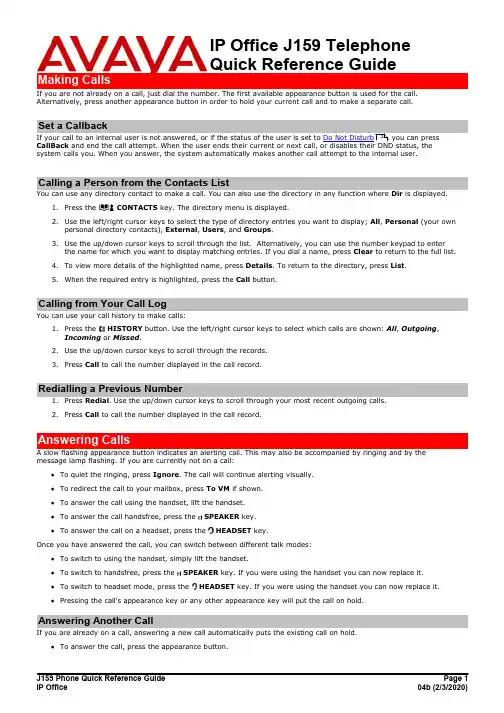
Making Calls If you are not already on a call, just dial the number. The first available appearance button is used for the call.Alternatively, press another appearance button in order to hold your current call and to make a separate call.system calls you. When you answer, the system automatically makes another call attempt to the internal user.1.Press the CONTACTS key. The directory menu is displayed.e the left/right cursor keys to select the type of directory entries you want to display; All , Personal (your own personal directory contacts), External , Users , and Groups .e the up/down cursor keys to scroll through the list. Alternatively, you can use the number keypad to enter the name for which you want to display matching entries. If you dial a name, press Clear to return to the full list.4.To view more details of the highlighted name, pressDetails . To return to the directory, press List .5.When the required entry is highlighted, press the Call button.You can use your call history to make calls:1.Press the HISTORY button. Use the left/right cursor keys to select which calls are shown: All , Outgoing ,Incoming orMissed .e the up/down cursor keys to scroll through the records.3.Press Call to call the number displayed in the call record.1.Press Redial . Use the up/down cursor keys to scroll through your most recent outgoing calls.2.Press Call to call the number displayed in the call record.A slow flashing appearance button indicates an alerting call. This may also be accompanied by ringing and by the message lamp flashing. If you are currently not on a call:·To quiet the ringing, pressIgnore . The call will continue alerting visually.·To redirect the call to your mailbox, press To VM if shown.·To answer the call using the handset, lift the handset.·To answer the call handsfree, press the SPEAKER key.·To answer the call on a headset, press the HEADSET key.Once you have answered the call, you can switch between different talk modes:·To switch to using the handset, simply lift the handset.·To switch to handsfree, press the SPEAKERkey. If you were using the handset you can now replace it. ·To switch to headset mode, press the HEADSET key. If you were using the handset you can now replace it. ·Pressing the call's appearance key or any other appearance key will put the call on hold.If you are already on a call, answering a new call automatically puts the existing call on hold.·To answer the call, press the appearance button.·Alternatively, using the up/down cursor keys, scroll the display to highlight the waiting call and select the action you want to apply; Answer, To VM, Ignore or Drop.You can transfer directly to your voicemail mailbox any call targeted at you.1.If the call is not the currently highlighted call on the display, use the up/down cursor keys to highlight it.2.Press To VM to redirect the call to your mailbox.You can adjust the volume of the incoming audio while you are on the call:1.With the call connected, press the VOLUME key.e the + plus and – minus keys to adjust the volume.Note: The volume for the device currently in use (handset, headset, or speaker) is adjusted separately.1.To put your current call on hold, press the Hold soft key or the call's appearance button.2.The held call will be indicated by its call appearance button with a fast-flashing green lamp. On phones with only asingle call appearance button (or icon), the phone displays "On-Hold" before the call information on the call'sapplication line.3.While held, the caller will hear music on hold. If your system does not have music on hold available, the caller willhear double beep tones every few seconds.4.You can scroll the display using the up and down cursor keys.Muting a call stops the far end from hearing you although you can still hear the far end. The mute setting remains active even if you switch between calls using the hold or appearance buttons. If you change how you are listening to the call, for example switching from the handset to the speaker, the mute setting is canceled.1.To activate mute, press the MUTE key. The button will be lit while mute is active.2.To switch mute off, press the MUTE key again.·The Drop button can be used to end the currently highlighted call.·If the call is on the phone's speaker, the SPEAKER key is lit. Pressing the key again will end the call.·If the call is on the phone's headset, the HEADSET key is lit. Pressing the key again will end the call.·If the call is on the phone's handset, replacing the handset will end the call.If you have a connected call and have held alternate calls, pressing Conf will start a conference with those held calls and the connected call.Otherwise, to start a conference or to add another party to a conference:1.Press Conf. Your current call is put on hold.2.Dial the party that you want to add to the conference.3.If they answer and want to join the call, press Conf again.4.If they do not want to join or do not answer, press Drop and then press the appearance key of the held call.While in a conference, press the Details key. Scroll through the list of callers in the conference and: ·To drop a caller from the conference, highlight them and press Drop.·To mute a caller, highlight them and press Mute. Repeat this to unmute them.·To return to the call display, press Back.You can transfer calls even if no call appearance buttons are available.1.Press Transfer. The current call is put on hold.2.Dial the number for the transfer. Alternatively, press Dir to select a destination from the directory, or pressRedial if applicable.·To complete a supervised transfer, press Complete after the call has been answered.·To complete an unsupervised transfer, press Complete while the call is still ringing.·If the transfer destination does not answer or does not want to accept the call, press Cancel.You can use the Message key to transfer a call to another user's or group's voicemail mailbox.1.With a call connected, press the Message key. You can continue talking.2.Dial the extension number of the user or group and press Select.When you select 'Do Not Disturb', your calls are redirected to voicemail if available or otherwise hear busy tone. Calls to any group of which you are a member are not presented to you. You can still use the phone to make outgoing calls. When you go off-hook you will hear broken dial tone.1.Press Features. Use the up/down cursor keys to highlight Call Settings. Press Select.2.Select Do Not Disturb.3.Press Change to change the setting.4.Press Save to save the setting.1.Press Features. Use the up/down cursor keys to highlight Forward. Press Select.e the up/down cursor keys to highlight Forward Unconditional. Press Select.·To switch on/off: Highlight Fwd Unconditional. Press On or Off. If no destination is currently set, the display jumps to the destination field.·To select which calls: Highlight Call Type. Press Change and when the required option is displayed press Save. Options are External Only, External and Group, Non Group Calls and All Calls.·To set the destination: Highlight Destination. Press Edit and enter the number required or press To VM to forward to voicemail.You can redirect your calls temporarily to another extension.1.Press Features. Use the up/down cursor keys to highlight Forward. Press Select.e the up/down cursor keys to highlight Follow Me To. Press Select.3.Dial the number of another user or press Dir to select from the directory. Press Save.You can add up to 100 personal directory contacts. This number is limited by the capacity of the telephone system directory. If capacity is met, you will not be able to add new contacts.1.Press the CONTACTS key. Use the left/right cursor keys to select your Personal directory.2.To add a contact, press New. To edit a contact, highlight it and press Edit.·Use the up/down cursor keys to switch between number and name entry.·When the name and number have been entered as required, press Save.You can add a name and number shown in your call history to your personal contacts.1.Press the HISTORY button. Use the left/right cursor keys to select which calls are shown: All, Outgoing,Incoming or Missed.e the up/down cursor keys to scroll through the records.4.Press More and then press +Contact.e the up/down cursor keys to switch between the name and number details for the new contact.6.When the name and number are set as required, press Save.1.Press the MESSAGE button. Enter your voicemail password if requested and press Done.2.The numbers shown next to Listen indicate the number of new, old and saved messages.3.Highlight Listen and press Select.e the up/down cursor keys to highlight which messages (New, Old or Saved) that you want to listen to andpress Select. The details of the first message of that type are displayed.5.You can use the up/down cursor keys to scroll through the messages.e the soft keys to control the playback actions for the current message.By default, messages are automatically deleted a set time after being played. The delay depends on the particular voicemail server (24 hours for embedded voicemail, 30 days for Voicemail Pro).You can control whether voicemail is used for your unanswered calls. This does not switch off your mailbox; you can still play existing messages and use other functions.1.Press the MESSAGE button. Enter your voicemail password if requested and press Done.e the up/down cursor keys to highlight Voicemail.3.Press Change to switch between On or Off.4.Press Save to save the change.。
步步高说明书
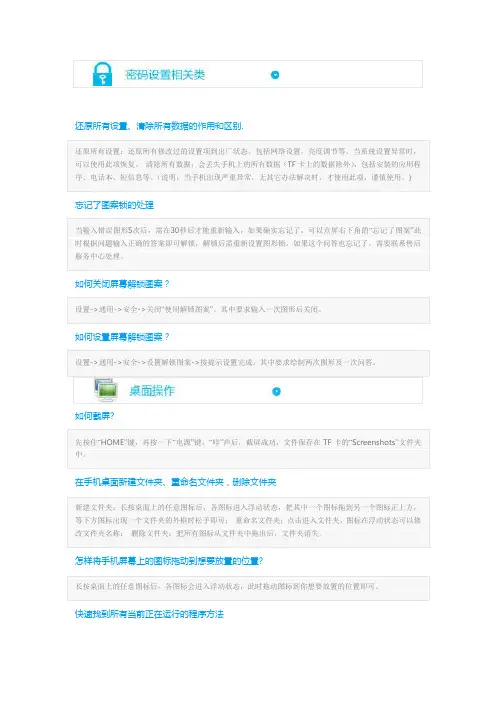
还原所有设置、清除所有数据的作用和区别.还原所有设置:还原所有修改过的设置项到出厂状态。
包括网络设置,亮度调节等。
当系统设置异常时,可以使用此项恢复。
清除所有数据:会丢失手机上的所有数据(TF卡上的数据除外),包括安装的应用程序、电话本、短信息等。
(说明:当手机出现严重异常,无其它办法解决时,才使用此项,谨慎使用。
)忘记了图案锁的处理当输入错误图形5次后,需在30秒后才能重新输入,如果确实忘记了,可以点屏右下角的“忘记了图案”此时根据问题输入正确的答案即可解锁,解锁后需重新设置图形锁。
如果这个问答也忘记了,需要联系售后服务中心处理。
如何关闭屏幕解锁图案?设置->通用->安全->关闭“使用解锁图案”。
其中要求输入一次图形后关闭。
如何设置屏幕解锁图案?设置->通用->安全->设置解锁图案->按提示设置完成。
其中要求绘制两次图形及一次问答。
如何截屏?先按住“HOME”键,再按一下“电源”键,“咔”声后,截屏成功,文件保存在TF卡的“Screenshots”文件夹中。
在手机桌面新建文件夹、重命名文件夹,删除文件夹新建文件夹:长按桌面上的任意图标后,各图标进入浮动状态,把其中一个图标拖到另一个图标正上方,等下方图标出现一个文件夹的外框时松手即可;重命名文件夹:点击进入文件夹,图标在浮动状态可以修改文件夹名称;删除文件夹:把所有图标从文件夹中拖出后,文件夹消失。
怎样将手机屏幕上的图标拖动到想要放置的位置?长按桌面上的任意图标后,各图标会进入浮动状态,此时拖动图标到你想要放置的位置即可。
快速找到所有当前正在运行的程序方法在任意界面双击Home键后,界面会显示所有正在运行的程序,点击后可以直接进入该程序。
如何看在线视频可通过内置的第三方奇艺影视,优酷,如内置影视汇-> 优酷/奇艺影视或通过网上下载第三方在线播放器还可以直接通过浏览器登录网站,直接播放在线视频。
点击视频时会弹出”在线播放”和“下载”的选项,点击在线播放后会调用本地的播放器进行播放。
步步高 BBK V305 说明书
3,*4lEe,iiiiiiiiiiiiiiiiiiiiiiiiiiiii 38 Vn:v=sKN3gv=siiiiiiiiiiiiiiiiiiii MR 4Rv}iiiiiiiiiiiiiiiiiiiiiiiiiiiiiiiiiiiii MS *2j*ne,mmiiiiiiiiiiiiiiiiiiiiiiiiiii 3; ,Reiiiiiiiiiiiiiiiiiiiiiiiiiiiiiiiiiiiiiii MU 4KqKK.niiiiiiiiiiiiiiiiiiiiiiiiiiiiiiii NL uXuiiiiiiiiiiiiiiiiiiiiiiiiiiiiiiiiiiiiiii NP 8aiiiiiiiiiiiiiiiiiiiiiiiiiiiiiiiiiiiiiiiii NR =_,iiiiiiiiiiiiiiiiiiiiiiiiiiiiiiiiiiiiiii NS EUZ_iiiiiiiiiiiiiiiiiiiiiiiiiiiiiiiiiiiii NT i*KU.1/iiiiiiiiiiiiiiiiiiiiiiiiiiiiiiii NU **KUtdKYYbi{iiiiiiiiiiiiiiiiiiiiiiiiii OL kiY.niiiiiiiiiiiiiiiiiiiiiiiiiiiiiiiiiiiiii OM \Urhiiiiiiiiiiiiiiiiiiiiiiiiiiiiiiiiiiiii 53 ;b>iiiiiiiiiiiiiiiiiiiiiiiiiiiiiiiiiiiiiii 53 {nq\UR2iiiiiiiiiiiiiiiiiiiiiiiiiiiiiii 56 v/=fliiiiiiiiiiiiiiiiiiiiiiiiiiiiiiiiiii 63
e,X?
cNdN,*w>=u;sv}E2mG98a2~ 82h02{s2Ut2,{2i*y3a,@`hv =sru7oN3y.t=8aERxKyyii*N d/KEO,,,JoowJp{y>>vQ3
步步高 HA007(6)P TSDL(LCD)型液晶显示多功能按键电话机 说明书
HA007(6)P/TSDL(LCD)型液晶显示多功能按键电话机,是采用先进电子线路设计而成的免提式液晶显示电话机。
本机标准话机部分均采用专用电路,组成完善的发送、接收系统,免提通话部分采用特殊电路设计,其音质清晰宏亮、铃声悦耳、工作可靠,适用于邮电、工矿企业、行政事业单位、家庭以及宾馆酒店等部门作通讯联络。
1.脉冲/双音频拨号式免提按键电话机,可与48~60伏的市话网电话交换机和用户自动小型交换机配接使用。
2.标准话机的送、受话电路采用专用电路,噪声小,性能稳定,电路设计合理,于有自动增益控制(AGC)电路,受外线长度变化影响小,因此,近远距离通话声音大小基本不变。
3.免提通话部分采用特殊电路设计,功耗低、输出大。
利用电话线路直接馈电,无需自备电源,既方便又可靠。
4.采用电子音乐铃,铃声清脆悦耳,高低可调。
5.本机设有听筒通话指示、免提通话指示、振铃和防盗指示灯,分别指示听筒通话或免提通话以及振铃和防盗时的工作状态。
6.本电话机线路设计优越,功能强大,具体总结如下:(1) P/T(脉冲/双音频)开关转换和按键软转换功能。
(2) 可记忆贮存三个常用的电话号码,并可根据需要随时更换。
(3) 免提拨号及通话,音量大小可调。
(4) 拨号限制功能,首位为“0”的号码无法拨出。
(5) 挂机状态,液晶显示屏可显示正常时间,摘机后,可显示您拨叫的电话号码(16 位显示)以及通话自动或手动计时。
(6) 最后一组电话号码重拨(REDIAL)及单键重拨(ONE KEY REDIAL)功能。
(7) 设有闪断键(FLASH),可快速收线,方便快捷。
(8) 拨号暂停(PAUSE)3.6秒,配合内线电话拨打外线时识别外线是否繁忙。
(9) 防盗开关置于“ON”时,可迫使盗用本机线路者无法拨号及通话。
(10) 振铃声大小可调。
7.本电话机外形采用国际流行款式,流线型设计,并备有多种颜色以解用户之需,外观高雅大方,品味十足,百看不厌,手柄设计符合人机工程学。
步步高HCD007电话机使用说明书
步步高HCD007电话机使用说明书 [复制链接]jcgscbj 当前在线 UID7372积分2004主题18注册时间2008-2-18阅读权限60热心135 点金币12513 枚贡献121 点. IP卡狗仔卡jcgscbj 认证会员听众 [1] 收听TA 串个门加好友打招呼发消息黑龙江省哈尔滨市,27 岁,一般一般 . 电梯直达 1#jcgscbj 发表于 2008-5-5 16:43:07 |只看该作者 |倒序浏览使用方法ATTENTION:在以下使用方法叙述中,除特别说明外,其他操作均指在座机挂机状态下进行。
1 接断电话不考虑来电显示:听到电话铃声,拿起手柄或按【免提】键,即可与对方通话,此时显示屏灯亮。
考虑来电显示:等到第二声铃声响起后,看显示屏上所显示的内容,您可决定是否接听。
2 拨打电靖拿起手柄或按【免提】键,显示屏灯亮,听到拨号音,即可拨号。
当听到回铃音(断四秒续一秒的蜂音)时,等待对方应答。
如果听到忙音(嘟…嘟…嘟…声),只需按【重拨/回拨】键,即可将刚才所拨的电话号码拨出去,通话完毕后要挂好手柄或按【免提】键。
3 手柄通话与免提通话间的转换由手柄转为免提通话时,只需按一下【免提】键,放回手柄,即可转为免提通话。
由免提转为手柄通话时,只需拿起手柄即可。
4 铃声大小开关转换本机后部设有铃声大小转换开关,可根据需要选择铃声大小。
5 预置拨号按【0】至【9】数字键,如果输入号码错误,可按【删除/退出】键删除错误号码,重新输入正确号码。
确认输入号码正确后,按【重拔/回拨】键即可拨出该电话号码。
6 重拨键拨出电话号码,听到忙音时,可以收线后再摘机,听到拨号音后,再按【重拨/回拨】键;或无须收线,直接按【重拔/回拨】键,本机就会自动拨出您前次输入的号码。
7 暂停键在本机作为内线分机使用时,该键可以配合您拨打外线时识别外线是否繁忙。
例如:假定拨【9】是接外线,则您可以在打外线时先拨【9】,然后按【暂停】键,再输入要拨的外线号码。
步步高电话机HCD007(118)TSDL的说明书
18 删除来电信息
按[来电翻查↑]键或[来电翻查↓]键选择要删除的来电信息后按[删除/退出]键,则删除此组来电信息。若按住[删除/退出]键4秒,则删除全部来电信息。
19 设置来电是否更新电话机设置的时间
在待机状态下,按住[#]键不放,待显示屏显示“off”或“on”字样即可(“off”表示来电更新电话机设置的时间关闭,“on”表示来电更新电话机设置的时间开启。本机出厂时默认为“on”)。若设置为“off”时,当本机收到以fsk制式来电信息时将不更新电话机设置的时间;若设置为“on”时,当本机收到以fsk制式来电信息时将自动更新电话机设置的时间。
6 重拨键
拨出电话号码,听到忙音时,可以收线后再摘机,听到拨号音后,再按【重拨/回拨】键;或无须收线,直接按【重拔/回拨】键,本机就会自动拨出您前次输入的号码。
7 暂停键
在本机作为内线分机使用时,该键可以配合您拨打外线时识别外线是否繁忙。例如:假定拨【9】是接外线,则您可以在打外线时先拨【9】,然后按【暂停】键,再输入要拨的外线号码。这样,在您重拨时,本机会在“9”字后面自动插入一段3.6秒的暂停时间间隔,以识别外线是否繁忙,保证您的拨号快速、准确、省时。
(4)----0----:表示因超出服务范围或其他因素没有提供来电信息
(5)----e----:表示因来电信息有错,无法正常接收信息
21 夜光功能
在摘机状态下,本机显示屏夜光照明功能被启动,方便您在夜间或光线暗淡处使用本机。
20 显示屏显示说明
(1)平时显示状态
平时显示状态,“1月1日”表示月、日,“04∶18”表示时间,“06”表示来电总数。“星期三”表示星期数,“2003”表示年。
(2)重复:表示未翻查的相同的来电信息已重复两次或两次以上