
Xmanager远程登录CentOS图形界面
使用 Xmanager 软件,可以在 Windows 环境下远程管理 Linux 系统,效果就如果 Windows 下的远程桌面一样, 很方便。
一、CenOS 服务器配置:
1) 编辑/etc/inittab, 修改默认启动级别为 5, id:5:initdefault:
2)编辑文件:/etc/gdm/custom.conf
[security] AllowRemoteRoot=true [xdmcp] Enable=1 Port=177 [greeter]
3)在防火墙上开启允许 177 端口的访问
防火墙文件添加规则,打开/etc/sysconfig/iptables 添加一下两行: -A INPUT -p tcp -m tcp --dport 177 -j ACCEPT -A INPUT -p udp -m udp --dport 177 -j ACCEPT 之后重启防火墙后即可。
终端命令:service iptables restart
4)重启系统
二、Xmanager 配置
1)Xmanager Enterprise 4 打开 Xbrowser -> file -> new -> New Session Wizard 2)选择 XDM Query ,输入 host 地址,next 3)X Server Profile 使用 Auto Select 4)Finish
在 Xmanager 打开菜单 FileNewNew Session Wizard… Host:填写的是 CentOS 系统的 IP 地址。
NEXT,Next ,Finish,启动就可以看到登录界面了。
。
Linux操作系统远程图形化管理的几种途径

Linux操作系统远程图形化管理的几种途径1,利用Xmanager,linux启用XDMCP协议(可直接修改配置文件,也可以采用在Xshell 中运行gdmconfig或gdmsetup,选择XDMCP选项卡,勾选启动XDMCP即可),Xbrowser 即可发现linux主机,以图形化方式访问linux。
2,linux启用VNC服务,客户端即可用浏览器(通过自动加载的JA V A Applet插件)或VNC的windows版本的客户端VNC Viewer 以图形化方式来访问linux。
3,利用Xmanager的Xshell工具,SSH远程连接至Linux主机,在linux命令提示符下直接运行gnome-session或startkde,Xmanager会自动运行Xmanager-Passive来接收由SSH 转发至本地的图形界面信息。
以上提供的方法都是通过相关工具实现linux桌面远程转发至本地(XDMCP协议实现)来实现本地的图形化管理。
Linux还有个WEB方式的管理工具webmin(用Perl写成,采用Apache服务器,可实现web方式管理linux主机)。
要把Linux下xmanager开启总共分几步第一步我们在Linux系统下,修改/etc/X11/xdm/X access文件,找到下面的语句:# * #any host can get a login window去掉最前面的#号,成为* #any host can get a login window第二步我们修改/etc/X11/gdm/gdm.conf文件,找到下面的语句:[xdmcp]Enable=false将其中的Enable=false 改为Enable=true 或Enable=1.同时我们要确保存在下面的语句,因为177端口是我们要配置的xdmcp服务的监听端口,我们在后面配置xmanager将看。
Port=177第三步我们要修改/etc/inittab文件,将下面的语句id:3:initdefault改为如下,如果原来就是id:5:initdefault就不用更改。
Xmanager连接Centos的远程桌面
本文主要介绍通过Xmanager连接CentOS远程桌面时,在CentOS系统上需要做的一些配置。
1.X manager简介
Xmanager是一个运行于Windows平台上的高性能的X Server软件。
它能把远端Unix/Linux的桌面无缝地带到你的Windows上,甚至电脑是在内网或防火墙后,也能通过SSH协议安全的运行远端的X应用程序。
特点包括:
可通过Xcongfig工具设置多个Xmanager设置;
支持多用户的Windows终端环境;
支持多个IP地址;
支持本地资源数据库;
通过热键转换键盘映射;
支持多窗口下的Windows打印功能等
2.C entOS 6.3配置
1.安装gdm (若已安装则不需安装)
yum -y install gdm
2. 把虚拟机的网络适配器改为桥接
3. 配置系统为图形模式,打开/etc/inittab,修改为id:5:initdefault: (若已为5则不需修改)
vi /etc/inittab
4. 打开/etc/gdm/custom.conf,在[security]和[xdmcp]字段下分别添加如下内容:
[security]
AllowRemoteRoot=true
[xdmcp]
Port=177
Enable=true
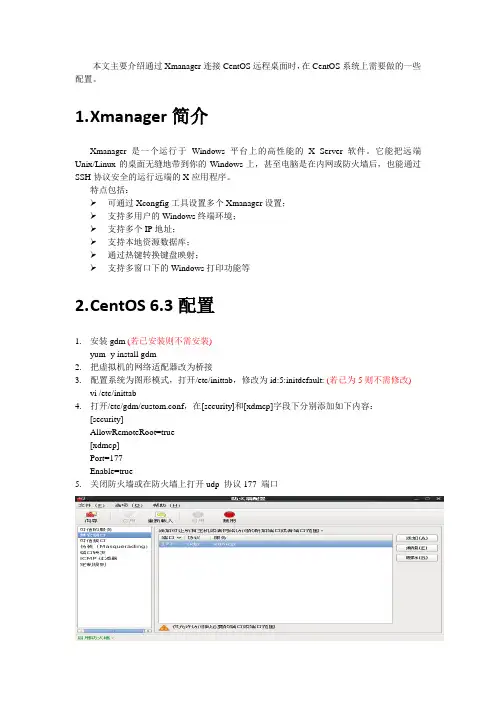
5. 关闭防火墙或在防火墙上打开udp 协议177 端口
6.重启虚拟机
7.关闭本机防火墙
8. 在Windows上打开XBrowser通过IP即可远程连接CentOS。
CentOS7安装GUI界面及远程连接的实现

CentOS7安装GUI界⾯及远程连接的实现⽤基于浏览器(webdriver)的selenium技术爬取数据,所以程序需运⾏在GUI环境下。
本⽂分三个部分简要介绍安装GUI界⾯及远程连接的步骤。
安装GUI界⾯⼤多数云服务器⼚商提供的镜像都⽆GUI界⾯,所以要先安装图形环境。
本⽂使⽤GNOME桌⾯环境:yum -y groups install "GNOME Desktop"这条命令将安装GNOME桌⾯的必要软件包,执⾏完后配置X系统使⽤GNOME:echo "exec gnome-session" >> ~/.xinitrc安装KDE或者MATE桌⾯环境的两个命令稍微不⼀样:# kdeyum -y groups install "KDE Plasma Workspaces"echo "exec startkde" >> ~/.xinitrc# mateyum --enablerepo=epel -y groups install "MATE Desktop"e cho "exec /usr/bin/mate-session" >> ~/.xinitrc以上便安装好了GUI桌⾯环境。
启动桌⾯环境有两种⽅式:1. ⼀次性的:在终端⾥输⼊startx;2. 系统启动时默认进⼊桌⾯环境: systemctl set-default graphical.target,然后重启;安装vnc-server有了桌⾯环境,⼀般可以通过云服务器⼚商提供的web终端远程连接进⼊桌⾯。
⽤web终端每次都需要打开浏览器,然后登陆云管理后台再连接,⽐较⿇烦。
我们采取直接从桌⾯客户端远程连接的⽅式,省去打开浏览器和登录云管理后台的操作。
远程桌⾯技术有多种,例如VNC, TeamViewer, RDP等,本⽂使⽤免费且⼴泛使⽤的VNC。
图文Windows使用Xmanager远程登录Centos方法
图文W i n d o w s使用X m a n a g e r远程登录C e n t o s方法本页仅作为文档封面,使用时可以删除This document is for reference only-rar21year.MarchWindows使用Xmanager远程登录Centos方法第一部分(配置centos系统)1安装gdm。
.打开centos终端,在终端中输入yum list gdm。
等一段时间后就会自动安装完毕。
2.配置gdm方法一:(图形界面操作,比较方便)(1)打开位于etc/gdm/目录下的文件(2)主要添加下面的项[daemon]RemoteGreeter=/usr/libexec/gdmgreeter[security]AllowRemoteRoot=true[xdmcp]Port=177Enable=true方法二:(命令行操作)(1)在终端中输入vim /etc/gdm/(2)按i键进入编辑模式,输入上面的配置信息,然后按esc,再输入:wq保存退出。
3.打开防火墙设置打开XDMCP的端口:UDP 177打开TCP 6000到6010端口添加防火墙规则,在终端中输入iptables -t filter -A FORWARD -p udp --dport 177 -j ACCEPTiptables -t filter -A FORWARD -p tcp --dport 6000:6010 -j ACCEPT4.打开位于etc目录下的inittab文件将下面语句改成如果已经是下面的了就不需要再改了(一般情况下是的)。
5.重新启动centos第二部分(在windows下使用xmanager)1.下载安装xmanager 4。
2.安装完毕后再安装目录下,点击xbrower图标,点击File->New->Xstart Session,如下图:点击后出现如下界面:其中Session可以取任意名字(这边取jcy001),Host就是远程主机的IP地址,Protocol选择SSH,然后User Name就是主机的登录名,Password就是主机登录名对应的密码。
xmanager登陆AIX远程桌面故障解决
xmanager登陆AIX远程桌面故障解决故障现象A:AIX 5306系统安装好后,想用xmanager连上,但报错Couldn't open console,不能打开图形界面。
解决参考:telnet上主机# ps -ef |grep dtlogin 看看CDE桌面有没有启动若没有,请运行:# /etc/ 然后就可以打开图形界面了。
或# /usr/dt/bin/dtlogin -daemon ##启动CDE桌面# /usr/dt/bin/dtconfig -e ##配置主机重启自动启动-e (enable auto-start of dtlogin)故障现象B:xmanager能连上服务器,也能登陆,但之后就一直停在starting CDE environment,桌面死活出不来。
检查服务器,CDE是安装了的,执行/etc/也能顺利启动,检查dtlogin也运行正常。
解决参考:检查/etc/hosts中的主机名和IP地址是否正确。
故障现象C:Xmanager-AIX XDMCP Connection failed,Try agin解决参考:AIX上无须进行任何配置,但是必须有XDMCP协议。
服务程序在监听XDMCP端口。
CDE 的XDMCP服务器为dtlogin,XWindow本身的XDMCP服务器为xdm,当然GNU也有一些其它的服务器。
如果AIX上安了CDE,则只要启动CDE即可(执行/etc/)。
如果没有安装CDE,需要启动xdm。
以下命令可以确认XDMCP服务器已经启动:netstat -an|grep 177检查输出,确认状态为LISTEN。
如果一切正常,就可以使用Xmanager通过登录了。
安装完Xmanager后,在Xbrowser中New一个XDMCP,选择XDM query,在Host输入框输入主机名或IP地址,选Apply,然后Done,启动Xmanager就会显示图形登录介面了。
Windows下使用xmanager远程访问管理redhat linux

Wind ows下使用xmanager远程访问管理redhat linuxWindows下有远程桌面对计算机进行远程管理,在Linux下常用的管理方法有ssh连接管理,因为linux很多操作都可以通过命令行来完成,在图形界面方面有vnc的支持,但是图形效果不是很好,效果最好的就是通过X-Manager对Linux进行图形界面的原创管理。
Xmanager是Windows 95/98/ME和Windows NT/2000/XP /2003平台下一个性能优秀的X11R6 PC X服务器。
就像运行在PC上的任何Windows应用程序一样,它可以无缝拼接到UNIX 应用程序中。
在UNIX/Linux和Windows网络环境中,Xmanager 是最好的连通解决方案。
方法一:命令行行修改修改/etc/gdm/custom.conf[security]DisallowTCP=false[xdmcp]Enable=truePort=177为了root能登录.修改/usr/share/gdm/defaults.confAllowRoot=trueAllowRemoteRoot=true确保以上2条语句存在并处于激活状态.(未被#注释)gdm-restart 重启服务netstat -an | grep 177 查看177端口状态,确保服务正常开启,至此X-MANAGER连接配置成功方法二:图形界面配置在图形界面上输入gdmsetup配置监听端口号位177在安全标签中选择运行本地管理员登录及运行远程管理员登录。
使用X-MANAGER登录Redhat Linux 在连接向导中选择“XDMCP”接下来选择XDM Query接下来选择使用默认选项即可。
用Xmanager远程控制LINUX、UNIX系统X界面
用Xmanager远程控制LINUX、UNIX系统X界面从WINDOWS平台用Xmanager实现对LINUX,AIX等系统的控制,LINUX下X界面有GNOME(GDM)、KDE(XDM)、UNIX下X界面有CDE,GDM、XDM、CDE. 1. When I connect to UNIX by XDMCP, the CDE session hangs.1.1. I cannot see the login window.If you cannot see the loginwindow, you need additional fonts for the host. You can download andinstall the fonts in your Unix server or you can set up a font server.To run font server in host:Run "xfs&".Run "fsinfo -server host_IP_address:7100".To configure Xmanager:Start Xconfig in Xmanager2 folder.Open the properties of the profile for the session.Select Font tab.Add Font Server.Save the changes and run Xmanager.Also,one of the following reasons might prevent CDE connection to be made:The Unix server is not located in the same subnet with your PC.Your PC has multiple IP addresses.Name server has an invalid name-to-ip or ip-to-name entry for your PC. Check the forward andreverse lookup tables.See the /var/dt/Xerrors file for more detailed information.1.2. The CDE login window shows up. After login, the session hangs or is terminated. The $HOME/.dtprofile might have a line that prevents a successful login. You need to try to commentall commands out in the file. Also, remove the following lines in your login scripts.: export DISPLAY=:0.0orsetenv DISPLAY :0.0For more detailed reasons, please see $HOME/.dt/errorlog.以AIX5L为例,只要安装时选了图形界面,基本上可以连上CDE,不用做太多的的改动,若不行检查一下进程,防火墙,端口等2. XDMCP connection fails for Linux. How do I configure my Linux box?How to configure Linux XDMCP(KDE/GNOME) settings for XmanagerAffected FilesFor runlevel: /etc/inittabFor GDM: /etc/X11/gdm/gdm.confFor XDM: /etc/X11/xdm/xdm-config/etc/X11/xdm/Xaccess/etc/X11/xdm/kdmrc/usr/share/kdm/kdmrc/usr/share/config/kdm/kdmrc/etc/opt/kde2/share/config/kdm/kdmrcFor Firewall: /etc/sysconfig/ipchainsStep 1. Change runlevel to enable gdm or kdm.Open /etc/inittab file.Change the runlevel to 5 as following:id:5:initdefault:Step 2. GDM configuration (When the Linux is using gdm)若是以进程3登录的,又不想改成进程5图形登录,也可以在进去后动行GDM(gnome)或XDM(KDE),启动GDM、XDM进程Open /etc/X11/gdm/gdm.conf file.Go to the [xdmcp]section.Set the value of "Enable" option to "1".Step 3. KDM configuration (When the Linux is using kdm)Open /etc/X11/xdm/xdm-config file.Comment out "requestPort" option as following:DisplayManager.requestPort: 0==>!DisplayManager.requestPort: 0Open /etc/X11/xdm/Xaccess file.Remove the initial "#" character for the following line:#* #any host can get a login window==>* #any host can get a login windowOpen /etc/X11/xdm/kdmrc,/usr/share/config/kdm/kdmrc or/etc/opt/kde2/share/config/kdm/kdmrc file.Change the value of "Enable" option to "true".Step 4. Firewall configuration (If the firewall has been configured)Open /etc/sysconfig/ipchains file.Add the following lines at the top of the file:-A input -p udp -s 0/0 -d 0/0 177 -j ACCEPT-A input -p tcp -s 0/0 -d 0/0 telnet -j ACCEPT-A input -p tcp -s 0/0 -d 0/0 ssh -j ACCEPT-A input -p tcp -s 0/0 -d 0/0 login -j ACCEPT-A input -p tcp -s 0/0 -d 0/0 exec -j ACCEPT-A input -p tcp -s 0/0 -d 0/0 shell -j ACCEPT-A input -p tcp -s 0/0 -d 0/0 7100 -j ACCEPTStep 5. Restart your Linux to activate the changes.3. I am trying to connect to SUN Solaris/HP-UNIX/IBM AIX using XDMCP, but I get the error message:"XDMCP Connection failed."In order to use XDMCP connection, CDE login should be enabled on your remote server.Follow the instruction below to enable CDE login:Login as a root.Enable CDE login when system boot:$ /usr/dt/bin/dtconfig -e [enter]dtconfig -resetIf you want to disable the CDE login setting, do the following:$ /usr/dt/bin/dtconfig -d [enter]4. I’m in the local network inside a NAT system. How can I connect to the remote host?Torun a remote xterm program, your IP address should be a public one thatcan be reached from the remote host because a remote xterm tries toconnect to your local PC.If your PC is located inside the firewall or NAT and the Unix host is located outside, X applications cannot connect to the Xmanager running on your PC.There are two solutions on this situation:By configuring port forwarding rules on the NAT system.By using SSH protocol in the Xstart program.The two solutions above are only for Xstart connection, not for XDMCP. XDMCP connection is not supported currently.To use port forwarding, you should forward the port 6000 of NAT system to the port 6000 of your PC.In case of multiple local users, you can do the following steps:(NAT, 6001) ==> (PC1, 6000)(NAT, 6002) ==> (PC2, 6000)...(NAT, 600Array) ==> (PCArray, 6000)Then, in the Xstart program, each user have to enter "-display" option like this:/usr/bin/X11/xterm -ls -display $NATADDR:1The value of "-display" option should be:For PC1: $NATADDR:1For PC2: $NATADDR:2In case of using SSH connection, you do not have to configureother options. It establishes a secure tunnel between PC and Unix, sowe recommend you to use SSH protocol if the Unix server supports it.5. Which ports should I allow on my firewall?You should open the following TCP/UDP ports.From remote host to local PC (Inbound): TCP 6000 ~ 6010 for Xmanager*TCP 16001 for Gnome onlyFrom local PC to remote host (Outbound): UDP 177 for XDMCPTCP 512, 513, 514, 23, 22 for Xstart*Note: Gnome may fail to logout if TCP 16001 port is not allowed.6. I’m inside a firewall using IP masquerading. How can I connect to external Linux/Unix hosts?To use Xstart with IP masquerading, please do the following steps:run the following command as a root on your firewall server.# ipmasqadm portfw -a -P tcp -L firewall_address 6010 -R PC_address 6000run Xstart program.enter the following command at Command field./usr/bin/X11/xterm -ls -display firewall_address:10.0click the run button.Be sure that, firewall_address and PC_address must be changed to the corresponding IP addresses on your own network.7. How can I run a remote X application on my PC with a dynamic IP address?If you want to start an X application such as xterm, first click Xstart icon in the Xmanager folderand set the command field as following:"/usr/bin/X11/xterm -ls -display $DISPLAY"In the protocol field, you should select a protocol supported by your remote Unix/Linux server.8. How can I use Xmanager through SSH?Run Xstart in the Xmanager folder.Select SSH for Protocol.Enter username, password, hostname, etc.Type in Execution Command as following:/usr/bin/X11/xterm -lsNote that -display option is absent. SSH server will assign a proper value.Click Save and Run button.The Xstart will automatically run Xmanager and then execute the remote command. Array. When I open an xterm window, some characters are displayed incorrectly on the screen. Some (notall) capital letters looks like a small dot.Run Xconfig program in the Xmanager2 folder.Open the properties of the profile for the session.Select Advanced tab.Turn the Maximize performance option off.Save the changes and run Xmanager.10. I’ve lost my product key. Where can I find it?In the Customer Service page, you can find your product key. Click here.11. The Backspace key does not work in xterm from RedHat 7 host.run Keyboard Editor in Xmanager folder.open your keyboard file.click the BackSpace key you are using.change the keysym value as following:Unshifted: BackSpaceShifted: NoSymbolModeSwitch: NoSymbolShiftedModeSwitch: NoSymbolsave and restart Xmanager.12. How can I configure firewall settings in Windows XP/2003?Windows XP/2003 may block all incoming TCP/IP connections. So, Xmanager cannot be used without allowing its listening port.Please do the following steps to enable Xmanager connection.:Open Control Panel, Network and Internet Connection, and then Network Connections.Right-click on your Internet connection, and then click Properties.Click Settings. RESULT: Advanced Settings dialog box will open.Allow TCP port 6000 ~ 6010.If Windows XP Service Pack 2 is installed on your machine, follow the procedure below:Open Control Panel, and then Windows Firewall.From the General tab, select On (recommended) option.Click the Exception tab.Click the Add Program button.From the Programs list, select Xmanager - Passive.Click OK.13. Colors are not displayed correctly when I use 256-color CAD applications.Some old X applications using 256-color visual cannot display colors correctly in the True colorvideo device. Mostly, CAD applications such as Cadence, Mentor and CATIA have this problem.Youcan configure 256-color emulation to fix this problem. In the Xconfig,change Default Visual and Backing Store options as following: DefaultVisual: PseudoColorBacking Store: When MappedThese options will enable 256-color emulation feature in Xmanager.14. Gnome terminal fails to open in RedHat 7.3.The problem occurs due to the font used by gnome-terminal.To fix this problem, configure xfs program and add the specific font server into the font list ofXconfig.Comment the following line out in the file /etc/X11/fs/config.#no-listen = tcpRestart xfs process or reboot the system.Open Xconfig utility.Choose Font tab.Click Add Font Server button.In the Host box, enter the hostname or IP address of Linux.In the Port box, enter 7100.Restart Xmanager.Make sure that the font server should be listed in the bottom of the font list.15. Does Xmanager support Windows or Citrix terminal server?Xmanager supports both Windows terminal server and Citrix MetaFrame server. To use Xmanager in thoseenvironment, please follow the guidelines below:For XDMCP connectionInstall Xmanager into the Windows or Citrix terminal server.Run Xbrowser in each terminal client. Xbrowser is installed with Xmanager.For Xstart sessionCheck Allocate display number automatically on in the Xstart Advanced Options dialog box.16. Now that I have purchased Xmanager, do I need to download any install file? And how can I applymy product keyXmanager evaluation is fully functional copy and there is no need to reinstall additional software.To apply your product key follow the steps below:Open Xbrowser.From the Help menu and click About Xbrowser.Click Enter Product Key.RESULT: Registration window opens up.Enter your product key and click OK.Also, expiration date notice window will not appear again once you apply your product key.可参考/products/xmg_faq.html#pl。
教你xmanager启动Linux上的图形界面程序
教你xmanager启动Linux上的图形界面程序
对于习惯实体化的用户来说还是界面化用着比较习惯,所以这就涉及到如何使用xmanager启动Linux上的图形界面程序,本集小编就详细的为大家讲解具体操作。
1、首先下载xmanager并安装;
2、打开xmanager,启动xstart,按提示输入:主机IP,协议,用户名,命令,完成后点击“保存”,接着点击“运行”,运行xmanager;
3、 以Vinca(刚刚填写的用户名)用户登录Linux系统,然后,在用户的目录下找到文件.bash_profile或profile,用vi对其进行编辑,加入下列命令:
DISPLAY=192.168.35.125:0.0;export DISPLAY
完成后,保存文件.bash_profile,并退出。
4、如果只想临时在客户端用一下图形界面,无需进行第3步,直接在xterm界面的命令行中输入:
export DISPLAY=192.168.35.125:0.0
然后就可以在命令行中运行图形界面程序了
5、 测试,运行netca(数据库相关服务),应该出现图形界面 注:192.168.35.125是自己客户端的IP地址。
在Win7下用XManager远程控制ubuntu
在Win7下用XManager远程控制ubuntu在Win7下用XManager远程控制ubuntu远程主机通过xdmcp协议连接到ubuntu的图形终端,以图形终端方式登录。
远程主机是win7.ubuntu装在VMware虚拟机上,ubuntu版本是10.04.登陆ubuntu图形桌面是Xmanager本地和虚机分别可以连通网络在VMware的网络适配器的选项中,要选择用桥接方式接入,因为桥接方式可以使VMWare 网卡和物理网卡应该处于同一IP网段主机ip:192.168.0.100 子网掩码:255.255.255.0 网关192.168.1.1ubuntu用ifconfig查看ip地址。
一、win7下的操作win7操作很简单,只要将防火墙关闭就行了二、Ubuntu下GDM的安装1、首先将防火墙关闭sudo ufw disable2、Win7远程连接上Ubuntu,所使用的协议是rdp,如果没有先装上去sudo apt-get install xrdpsudo apt-get install vnc4server tightvncserver4、更新gdm软件包wget -c "/forum/xmanager/down?num=3526&filename=88406269da081d4 091c34728c92d2c6c&savename=gdm_2320-0ubuntu1_i386.deb" -O gdm_2320-0ubuntu1_i386.deb sudo dpkg -i gdm_2320-0ubuntu1_i386.deb4、在“首选项—远程桌面”那里,设置允许远程桌面,允许控制。
做到这里后,看是否能ping通ubuntu.如果能ping通之后,继续操作。
三、Ubuntu下GDM配置1、首先确认gdm是否安装上去了$ gdm --versionGDM 2.32.12、修改custom.conf配置文件:$ sudo gedit /etc/gdm/custom.conf添加如下两个字段:[security]DisallowTCP=false[xdmcp]Enable=truePort=177DisplaysPerHost=10注:DisplaysPerHost表示显示主机的数量3、修改schemas配置文件sudo gedit /etc/gdm/gdm.schemas修改xdmcp/Enable字段:<schema><key>xdmcp/Enable</key><signature>b</signature><default>true</default></schema> 4、开启177端口,保证177端口可用sudo ufw allow 1775、重启gdmsudo /etc/init.d/gdm restart在windows系统上运行xmanager2里的Xbrowser程序在里面新建一个Xmanager Session在Host这里输入ip地址其它配置都不要改变包括端口号确定退出。
xManager和VNC远程连接AS4、AS5图形化界面详解
在安装服务器的时候,时常会需要操作图形化界面,但是你可能苦于跑机房太麻烦,又要申请工作票,又要忍受机房嘈杂的噪音和辐射,实在是挺折腾的。
下面就给大家介绍两款比较好的远程连接linux图形化界面的工具。
相关工具在220上有。
一、 VNC工具现在一般的linux系统都已经默认安装vnc服务了,所以现在你只要做简单的设置就可以方便的远程操作图形化界面了。
1.首先需要下载vnc客户端的工具vncviewer2.vi /root/.vnc/xstartup将unset SESSION_MANAGER和exec /etc/X11/xinit/xinitrc这两行注释去掉并将最后一行twm &注释掉,新增一行gnome-session如下图:3.先关闭下vnc, service vncserver stop4.执行vncserver 启动如下图:要求设置密码,输入两遍密码,会看到远程桌面的序号,上图desktop is bagon:1 5.终端执行vncview,输入ip:远程桌面序号,比如192.168.14.251:1输入设置的密码,就可以进入到远程桌面了。
如下图:6.修改vnc的密码,输入vncpasswd7.删除某一个具体的远程桌面,可以输入 vncserver –kill :远程桌面序列号如 vncserver –kill :1, 注意kill和序列号之间是有空格的。
8.可以具体起某一个远程桌面 vncserver :远程桌面序列号,如起远程桌面1,可以输入vncserver :1二、 xManager工具1.通过xStart连接,可以用TELNET和SSH两种模式1)通过TELNET,需要开通23端口,首先打开xManager里面的Xbrowser,新建Xstart,如下图:点击新建的Xstart,可能会弹出许多对话框,选择是即可,出现图形化界面如下图:2)通过SSH连接,这时候需要修改配置文件,使得SSH支持X11修改sshd_config,找到#X11Forwarding no,将其改为 X11Forwarding yes 重启ssh, service sshd restart剩下的就和TELNET一样了,选择protocol的时候选择SSH就可以了2. XDMCP1) AS4a) 修改 /etc/X11/xdm/Xaccess,将下面的行:#* # any host can get a login window改为:* # any host can get a login windowb)修改/etc/X11/gdm/gdm.conf,找到下面的信息:[xdmcp]Enable=0 或Enable=false修改为:[xdmcp]Enable=1 或Enable=true并确保以下信息存在:Port=177c) 修改/etc/inittab,将id:3:initdefault:修改为:id:5:initdefault:并在最后一行增加:x:5:respawn:/usr/bin/gdmd)重启服务器reboot,或者重启gmd服务gdm-restarte)在linux服务端,ping你win的机器名,不是ping IP ,ping机器名看看能否ping通!这是因为xmanager连接服务器时,服务器反信息给xin时用的不是ip,是机器名。