
二代身份证设备精伦210安装说明
一、安装软件
1、软件的安装不做详细说明;
2、软件的版本要求是2.51.17以上
3、只有正式版才可以使用
二、安装设备
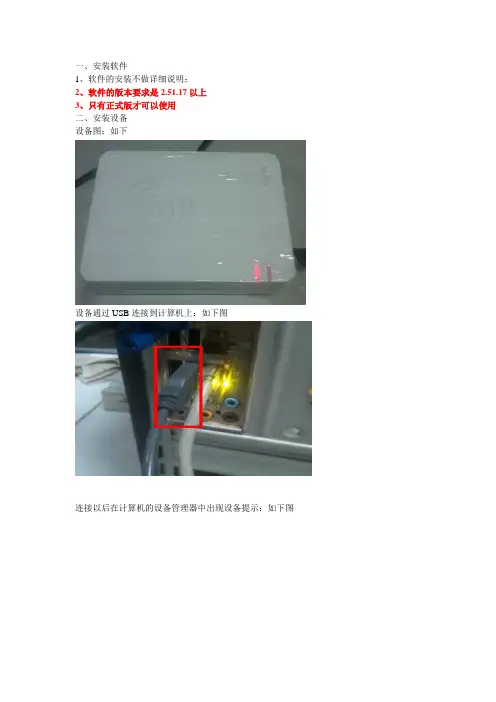
设备图:如下
设备通过USB连接到计算机上:如下图
连接以后在计算机的设备管理器中出现设备提示:如下图
三、拷贝接口
找到精伦IDR210的接口文件,选中所有的文件拷贝到软件的安装目录下面,如下图:找到接口文件
拷贝文件
四、注册接口
打开“客房管理”模块,找到系统下的接口注册;如下
然后注册,如下
在“二代证阅读器类型”选择精伦,然后把身份证注册码输入到红色方框中,然后点击注册即可,如图;。
二代身份证设备精伦210安装说明
一、安装软件
1、软件的安装不做详细说明;
2、软件的版本要求是2.51.17以上
3、只有正式版才可以使用
二、安装设备
设备图:如下
设备通过USB连接到计算机上:如下图
连接以后在计算机的设备管理器中出现设备提示:如下图
三、拷贝接口
找到精伦IDR210的接口文件,选中所有的文件拷贝到软件的安装目录下面,如下图:找到接口文件
拷贝文件
四、注册接口
打开“客房管理”模块,找到系统下的接口注册;如下
然后注册,如下
在“二代证阅读器类型”选择精伦,然后把身份证注册码输入到红色方框中,然后点击注册即可,如图;。
华视牌第二代居民身份证阅读器安装与使用说明
华视牌第二代居民身份证阅读器安装与使用说明1安装准备身份证阅读器(CVR-100U,制造商:深圳华视电子读写设备有限公司)、身份证阅读器驱动软件、身份证阅读器ActiveX脚本软件。
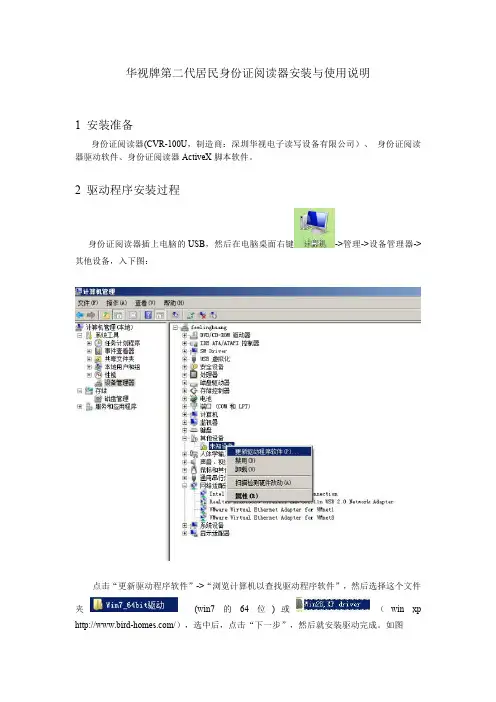
2驱动程序安装过程身份证阅读器插上电脑的USB,然后在电脑桌面右键->管理->设备管理器->其他设备,入下图:点击“更新驱动程序软件”->“浏览计算机以查找驱动程序软件”,然后选择这个文件夹(win7的64位)或(win xp /),选中后,点击“下一步”,然后就安装驱动完成。
如图3ActiveX脚本安装过程打开文件夹,双击“install”批处理程序,安装成功提示如下图:4IE8的设置点击IE8的“工具”->“internet选项”->“安全”->“internnet<A href="/">PDA</A>”->“自定义级别”,设置点如下图:设置完毕后,关闭IE8,然后打开IE8方可生效。
5教务系统核实身份证信息根据上述4个步骤完成后,才能对已经在网上报名的数据进行身份证识别。
在“招生管理”->“招生报名信息”->“报名信息审核”->“身份证识别”,如下图:点击进去页面,如下图:<A href="/">手持终端</A>注意:该页面只能使用IE8进行身份证识别,其他浏览器不能启动身份证读卡器进行识别功能。
此时浏览器可能会提示数字证书是否允许运行或者脚本提示,均选择“允许”或“是”。
例如下图:此时选择“是”。
根据页面的使用说明进行读卡。
先放身份证卡到读卡器读卡区中,点击“开始读取”,读卡成功后显示如下:然后确认信息无误后,点击“确认信息”。
中山大学网络教育学院技术服务部2013年10月29日。
第二代居民身份证阅读器的安装与配置
第二代居民身份证阅读器的安装与配置
二代证读卡器设备和驱动安装
(详见产品安装手册)
一、应用环境配置
二代证读卡器安装完后,需对浏览器进行配置,以便有效使用ActiveX控件。
步骤一
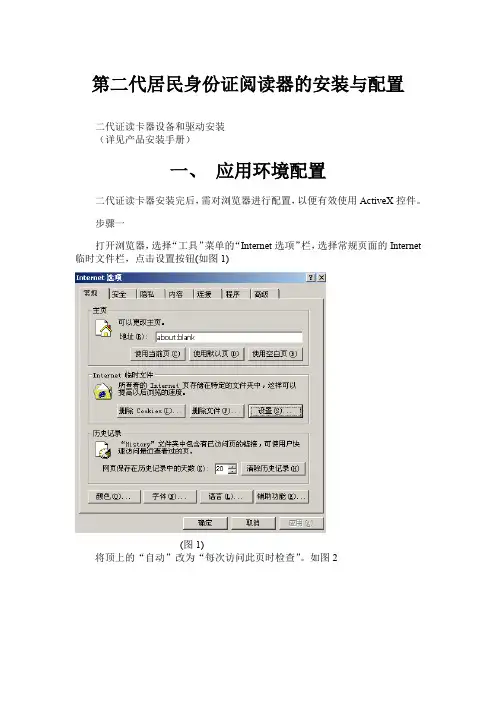
打开浏览器,选择“工具”菜单的“Internet选项”栏,选择常规页面的Internet 临时文件栏,点击设置按钮(如图1)
(图1)
将顶上的“自动”改为“每次访问此页时检查”。
如图2
(图2)
步骤二
点击顶上的“安全”分页,选择“受信任站点”,
(图3)
将当前居民医保登录地址加入信任站点,如http://10.10.30.128如图3,并把“对该区域中的所有站点要求服务器验证https”的勾去掉,然后确定。
步骤三
还在“安全”分页,选择“自定义级别”,如图4。
(图4)
将ActiveX控件和插件下所有选项的禁用项全部改为“启用”或者“提示”。
4 步骤四
设置完成,确认退出。
精伦访客管理系统客户端操作说明

精伦访客管理系统客户端操作说明
1.iDR210与PC正确连接,双击打开“精伦访客管理系统客户端”,状态栏提示:设备未授
权,如下图1。
1所示:
图1.1
2.iDR210第一次使用,需要服务器授权。
点击“设备授权"按钮或者F4,弹出设备授权对
话框。
填写服务器IP地址、用户名、密码、安装位置,点击“确定"按钮,上传认证信息到服务器。
点见下图2。
1
图2.1
3.服务器授权后,状态栏提示“请放卡"。
见图3。
1
4.刷身份证,信息显示在下面左下方的状态栏中.填写“单位”、“电话”、“被访部门”、“被
访姓名”、“访问事由”信息后。
点击来访登记按钮或者F1,身份证信息和进门时间保存,在右边框中显示。
同时本地保存的信息上传到服务器。
5.右边框中选择一条信息,点击出门登记按钮或者F2。
右边框中选中信息的出门时间栏,
会保存出门的时间,并且保存到本地,同时上传信息到服务器。
如图5。
1
6.右边信息框中选择一条来访信息,点击打印来访单按钮或者F3,弹出打印界面,进行来
访单打印.来访单界面预览,如图6.1
7.点击开始日期和结束日期进行时间范围选择,点击查询按钮查询一段时间范围类的所有
来访登记信息.
8.点击退出按钮或者F12,退出精伦访客管理系统客户端。
新中新二代身份证读卡器安装调试和使用方法

新中新二代身份证读卡器安装调试和使用方法1.二代身份证读卡器的连接和驱动安装①安装身份证读卡器的USB驱动②安装新中新二代身份证验证软件,验证软件装好后会自动在桌面生成一个新中新二代身份证验证系统的快捷方式二代身份证读卡器的连接和驱动安装方法详见随机附送的安装使用说明书,驱动程序和新中新二代身份证验证软件的安装程序在随机附送的光盘里面。
2.二代身份证读卡器的调试方法:①打开两癌筛查系统的两癌筛查健康档案页面;②通过桌面上的快捷方式打开已经安装好的“新中新二代身份证验证系统”如图所示打开新中新二代身份证验证系统后,点击上图中的“录入配置(I)”按钮,弹出如下对话框在该界面进行二代证信息的录入配置:录入方式选择“自动录入”录入窗体选择时先点击“变更”按钮,点击之后会弹出一个提示,点击“确定”,然后将光标放在录入窗体文本框内,再在下面的任务栏中点击①打开的两癌筛查系统,那么录入窗体的文本框中会自动填充进去“两癌筛查系统 - [健康检查档案]”录入信息位置的数据就按照图片的内容去设置,项目名称先选择“姓名”,项目位置选择“1”,点击“增加”按钮,姓名就会填充到录入信息中去,项目名称再选择“身份证号”,项目位置选择“8”,点击“增加”按钮,身份证号就会填充到录入信息中去。
最后点击结束设置;二代身份证读卡器的调试完成。
3.二代身份证读卡器的使用方法使用二代身份证读卡器之前要先打开桌面上的“新中新二代身份证验证系统”并且使用读卡器读取身份证信息时,这个验证系统的软件需一直开启,可以将之最小化①打开两癌筛查系统的两癌筛查健康档案页面,将光标放在“姓名“文本框内②将身份证放在读卡器上,“嘀”的一声响后,读卡器会将姓名和身份证号码读入到相应的文本框中,然后点击一下年龄的文本框,年龄也会自动计算出来。
注意:读卡器读取身份证信息时,当将身份证号信息填充进去后,请迅速将身份证从读卡器上移开,否则读卡器会连续重复的读取身份证的信息,导致信息的错误。
二代证阅读器安装说明
二代证阅读器安装说明一、控制台版本确认首先打开过滤王控制台,点击“帮助-关于”,查看过滤王版本号,务必为控制台(网吧安全系统)6.2.7.9,核心(服务器版本)6.1.5.54。
如果版本过低,可以到枣庄网警网站进行下载安装,下载地址:http://218.56.153.36软件下载栏目。
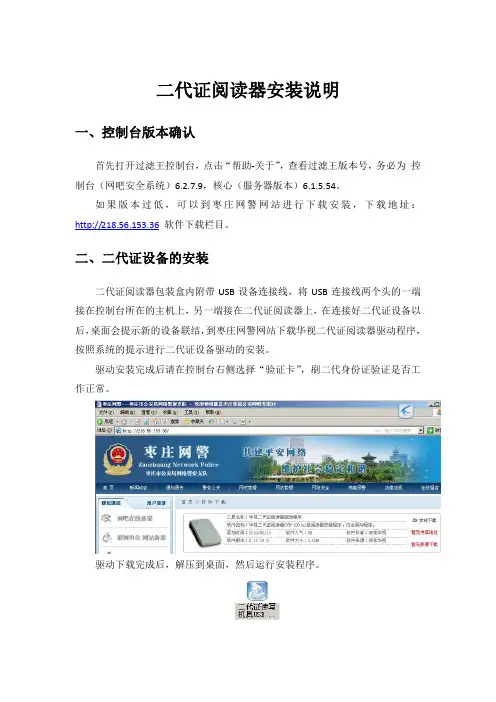
二、二代证设备的安装二代证阅读器包装盒内附带USB设备连接线,将USB连接线两个头的一端接在控制台所在的主机上,另一端接在二代证阅读器上,在连接好二代证设备以后,桌面会提示新的设备联结,到枣庄网警网站下载华视二代证阅读器驱动程序,按照系统的提示进行二代证设备驱动的安装。
驱动安装完成后请在控制台右侧选择“验证卡”,刷二代身份证验证是否工作正常。
驱动下载完成后,解压到桌面,然后运行安装程序。
或者参照二代证厂家给出的驱动安装说明进行安装。
确保二代证设备的正常联结,驱动工作正常。
三、控制台二代证厂家选择在确认控制台版本正常,二代证设备安装完成以后,可以在控制台的点击“系统-更改设置”来进行二代证厂家的设置。
无论是新装,还是进入选择,请确保1、核心主版本为:核心6系列。
2、二代证读卡器类型为安装的二代证厂家为华视。
选择完成以后,自动重启控制台,再次进入控制台以后,可在点击左侧的系统参数,会在右侧出现相应系统信息,请确认最后一行的二代证读卡器,设备正常,并且有二代证序列号,如下图:如果设备不能正常启动,请重复步骤二,检查二代证设备是否正常联系,驱动是否正常安装,厂家名称是否选择正确。
三、二代证注册使用方法在二代证设备正常安装以后,就可以使用二代证刷卡,在第一次刷卡的时候会提示身份证需要注册。
请在点击确定以后选择刮刮卡注册。
系统会提示输入注册卡号,并且点确定完成注册。
注册完成以后,二代证使用就与上网卡使用方法相同,可以加会员,充值,上机。
在上机时,请使用全部的身份证号作为上网卡的卡号,使用注册卡上的密码作为上机初始密码,即可登陆。
MPR210 安装 用户手册说明书
INSTALLATION/OWNER'S MANUALAM/FM Receiver with Bluetooth and Fixed FaceMPR210MPR210 INSTALLATIONPreparationPlease read entire manual before installation.Before You Start• D isconnect negative battery terminal. Consult a qualified technician for instructions.• A void installing the unit where it would be subject to high temperatures, such as from direct sunlight, or where it would be subject to dust, dirt or excessive vibration.MPR210INSTALLATIONWiring DiagramFUSEWhen replacing thefuse, make sure newfuse is the correct typeand amperage. Usingan incorrect fuse coulddamage the radio.The unit usesone 10 amp AGC fuselocated besidethe Heat SinkMPR210OPERATIONControl Locations168Preset 1 / Play/Pause Mode Band/Display Tune Up Tune DownPower Mute Voice Control Volume Knob Bluetooth Talk USB PortResetPreset 6 / Folder UpPreset 5 / Folder Down Preset 4 / Random Preset 3 / RepeatMPR210 OPERATIONGeneral OperationMPR210 OPERATIONAM/FM Tuner OperationMPR210 OPERATIONUSB OperationMPR210 OPERATIONPreparationPairing a NewDevice Streaming Audio Troubleshooting Before using a Bluetooth device, it must be paired and connected. Ensure that Bluetooth is activated on your device before beginning the pairing process.The head unit broadcasts the pairing signal constantly when no devices are connected. Complete the pairing sequence from your Bluetooth device. Refer to the owner’s manual for your device for more details.The device name is “JENSEN Media Player”.The Bluetooth passcode is "1234”.Note: The head unit can be in any mode of operation when pairing is performed.The head unit supports A2DP wireless streaming audio from a Bluetooth mobile device directly to your head unit. The following functions can be used to control the music:• Press ll to skip to the next available audio track.• Press nn to skip to the previous audio track.• Press l/II to toggle between play and pause during playback.Bluetooth OperationMPR210 OPERATIONTroubleshootingMPR210OPERATIONLimited One Year WarrantyThis warranty gives you specific legal rights. You may also have other rights which vary from state to state.Dual Electronics Corp. warrants thisproduct to the original purchaser to be free from defects in material and workmanship for a period of one year from the date of the original purchase.Dual Electronics Corp. agrees, at our option, during the warranty period, to repair any defect in material or workmanship or to furnish an equal new, renewed or comparable product (whichever is deemed necessary) in exchange without charges, subject to verification of the defect or malfunction and proof of the date of purchase. Subsequent replacement products are warranted for the balance of the original warranty period.Who is covered? This warranty is extended to the original retail purchaser for products purchased from an authorized Dual dealer and used in the U.S.A.What is covered? This warranty covers all defects in material and workmanship inthis product. The following are not covered: software, installation/removal costs, damage resulting from accident, misuse, abuse, neglect, product modification, improper installation, incorrect line voltage, unauthorized repair or failure to follow instructions supplied with the product, or damage occurring during return shipment of the product. Specific license conditions and copyright notices for the software can be found via .What to do?1. Before you call for service, check the troubleshooting guide in your owner’s manual. A slight adjustment of any custom controls may save you a service call.2. If you require service during the warranty period, you must carefully pack the product (preferably in the original package) and ship it by prepaid transportation with a copy of the original receipt from the retailer to an authorized service center.3. Please describe your problem in writing and include your name, a return UPS shipping address (P.O. Box not acceptable), and a daytime phone number with your shipment.4. For more information and for thelocation of the nearest authorized service center please contact us by one of the following methods:• Call us toll-free at 1-866-382-5476•***********************Exclusion of Certain Damages: This warranty is exclusive and in lieu of any and all other warranties, expressed or implied, including without limitation the implied warranties of merchantability and fitness for a particular purpose and any obligation, liability, right, claim or remedy in contract or tort, whether or not arising from the company’s negligence, actual or imputed. No person or representative is authorized to assume for the company any other liability in connection with thesale of this product. In no event shall the company be liable for indirect, incidental or consequential damages.MPR210 OPERATIONFCC ComplianceThis device complies with Part 15 of the FCC Rules. Operation is subject to the following two conditions:(1) this device may not cause harmful interference, and(2) this device must accept any interference received, including interference that may cause undesired operation.Warning: Changes or modifications to this unit not expressly approved by the party responsible for compliance could void the user’s authority to operate the equipment. Note: This equipment has been tested and found to comply with the limits for a Class B digital device, pursuant to Part 15 of the FCC Rules. These limits are designed to provide reasonable protection against harmful interference in a residential installation. This equipment generates, uses and can radiate radio frequency energy and, if not installed and used in accordance with the instructions, may cause harmful interference to radio communications. However, there is no guarantee that interference will not occur in a particular installation. If this equipment does cause harmful interference to radio or television reception, which can be determined by turning the equipment off and on, the user is encouraged to try to correct the interference by one or more of the following measures:• Reorient or relocate the receiving antenna.• Increase the separation between the equipment and receiver.• Connect the equipment into an outlet on a circuit different from that to which the receiver is connected.• Consult the dealer or an experienced radio/TV technician for help.MPR210OPERATION SpecificationsTuning range: 87.5MHz-107.9MHzUsable sensitivity: 8.5dBf50dB quieting sensitivity: 10dBfStereo separation @ 1kHz: >30dBFrequency response: 30Hz-13kHzTuning range: 530kHz-1710kHzUsable sensitivity: <42dBuFrequency response: 30Hz-2.2kHzSpeaker output impedance: 4~8 ohmsLine output voltage: 2 Volts RMSDimensions: 7" x 2" x 2" (178 x 50 x 50 mm)Design and specifications subject to change without notice.FM Tuner AM Tuner GeneralNotesDual Electronics Corp.Toll Free: 888-921-4088©2020 Dual Electronics Corp. All rights reserved.The Bluetooth® word mark and logos are owned by the Bluetooth SIG, Inc. Other trademarks and trade names are those of their respective owners.NSA0120-V01。
身份证阅读器安装手册说明书
身份证阅读器安装手册
一、精伦IDR210(免驱版),新中新DKQ-A16D,华旭HX-FDX5,华视CVR100U身份证阅读器驱动安装步骤:
1,登录吉林省建筑工人实名制管理平台,点击驱动下载
2,下载下面驱动,并解压
下载文件名称为:【Release.zip】,双击打开Release.zip文件。
3,安装BKonline文件,安装过程中请关闭杀毒软件。
安装完毕后请重新启动电脑。
点击BKonline.msi文件,开始进行安装,点击下一步即可完成安装。
点击【关闭】安装完成。
4,安装完以后桌面生成新图标,双击【BKOnline】图标。
5,双击BKonline图标,不要关闭,然后点击实名制平台进行读卡,使用身份证阅读器是需要打开此文件,不用时再关闭。
二、身份证阅读器使用注意事项:
1、身份证阅读器USB线尽量插入电脑主板的USB口中,因为部分电脑的前置USB口供电不足。
2、安装身份证阅读器驱动程序需要关闭杀毒软件(360卫士和其他杀毒软件),否则杀毒软件会把驱动程序删除。
3、如果录入人员身份证信息成功,但是有部分人员无法读取,请让这些人员更换身份证,因为身份证内有射频卡,射频卡损坏会导致无法读取信息。
4、如果安装多次还是无法读取身份证,那么请更换电脑(使用正版操作系统)再次安装身份证阅读器驱动。
因为有部分盗版操作系统缺少基础组件,所以导致安装失败。
6、实名制系统客服微信号:w81888400。
联系客服时,请把安装后的截图发给客服。
REAL210硬件用户手册
修订记录
版本 V2.0 V3.2
V6.2
姓名 Kreal Kreal
Kreal
发布时间 11.09.16
12.08.16
描述 2.0 版本创建
2.0 版本未改动,随 3.2 版本发布
13.10.15 适合 6.2 版本硬件
3
修订记录............................................................................................................................................. 3 第一章 E210COREV3 核心板简介................................................................................................. 6
REAL210V6.2 硬件用户手册
1
ห้องสมุดไป่ตู้
重要声明
版权声明 版权所有: 广州润尔信息技术有限公司 本资料及其所包含的内容为广州润尔信息技术公司所有,受中国法律及其所适合 的国际公约中的在关著作权法律的保护。未经广州润尔信息技术有限公司书面授 权,任何人不得经复制、传播、散布、改动或以其它方式使用本资料的全部或部 分内容,违者将被依法追求责任。 不保证声明 广州润尔信息技术有限公司不对此文档中的任何内容作明示或暗示的陈述或保 证,而且不对特定目的的适销性及适用性或者任何间接、特殊或连带的损失承担 任何责任。 保密声明 本文档(包含附件)包含的信息是保密信息。接收人了解其获得的文档是保密的, 限用于规定的目的外不得用于任何目的。也不得把文档泄漏给第三方。 免责声明 本公司不承担由于客户不正常操作造成的人身和财产损失。请客户按照手册操作 规范和参考设计开发相应的产品。在未声明之前,本公司有权根据技术发展的需 要对本文档进行修改,且更改版本不另行通知。本文档的最终解释权归广州润尔 信息技术有限公司所有。
精伦读卡器使用说明
精伦IDR210读卡器使用说明
一、阅读软件安装
1.插入随机附带光盘,远行光盘中的程序autorun.exe。
2.选择点击IDR210
3.点击安装阅读软件
4.根据提示逐步完成安装
5.安装完成后如下图所示,点击完成,运行阅读软件
6.如果设备正常则显示如下画面,请把身份证放到读卡器上面测试能否正常读取数据。
二、二代证读卡器使用
1.登录招生管理系统—点击报名学生管理—新增学生信息,打开
新增学生信息页面,如图2.1所示
图2.1
2.点击上图2.1中下载并解压,运行,
弹出页面如图2.2所示
图2.2
3.点击确定完成插件注册。
4.刷新网页并重新打开新增学生信息页面,如图2.1所示,点击
下面的按钮就可以读取并输入身份证中的信息了。
注:请使用IE7,IE8,IE9浏览器,其它浏览器可能存在兼容性问题。