
tplink无线路由器配置手册说明书
Win7如何配置tp-link无线路由器
项目背景:湖南网络工程职业学院远教楼505办公室局域网。
设备:tp-link无线路由器,无线网卡,PC,网线若干
第一步:打开网络和共享中心
第二步:项目拓扑图:
①LAN口默认地址:192.168.1.1
②WAN口默认地址:210.42.200.84
③PC的IP地址:192.168.1.100~192.168.1.199 第三步:在浏览器中输入
管理员登录密码:123456
校园局域网IP地址,绑定一个静态IP
第四步:台式机安装好无线网卡(水星牌)
第五步:通过浏览器登录网外
查看本机IP地址
本机IP:192.168.1.100,测试ping无线路由器LAN端口
本机IP:192.168.1.100,测试ping无线路由器WAN端口
共享一个无线路由器的PC做ping测试
熟悉无线路由器的配置和管理1.查看运行状态
2.设置网络参数
WAN口设置
LAN口设置
3.无线设置
4.DHCP服务
5.无线安全设置
6.无线MAC地址过滤。
TP-Link无线路由器说明书
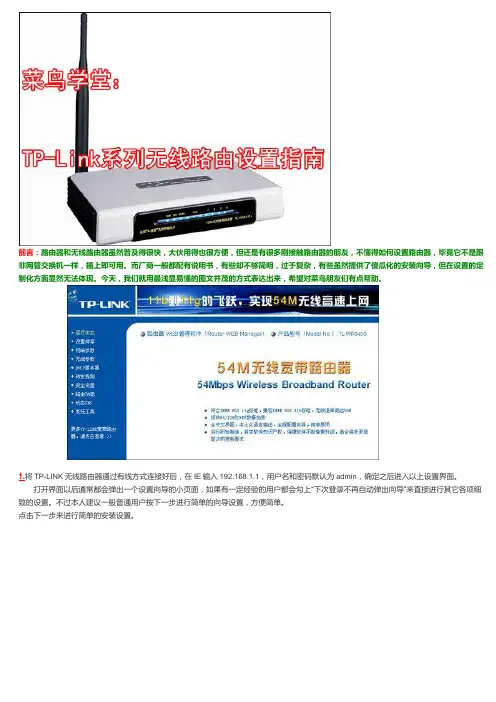
前言:路由器和无线路由器虽然普及得很快,大伙用得也很方便,但还是有很多刚接触路由器的朋友,不懂得如何设置路由器,毕竟它不是跟非网管交换机一样,插上即可用。
而厂商一般都配有说明书,有些却不够简明,过于复杂,有些虽然提供了傻瓜化的安装向导,但在设置的定制化方面显然无法体现。
今天,我们就用最浅显易懂的图文并茂的方式表达出来,希望对菜鸟朋友们有点帮助。
1.将TP-LINK无线路由器通过有线方式连接好后,在IE输入192.168.1.1,用户名和密码默认为admin,确定之后进入以上设置界面。
打开界面以后通常都会弹出一个设置向导的小页面,如果有一定经验的用户都会勾上“下次登录不再自动弹出向导”来直接进行其它各项细致的设置。
不过本人建议一般普通用户按下一步进行简单的向导设置,方便简单。
点击下一步来进行简单的安装设置。
2.通常ASDL拨号上网用户选择第一项PPPoE来进行下一步设置。
但是如果你是局域网内或者通过其它特殊网络连接(如视讯宽带、通过其它电脑上网之类)可以选择以下两项“以太网宽带”来进行下一步设置。
这里先说明一下ADSL拨号上网设置,以下两项在后面都将会进行说明。
到ADSL拨号上网的帐号和口令输入界面,按照字面的提示输入用户在网络服务提供商所提供的上网帐号和密码然后直接按下一步。
3.接下来可以看到有无线状态、SSID、频段、模式这四项参数。
检测不到无线信号的用户留意一下自己的路由器无线状态是否开启。
SSID这一项用户可以根据自己的爱好来修改添加,这一项只是在无线连接的时候搜索连接设备后可以容易分别需要连接设备的识别名称而已。
另外在频段这一项我们拉下来可以看到有13个数字选择,这里的设置只是你路由的无线信号频段,如果你附近有多台无线路由的话你可以在这里设置使用其它频段来避免一些无线连接上的冲突。
接着模式这一选项拉下来我们可以看到TP-LINK无线路由的几个基本无线连接工作模式,11Mbps(802.11b)最大工作速率为11Mbps;54Mbps(802.11g)最大工作速率为54Mbps,也向下兼容11Mbps。
TP-LINK TL-XDR1520易展版 无线路由器 使用指南说明书
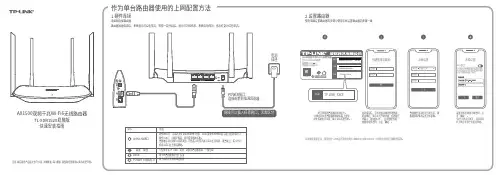
注意:本指南中产品图片仅为示意,天线数量,端口数量、类型和位置等请以实际机型为准。
AX1500双频千兆Wi-Fi6无线路由器TL-XDR1520易展版快速安装指南TP-LINK产品售后服务承诺:一年保修。
详细售后条款可扫描二维码了解。
手机、平板电脑和笔记本使用无线无法上网怎么办?请确认您的设备无线功能处于正常状态,如无线开关已经打开、可以搜索到无线信号。
请确认无线路由器设置正确,无线名称请不要使用中文或者特殊字符。
请确认进行无线连接时,选择的无线名称和填写的无线密码正确(注意区分大小写)。
2.远离热源,保持通风。
3.在储存、运输和运行环境中,请注意防水。
4.使用路由器附带的电源适配器。
警告常见问题解答无法打开路由器的管理界面()怎么办?路由器设置完成后,无法上网怎么办?请确保路由器的网线已按照“硬件连接”中内容正确连接。
请检查按照本指南中“设置路由器”设置的上网方式是否符合您的实际线路环境。
若通过有线连接登录请确保计算机为“自动获得IP地址”和“自动获得DNS服务器地址”。
请确保计算机连接的是路由器的LAN口,并且路由器和计算机网口相应的指示灯已亮起。
请打开IE浏览器,在菜单栏选择“工具”→“Internet选项”,然后单击“连接”按钮,确认选择“从不进行拨号连接”,单击“局域网设置”,确认所有选项均无勾选。
若通过无线连接登录请确保上网设备已连接路由器无线网络。
请尝试关闭并重新打开浏览器、清除浏览器缓存或者更换不同的浏览器。
请更换另一台上网设备进行尝试,若为有线连接,也可尝试更换网线。
将路由器重新上电。
如果经过上述操作仍无法解决问题,请拨打技术支持热线400-8863-400。
请登录路由器管理界面(),根据页面提示查找问题,如下:WAN口无网线连接:WAN口网线松动或未正确连接。
宽带账号或密码错误:点击路由设置 > 上网设置,重新输入宽带账号与密码,点击保存。
网络异常:网线连接错误或网络线路异常。
TP-LINK 无线宽带路由器 快速说明书

自动获得 IP 地址(0 ) 使用以下的 IP 地址(S ) IP 地址(T ) 子网掩码(U ) 默认网关(D )
自动获得 DNS 服务器地址(P ) 使用以下的 DNS 服务器地址(E ) 首选 DNS 服务器地址(F ) 备用 DNS 服务器地址(A )
安装 (N)
卸载 (U)
属性 (R)
TCP/IP 是默认的广域网协议。它提供跨越多种互联网络 的通讯。
连接后在通知区域显示图标(w) 此连接被限制或无连接时通知我(M)
确定
取消
4 选择“ 自动获得 IP 地址 ”和“ 自 动获得 DNS 服务器地址 ”。点 击“ 确定 ”。返回上一个界面, 点击“ 确定 ”。
1 右键单击“ 网上邻居 ”, 选择“ 属性 ”。
2 右键单击“ 本地连接 ”, 选择“ 属性 ”。
3 双击“Internet 协议 (TCP/IP)”。
打开(0) 资源管理器(X) 搜索计算机(C)
映射网络驱动器(N) 断开网络驱动器(I)
创建快捷方式(S) 删除(D) 重命名(M)
属性(R)
本地连接 已连接上 有防火...
网络适配器 Realtek RTL8168/8111 PCI-E Gigabit Ethernet NIC TL-WN321G/WN321G+ Wireless USB Adapter
如果网卡前面的图标有一个红叉,表示网卡未启用,请右键单击该网卡,选择启用。如果 网卡前面的图标有一个问号或叹号,表示网卡驱动未安装成功,请重新安装网卡驱动。如 果未发现无线网卡,请右键点击任意图标,选中“扫描检测硬件改动”,或者重新安装网 卡。
tp-link tl-tr970g v1.0 5g无线路由器快速安装指南说明书
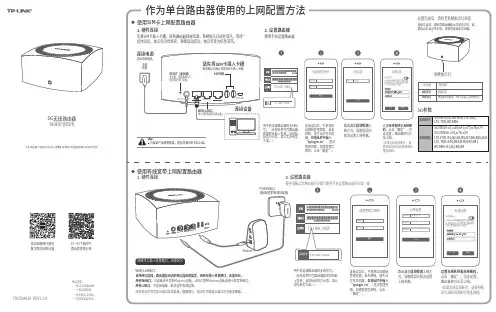
作为单台路由器使用的上网配置方法使用有线宽带上网配置路由器7103504929 REV1.1.0微信客服随时随地解决您的网络问题扫一扫下载AP P路由管理更方便路由器会自动检测上网方式,请根据实际情况设置上网参数。
下一步上网设置宽带账号宽带密码上网方式宽带拨号上网设置无线名称和无线密码,点击“确定”,完成设置。
路由器即可正常上网。
*如果无线连接断开,请使用新的无线名称和密码重连网络。
5G无线路由器注意:本指南中产品图片仅为示意,天线数量,端口数量、类型和位置等请以实际机型为准。
2. 设置路由器设置完成后,请检查系统指示灯状态:使用电脑设置路由器的步骤与使用手机设置路由器的步骤一致连接成功后,手机将自动跳转管理界面;若未跳转,请手动打开浏览器,在地址栏中输入“”,登录管理界面,创建管理员密码,点击“确定”。
确 定创建管理员密码设置密码确认密码TP-LINK_XXXX无线名称TP-LINK_XXXX1. 硬件连接先将SIM卡插入卡槽,再将路由器接通电源,系统指示灯绿色常亮,等待一段时间后,指示灯闪烁两次,系统启动成功,指示灯变为红色常亮。
WAN/LAN接口:ModemPOWER接口:连接配套的电源适配器网线可以插入任意网口,无需区分工作状态工作说明配置完成绿色常亮红色常亮路由器等待配置、SIM卡未插入或线路异常快速安装指南物品清单:·一台5G无线路由器·一个电源适配器·一张参数记录标贴·一份快速安装指南用手机连接路由器的无线信号。
(无线名称可在路由器底部的标贴上查找,此处标贴仅为示意,请以实际机型为准。
)电源插座RESET(复位键)复位键,按设备RESET 键可恢复出厂配置。
SIM卡槽WAN/LAN口用于连接电脑等有线设备。
连接设备连接电源连接电源插座。
连接成功后,手机将自动跳转管理界面;若未跳转,请手动打开浏览器,在地址栏中输入“”,登录管理界面,创建管理员密码,点击“确定”。
TP-Link AC1350 3G 4G 双频无线路由器 TL-MR3620 用户手册说明书
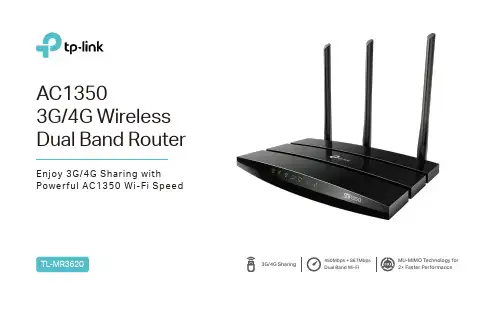
AC13503G/4G Wireless Dual Band RouterEnjoy 3G/4G Sharing withPower ful AC1350 Wi-Fi SpeedMU-MIMO T echnology for 2× Faster Performance450Mbps + 867Mbps Dual Band Wi-Fi3G/4G SharingEnsured Internet AccessWith both 3G/4G and WAN connectivity, the TL-MR3620 always keeps you online. Take advantage of flexibility when choosing and setting up your network, and share a 3G/4G mobile broadband connection through wired orwireless connections.Beamforming technology detects the location of your connected devices and concentrates the TL-MR3620's Wi-Fi towards them to create stronger overall connections.Beamforming for Better Coverage MU-MIMO technology allows the TL-MR3620 to serve 2 devices at once,reducing wait time and increasing Wi-Fi throughput.MU-MIMO Router Simultaneously sends data to multiple devicesTraditional RouterSends data to one device at a time Regular RouterTL-MR3620· Ultimate Wireless Speed – Combined wireless speeds up to 450 (over 2.4GHz) and 867 (over 5GHz) Mbps· MU-MIMO Technology – Simultaneously exchanges data with several devices, achieving speeds which are 2x faster than standard AC routers· Support 802.11 ac – Provides a data transfer rate 3 times faster than 802.11n for each stream· Ultimate Range Wi-Fi – 3 dual band high-performance antennas with a high-powered amplifier ensure the widespread Wi-Ficoverage and a stable connection· Wi-Fi with Beamforming – Beamforming technology locates the connected devices and further improves the TL-MR3620’srange and the signal strength to each mobile device, delivering a more reliable and efficient wireless connection SpeedWi-Fi RangeReliability· Simultaneous Dual Band – Separate Wi-Fi bands enable moredevices to connect to your network without a drop in performance · Easy Bandwidth Management – IP-based Bandwidth Control makes it easier for you to manage the bandwidth of connected devices· Intuitive Web UI – Ensures quick and simple Installation without hassle· Fast Encryption – One-touch WPA wireless security encryption with the WPS button· Wi-Fi On/Off – Turn on/off wireless radio as needed using the Wi-Fi On/Off button· Power On/Off – Conveniently power on or off your router as required· Hassle-free Management with Tether App – Network management is made easy with the TP-Link Tether App, available on any Android and iOS device· Guest Network – Keep your main network secure by creating a separate network for friends and visitors· Access Control – Establish a whitelist or blacklist to allow or restrict certain devices to access the internet· Parental Controls – Restrict internet access time and contents for children devices· VPN Server – IPSec VPN makes it easy to set up a secure connection between your private network and the internet · Encryptions for Secure Network – WPA-PSK and WPA2-PSK encryptions provide active protection against security threatsEase of UseSecurity· USB Port for Fast Sharing – With the USB port, you can access and share a printer as well as your files and media locally.Through the router's FTP server, you can also access your files and media from network devices remotely· Built-in Print Server – Allows wireless printing from multiple computers (works in conjunction with a USB printer)· Built-in Media Server – Allows you to play music, watch videos and view photos from any device on your networkEasy SharingHardware· Ethernet Ports: 4 10/100Mbps LAN Ports, 1 10/100Mbps WAN Port · USB Ports: 1 USB 2.0 Port· Buttons: Wi-Fi Button, Power On/Off Button, Reset Button, WPS Button · Antennas: 3 Fixed Omni Directional Antennas · External Power Supply: 12VDC/1A· Dimensions (W x D x H): 8.9 × 5.8 × 1.3 in (225 × 148 × 33 mm)Wireless· Wireless Standards: IEEE 802.11ac/n/a 5GHz, IEEE 802.11b/g/n 2.4GHz · Frequency: 2.4GHz and 5GHz· Signal Rate: 867Mbps at 5GHz, 450Mbps at 2.4GHz · Transmit Power:CE: <20dBm (2.4GHz), <23dBm (5GHz)FCC: <30dBm (2.4GHz & 5GHz)· Reception Sensitivity: 5GHz:11a 6Mbps: -94dBm, 11a 54Mbps: -76dBm 11ac HT20: -68dBm, 11ac HT40: -64dBm, 11ac HT80: -60dBm2.4GHz:11g 54M: -77dBm, 11n HT20: -73dBm, 11ac HT40: -71dBm· Wireless Function: Enable/Disable Wireless Radio, WDS Bridge, WMM, Wireless Statistics· Wireless Security: Enable/Disable SSID Broadcast, 64/128-bit WEP, WPA/WPA2, WPA-PSK/WPA-PSK2 encryptions, WPSInternet AccessReset WPSUSB port Power On/Off· Certification:CE, RoHS· System Requirements:Microsoft Windows 98SE/NT/2000/XP/Vista™/7/8/8.1/10, MAC OS, NetWare, UNIX or LinuxInternet Explorer 11, Firefox 12.0, Chrome 20.0, Safari 4.0, or other Java-enabled browser Cable or DSL ModemSubscription with an internet service provider (for internet access)· Environment:Operating Temperature: 0℃~40℃ (32℉ ~104℉)Storage Temperature: -40℃~70℃ (-40℉ ~158℉)Operating Humidity: 10%~90% non-condensingStorage Humidity: 5%~90% non-condensing· Package Contents AC1350 3G/4G Wireless Dual Band Router TL-MR3620Power AdapterRJ45 Ethernet CableQuick Installation GuideOthersSoftware· Operation Mode: 3G/4G Router Mode, 3G/4G Router Mode with Ewan Backup, Wireless Router Mode, Wireless Router Mode with 3G/4G Backup · Quality of Service: WMM, Bandwidth Control· WAN Type: Dynamic IP, Static IP, PPPoE, PPTP(Dual Access), L2TP(Dual Access)· Management: Access Control, Local Management, Remote Management · DHCP: Server, DHCP Client List, Address Reservation · Port Forwarding: Virtual Server, Port Triggering, UPnP, DMZ · Dynamic DNS: DynDns, NO-IP · VPN Server: IPSec VPN· Access Control: Parental Control, Local Management Control, Blacklist, Whitelist · Firewall Security: DoS, SPI Firewall, IP and MAC Address Binding · Protocols: IPv4, IPv6 Tunel· USB Sharing: Supports Samba(Storage), FTP Server, Media Server, Printer Server · Guest Network: 2.4GHz guest network x 1, 5GHz guest network x 1For technical support, please visit: /supportAttention: This device may only be used indoors in all EU member states and EFTA countries.Specifications are subject to change without notice. TP-Link is a registered trademark of TP-Link Technologies Co., Ltd. Other brands and product names are trademarks or registered trademarks of their respective holders. Copyright ©2017 TP-Link Technologies Co., Ltd. All rights reserved.TP-Link Technologies Co., Ltd.Building 24 (floors 1, 3, 4, 5) and 28 (floors 1-4) Central Science and Technology Park, Shennan Rd, Nanshan, Shenzhen, China For more information, please visit /en/products/details/TL-MR3620.htmlor scan the QR code left。
中国电信 TP-LINK 千兆双频Wi-Fi 6路由器 WTA301使用手册说明书

手机、平板电脑和笔记本使用无线无法上网怎么办?请确认您的设备无线功能处于正常状态,如无线开关已经打开、可以搜索到无线信号。
请确认无线路由器设置正确,无线名称请不要使用中文或者特殊字符。
请确认进行无线连接时,选择的无线名称和填写的无线密码正确(注意区分大小写)。
1.雷雨天气请将路由器电源及所有连线拆除,以免遭雷击破坏。
2.远离热源,保持通风。
3.在储存、运输和运行环境中,请注意防水。
4.使用路由器附带的电源适配器。
5.将设备放置在平稳的表面。
警告未经普联技术有限公司明确书面许可,任何单位或个人不得擅自仿制、复制、誊抄或转译本手册部分或全部内容,且不得以营利为目的进行任何方式(电子、影印、录制等)的传播。
声明Copyright © 2021 普联技术有限公司版权所有,保留所有权利。
为普联技术有限公司注册商标。
本手册提及的所有商标,由各自所有人拥有。
本手册所提到的产品规格和资讯仅供参考,如有内容更新,恕不另行通知。
除非有特殊约定,本手册仅作为使用指导,所作陈述均不构成任何形式的担保。
地址:深圳市南山区深南路科技园工业厂房24栋南段1层、3-5层、28栋北段1-4层公 司 网 址:技术支持热线:400-8863-400产品保修卡一、下列情况不属于免费维修范围,普联技术有限公司可提供有偿服务,敬请注意:已经超出保换、保修期限;未按使用说明书要求安装、使用、维护、保管导致的产品故障或损坏;擅自涂改、撕毁产品条形码;未经普联技术有限公司许可,擅自改动本身固有的设置文件或擅自拆机修理;意外因素或人为行为导致产品损坏,如输入不合适电压、高温、进水、机械破坏、摔坏、产品严重氧化或生锈等;客户发回返修途中由于运输、装卸所导致的损坏;因不可抗拒力如地震、火灾、水灾、雷击等导致的产品故障或损坏;其他非产品本身设计、技术、制造、质量等问题而导致的故障或损坏。
特别说明:在您送修产品之前,请致电我公司技术支持热线:400-8863-400,以确认产品故障。
TP-LINK Archer C3200 无线路由器 QoS 配置指南说明书
The capacity test should be run using the maximum number of simultaneous call connections needed, and should use the G.711 codec selection.
Specific requirements for QoS: Bandwidth—100 Kbps up and down per call Latency (one-way)—less than 150 ms Jitter—not to exceed 100 ms Packet loss—less than uration Settings for
TP-LINK Archer C3200 Wireless Router
Recommended QoS Configuration | TP-LINK Archer C3200 | Contents
TP-LINK 150M迷你型无线路由器 说明书
快速安装指南150M迷你型无线路由器物品清单:一台TL-WR702N一本快速安装指南一张保修卡71035011602设置计算机(进行设置前,请确保您的电脑已安装无线网卡)Windows XP系统请按以下步骤进行设置。
Windows XP打开(0)资源管理器(X )搜索计算机(C )映射网络驱动器(N)断开网络驱动器(I)创建快捷方式(S)删除(D)重命名(M)属性(R)本地连接 属性常规连接时使用:配置 (C)安装 (N)卸载 (U)属性 (R)确定连接后在通知区域显示图标(w)此连接被限制或无连接时通知我(M)取消Microsoft 网络的文件和打印机共享Dos 数据包计划程序Internet 协议 (TCP/IP)Realtek RTL8139/810x Family FTCP/IP 是默认的广域网协议。
它提供跨越多种互联网络的通讯。
高级 Internet 协议4 (TCP/IPv4) 属性常规如果网络支持此功能,则可以获取自动获得的 IP 设置。
否则,您需要从网络系统管理员处获得适当的 IP 设置。
自动获得 IP 地址(0 )确定 取消 备用配置高级使用以下的 IP 地址(S ) IP 地址(T )子网掩码(U )默认网关(D )自动获得 DNS 服务器地址(P )使用以下的 DNS 服务器地址(E )首选 DNS 服务器地址(F )备用 DNS 服务器地址(A )更改前,请将原IP设置信息备份。
192.168.1. ×255.255.255.0本地连接 属性网络连接时使用:此连接使用下列项目(0):配置 (C)安装 (N)卸载 (U)属性 (R)确定 取消Microsoft 网络客户端Qos 数据包计划程序Internet 协议版本4 (TCP/IPv4)Realtek RTL8101 Family PCI-E Fast Ethernet NIC传输控制协议/Internet协议。
TP-Link 300Mbps 无线N 4G LTE 路由器 TL-MR6400 用户手册说明书
300Mbps Wireless N 4G LTE RouterShare 4G LTE Internet with Reliable Wi-Fi4G(TDD&FDD)/3G/2G Compatible 300MbpsWireless SpeedLTE Antennas forBetter PerformanceAdvanced LTE antennas make efficient and stable connections to everydevice. Power Amplifier and Low Noise Amplifier boost sending and receivingcapabilities, creating a wide-coverage Wi-Fi network for your home.Design for Maximum Network CoverageIdeal Use PlacesRemoteAreasOutdoorsActivitiesBusinessMeetings300Mbps 2.4GHz4G LTE150Mbps50Mbps 2.4GHz 300MbpsTL-MR6400Simply insert your 3G/4G SIM card into the built-in slot, turn on the TL-MR6400 and start surfing!With a fully functional WAN/LAN port, enjoy a variety of backup connection types, including cable, fiber, and DSL modems.Plug and Play with a SIM CardAvailable WAN Connection BackupSIM CardModem· 4G LTE – Supports 4G LTE network, compatible with 3G/2G network· Faster Connections – Up to 150Mbps download speed and 50Mbps upload for uninterrupted HD movies, rapid file downloads and video chats that won't freeze up · 300Mbps Wireless Speed – 300Mbps Wi-Fi allows stable speed for wireless activities, such as streaming, surfing, browsing and posting social media4G LTE SpeedWi-Fi Range· Better Coverage – Integrated antennas provide stable wireless connections and better coverage· No Configuration – Simply insert your SIM card into the built-inslot and turn on the router · Available LAN/WAN port – Allows you to connect to any standard cable, fiber, or DSL modems· Fast Encryption – Easily set up an encrypted wireless connection at a push of the WPS button· Wi-Fi On/Off – Turn On/Off wireless radio using the Wi-Fi buttonEase of Use· Guest Network – Keep your main network secure by creating a separate network for friends and visitors· Parental Control – Manage when and how connected devices can access the internet· Bandwidth Control – Makes it easier for you to manage the bandwidth of connected devices· Encryptions for Secure Network – WPA-PSK/WPA2-PSKencryptions provide active protection against security threatsSecurityReliability · IP QoS – Advanced QoS automatically prioritizes streaming and gaming applicationsHardware· Ports: 3 10/100Mbps LAN ports, 1 10/100Mbps LAN/WAN Port , 1 SIM Card Slot· Button: WPS/RESET Button, WiFi ON/OFF Button, POWER ON/OFF Button · Antenna: 2 × Internal Wi-Fi Antennas, 2 × Detachable External 4G LTE Antennas· External Power Supply: 12V/1A· Dimensions (W x D x H): 7.95 × 5.55 × 1.32 in. (202 × 141 × 33.6 mm)Wireless· Network Type:4G: FDD-LTE Cat4 (800/900/1800/2100/2600MHz), TDD-LTE (1900/2300/2500/2600MHz)3G: DC-HSPA+/HSPA+/HSPA/UMTS (900/2100MHz) 2G: EDGE/GPRS/GSM (850/900/1800/1900MHz)· Wireless Standards: IEEE 802.11b, 802.11g, 802.11n · Frequency: 2.4GHz· Signal Rate: 300Mbps at 2.4GHz· Transmit Power: CE: <20dBm (2.4GHz)· Reception Sensitivity: 11g 54M: -74dBm 11n HT20: -71dBm 11n HT40: -67dBm· Wireless Function: Enable/Disable Wireless Radio, WDS Bridge, WMM, Wireless Statistics· Wireless Security: Supports 64/128-bit WEP, WPA/WPA2, WPA-PSK/WPA2-PSK encryptions, Wireless MAC FilteringPOWERWiFi ON/OFFWPS/RESET LAN/WAN PortLANPorts SIM CardSlotPOWER· Certification: CE, RoHS · System Requirements:Microsoft Windows 98SE, NT, 2000, XP, Vista™ or Windows 7, 8, 8.1, MAC OS, NetWare, UNIX or LinuxInternet Explorer 11, Firefox 12.0, Chrome 20.0, Safari 4.0 browers or higher, or other Java-enabled browsers SIM Card · EnvironmentOperating Temperature: 0℃~40℃ (32℉ ~104℉) Storage Temperature: -40℃~70℃ (-40℉ ~158℉)Operating Humidity: 10%~90% non-condensing Storage Humidity: 5%~90% non-condensing · Package Contents300Mbps Wireless N 4G LTE Router TL-MR6400 Power Adapter RJ45 Ethernet Cable Quick Installation GuideMicro-to-Standard SIM Card AdapterNano-to-Standard SIM Card AdapterOthersSoftware· Operation Modes: 3G/4G Router, Wireless Router· WAN Type: Dynamic IP/Static IP/PPPoE/PPTP(Dual Access)/L2TP(Dual Access)· DHCP: Server, Client, DHCP Client List, Address Reservation · Quality of Service: Traffic Control (IP QoS)· Port Forwarding: Virtual Server, Port Triggering, UPnP, DMZ · Dynamic DNS: DynDns, NO-IP · VPN Passthrough: PPTP, L2TP, IPSec· Access Control: Parental Control, Local Management Control, Host List, Access Schedule, Rule Management· Firewall Security: DoS, SPI Firewall, IP Address Filter/Domain Filter, IP and MAC Address Binding · Protocols: IPv4, IPv6· Management: Access Control, Local Management, Remote Management · Guest Network: 2.4GHz guest networkSpecifications are subject to change without notice. TP-Link is a registered trademark of TP-Link Technologies Co., Ltd. Other brands and product names are trademarks or registered trademarks of their respective holders. Copyright ©2017 TP-Link Technologies Co., Ltd. All rights reserved.* Attention: This device may only be used indoors in all EU member states and EFTA countries.* Maximum wireless speed of up to 300Mbps is the theoretical data rate derived from IEEE standard 802.11 specifications. Actual data throughput and wireless coverage will vary due to network conditions and environmental factors including volume of network traffic, building materials and construction, network overhead, actual data throughput rate, and wireless coverage. TP-LINK makes no express or implied representations or warranties about this product’s compatibility with any future standards.For more information, please visit /en/products/details/?model=TD-MR6400or scan the QR code left。
TP-Link无线路由器设置指南
打开界面以后通常都会弹出一个设置向导的小页面, 如果有一定经验的用户都会勾上“下次登 置。不过本人建议一般普通用户按下一步进行简单的向导设置,方便简单。
点击下一步来进行简单的安装设置。
如果无线路由器还需要连接 100/10M 有线网络, 那么我们还需要进行进一步设置。 在主界面选择 C IP Configuration 配置界面。此时我们所要做的仅仅是将当 DHCP 一项设为 Enable,一旦用户的 IP 地址,就能由无线路由器处得到一个 IP 地址了。至于 DNS IP 地址,大家可以查询当地的 ISP
只要注意不和其他工作站的 IP 有冲突基本上都没什么太大问题。记得在修改以后按保存后重启路 注意:当 LAN 口 IP 参数(包括 IP 地址、子网掩码)发生变更时,为确保 DHCP 态地址与新的 LAN 口 IP 是处于同一网段的,并请重启路由器。
server 能够
6.在这里基本上 TP-LINK 提供 7 种对外连接网络的方式,由于现在基本上家庭用户都是用 ADSL 拨
WPA-PSK/WPA2-PSK(基于共享密钥的 WPA 模式)。这里的设置和之前的 WPA/WPA2 也大致类同 始密码,最短为 8 个字符,最长为 63 个字符。
9.无线网络 MAC 地址过滤设置。大家可以可以利用本页面的 MAC 地址过滤功能对无线网络中的主机
过滤功能,并且过滤规则选择了“禁止列表中生效规则之外的 MAC 地址访问本无线网络”,而过滤 以访问本无线网络。
MAC 地址的计算机预留静态的 IP 地址。之后,此计算机请求 DHCP 服务器获得 IP 地址时,DHCP 服