
VMwarevCenterConverterStandalone迁移手册
版本编号:VMware vCenter ConverterStandlone迁移手册2012/5/4●版本信息:(宋体,四号,倍行距)注:表格中中文字体:宋体;英文字体:Verdana,五号,倍行距●文档传递:行动类型:审阅、批准,复审,通知,所需行动,参加会议,留档,其他(请注明)●文档修改:目录一、VMware vCenter Converter Standalone简介VMware vCenter Converter Standlone 是一种用于将虚拟机和物理机转换为VMware虚拟机的可扩展解决方案。
此外,还可以配置现有的虚拟机。
1 、Converter Standalone 组件及克隆方式1)Converter Standalone的组件,只能安装在Windows操作系统上。
Converter Standalone Server:启用并执行虚拟机的导入和导出Converter Standalone agent:Converter Standalone Server会在物理机上安装代理,从而将这些物理机作为虚拟机导入Converter Standalone client用于Converter作业配置、管理Vmware vCenter Converter引导CD:是单独的组件,可用于在物理机上执行冷克隆2)物理机的冷克隆与热克隆热克隆又叫实时克隆或联机克隆,用于在源计算机运行其操作系统的过程中转换该源计算机,由于在转换期间进程继续在源计算机上运行,因此生成的虚拟机不是源计算机的精确副本,可以设置Converter Standalone使其在热克隆后将目标虚拟机与源计算机同步,该操作允许将物理机源无缝迁移到虚拟机目标,启动目标计算机,将接管源计算机操作,尽可能缩短停机时间冷克隆又叫脱机克隆,用于在源计算机没有运行其操作系统时克隆些源计算机。
在冷克隆计算机时,通过其上具有操作系统和vCenter Converter应用程序的CD重新引导源计算机。
冷克隆可以创建最一致的源计算机副本2 、Converter Standalone的转换方式1)将正在运行的的远程物理机和虚拟机导入到vCenterServer管理的独立ESX/ESXi或ESX/ESXi主机。
2)将由VMware Workstation或Micosoft Hyper-V Server托管的虚拟机导入到vCenter Server管理的ESX/ESXi主机。
3)将第三方备份或磁盘映像导入到vCenter Server管理的ESX/ESXi主机中。
4)将由vCenter Server主机管理的虚拟机导出其他VMware虚拟机格式。
3、Converter Standalone对于Windows物理机的转换VMware vCenter Converter Standalone可对多种源目标进行转换,由于对Windows物理机热克隆方式的转换比较常用且其较复杂,故以下仅对此种方式进行介绍。
以下工作流程是远程克隆的示例,在此流程中克隆的物理机不会停机。
1)C onverter Standalone 为转换准备源计算机Converter Standalone在源计算机上安装代理,该代理创建源卷的VSS快照。
2)C onverter Standalone在目标计算机上准备虚拟机Converter Standalone 在目标计算机上创建了一个虚拟机,然后代理将源计算机中的卷复制到目标计算机中。
3)C onverter Standalone完成转换过程代理会安装所需的驱动程序来允许操作系统在虚拟机中引导,并且会对虚拟机进行自定义4)C onverter Standalone从源计算机上卸载代理虚拟机准备在目标服务器上运行。
4、关于VSS(Volume Shadow Copy Service)快照Converter Standalone会使用VSS快照在对运行Windows的物理机或虚拟机进行热克隆过程中保存源卷的状态。
VSS快照还用于在初始转换后,将目标虚拟机与源计算机进行同步。
(Volume Shadow copy Service, 卷映射拷贝服务),最初是在Server 2003 SP1中引入的服务。
它通过在卷管理模块上加入快照功能,在此基础上就可以创建基于时间点(Point-In-Time)的映像(Image)。
能够让存储基础设备(比如磁盘、阵列)创建高保真的时间点映像,就是映射拷贝(Shadow Copy)。
Microsoft在OS中集成了技术,它将各个处理功能模块化,并针对存储软硬件厂商提供相应的开发接口,而Converter Standalone则就是基于Windows自带的VSS服务来创建时间点映像,来克隆源卷的。
二、Converter Standalone转换开启电源的Windows系统(物理机或虚拟机)1、前提条件➢确保vConverter服务器、ESX Server和源物理服务器三者能相互通讯;➢在源系统上,确保Windows Installer、Workstation、Server、TCP/IP NetBIOS Helper、Volume Shadow Copy service等相关服务启动;➢关闭源系统防火墙;➢确保在源系统的C盘驱动器上,你至少有200 MB的可用空间;➢确保所需的在源系统和vCenter(VC )以及VMware ESX之间的TCP / UDP端口是开放的;➢确保没用其他转换任务在使用所选择的源➢禁用源计算机的简单文件共享1)转换已启动的Windows主机的时使用的端口:2、转换已启动的Windows主机的步骤启动vConverter应用程序,单击转换计算机转换向导进入“源系统”界面源类型选择“已打开电源的计算机”,(源计算机可以是物理机或虚拟机),下面输入源计算机的Ip地址及用户名,密码。
操作系统系列选择Windows单击下一步,Converter开始连接源计算机:连接过程中会弹出安装Converter Agent的对话框;选择是,Converter开始在源系统部署代理:部署完毕后,进入选择目标系统界面:目标类型选择VMware Infrastructure 虚拟机,下面输入vCenter 的IP地址及密码。
单击下一步,安装向导进入目标虚拟机的选择界面,可以重命名目标虚拟机的名称以及选择虚拟机所在的目标文件夹。
配置完毕好,进入下一步定义虚拟机目标位置的界面,1)从清单中选择一个数据中心(ESX主机、资源池、群集)来容纳目标虚拟机。
2)从数据存储下拉菜单中,选择要存放目标虚拟机文件的数据存储。
3)从虚拟机版本下拉菜单中,选择目标虚拟机的虚拟硬件版本。
下一步,进入选项页面,单击选项列表上的要复制的数据,如下:在“源卷“列选择不将源计算机复制到目标虚拟机,不能从目标虚拟机删除系统卷。
在“目标大小”列中,选择一个选项目标卷的大小选择要复制的卷并调整好目标卷的大小,建议根据源系统的应用及实际的克隆速率来选择目标布局。
(建议选择保持源卷大小)。
选择高级——目标布局,“类型/群及大小“选择”精简模式“单击选项上的设备选项,内存根据需要调整,默认是与源计算机内存大小一致。
cpu保持默认,磁盘控制器选择SCSI LSI Logic。
选项——网络选项:选择连接的网络设配器的个数,网络下拉菜单选择适配器连接的网络,并选中启动时连接复选框。
选项——高级选项,配置转换任务。
当转换已启动的Windows计算机时,Converter Standalone会将数据从源计算机复制到目标计算机,而源计算机仍在运行并产生更改。
此过程是数据的第一次传输。
可以通过之复制第一次数据传输期间做出的更改进行第二次数据传输。
此过程称为同步。
同步只能用于Windows XP或更高版本的源操作系统。
如果调整FAT卷大小或压缩NTFS卷大小,则不能使用同步选项。
勾选同步更改——克隆后立即运行——执行最终同步。
在高级选项页面,单击转换后选项卡如上图勾选各选项,单击下一步:检查摘要无误后,单击完成提交转换作业。
正在提交作业。
提交作业成功,开始转换。
三、迁移过程中的排错1、一般排错流程1、检查网络连通性,用户名及密码的正确性2、导出任务日志文件如果出现任何问题导致失败,可以查看日志文件中有关该任务的信息,可以为任务列表中某一特定任务导出日志文件。
日志的路径:1)可以从converter直接导出converter-server的日志:选择导出日志,并选择保存路径。
2)源计算机converter agent 日志的导出显示源系统的所有的文件及文件夹和受保护的操作系统文件。
从以下目录即可获取agent的日志。
C:\Documents and Settings\All Users\Application Data\VMware\VMware vCenter Converter Standalone Agent\logs3)根据日志提供的错误信息,在VMware官网检索即可获得错误的解决方法。
2、常见错误及解决方法1)错误及原因:将Windows 物理机迁移到ESXi 虚拟机时,当任务进行到90%左右时经常会出现类似错“无法为源卷创建VSS 快照”。
这是由于无法为源物理机的磁盘创建快照,不能对数据进行同步更新。
解决方法:在同步设置中不勾选“同步更改”并在非业务工作时间进行迁移避免这一问题。
2)错误及原因:提交作业后会立即出现如下问题:打开源系统的打开事件查看器-应用程序,可以看到:网上查询错误信息,VSS系统文件的注册信息损坏。
解决方法:依次单击“开始”、“运行”,键入Regedit,然后单击“确定”。
找到并单击下面的注册表子项:HKEY_LOCAL_MACHINE\SOFTWARE\Microsoft\EventSystem\{26c409cc-ae86-11d1-b616-00805fc7 9216}\Subscriptions在“编辑”菜单上,单击“删除”,然后单击“是”以确认要删除该子项。
退出注册表编辑器。
单击“开始”,再单击“运行”,键入,然后单击“确定”。
右键单击下列服务,一次单击一个。
对每个服务都单击“重新启动”:COM+ Event SystemCOM+ System ApplicationMicrosoft 软件卷影复制提供程序卷影复制单击“开始”,再单击“运行”,键入cmd,然后单击“确定”。
在命令提示符处,键入vssadmin list writers,然后按 Enter。
如果目前列出了 VSS 写入程序,请关闭“命令提示符”窗口。
不必完成其余的步骤。
如果没有列出 VSS 写入程序,请在命令提示符处键入以下命令。
Vmware Converter部署及使用教程.pdf

Vmware Converter部署及使用教程Converter Standalone 概述及工作原理VMware vCenter Converter Standalone 是一种能将虚拟机和物理机转换成VMware 虚拟机的产品。
受支持的被转换系统可以是Windows,也可以是Linux。
将物理机转换成虚拟机的过程称为P2V (Physical to virtual),其转换的过程实质是热克隆的过程。
使用Converter Standalone 执行远热克隆的过程中,源物理机不会停机。
将虚拟机转换成虚拟机的过程称为V2V(Virtual to virtual),其转换的过程实质是冷克隆的过程,转换前要将源虚拟机关机。
1、Windows 作为源系统的转换过程示例:(1)、Converter Standalone 为转换准备源计算机Converter Standalone 在源计算机上安装代理(agent),该代理会把源卷做快照(snapshot)(2)、Converter Standalone 为转换准备虚拟机Converter Standalone 会在目标计算机上创建一台虚拟机,随后代理将源卷拷贝到目标计算机中。
(3)、Converter Standalone 完成转换过程代理将安装所需要的驱动来允许操作系统在虚拟机中引导,并且可以自定义虚拟机(如更改IP 地址)(4)、Converter Standalone 将代理从源计算机中卸载,虚拟机准备在目标服务器上运行。
2、Linux 作为源系统的转换过程示例:转换Linux 的过程不同于转换Windows。
转换Windows 时,代理是安装在源计算机上的,然后源信息被推送到目标计算机上。
而在转换Linux 时,是不在源计算机上部署代理的,取而代之的是在ESX/ESXi 主机上创建一个Helper VM,然后将源数据从源Linux 计算机拷贝到Helper VM 上。
VMware vCenter Converter Standalone [V5.0]-EN14-08-28
![VMware vCenter Converter Standalone [V5.0]-EN14-08-28](https://360docs-1393072327.cos.ap-beijing.myqcloud.com/0842080ae87101f69e319510.webp)
100% Pass英语版的试题是红色为正确答案,正确率100%,保证一次通过What problem could you encounter as a result of importing a machine with an OEM licenseA:The applications and data filesSome hardware-dependent driversThe operating system configurationUser accountsQ:What is a linked clone?A:A virtual machine that shares its parent disk with another virtualmachineA physical machine that shares its parent disk with a virtualmachineA physical machine that is linked to other physical machines witha network connectionA virtual machine that shares its parent disk with a physical machineQ:What problem could you encounter as a result of importing a machine with an OEM license?A:The license is attached to the machine and, by license, does notallow migration to new hardwareVMware does not support the OEM operating systemOEM licenses can only be migrated to hosted products likeVMware FusionThere are no issues with OEM licensesQ:What action should you take when your destination isVMware DRS cluster?A:Set VMware DRS Power Management to manualDisable VMware HA.Set the VMware DRS cluster to automaticxxxxxxxxxxxxxxxxx Disable VMware Fault ToleranceQ:What is the primary difference between a Windows hot clone and a Linux hot clone?A:Converter cannot hot clone a Linux machineNo agent is deployed the source machineThe agent runs on the source machine rather than the destinationmachinexxxxxxxxxxxxxxxxxxxxxxxxxThe conversion requires VMware Site Recovery Manager to be installed on the sourceQ:Which three types of data cloning operations does Converter Standalone support? (Check 3) A:123错Volume-based cloningMemory-based cloningDisk-based cloningLinked-cloningInfiniband-based cloningQ:What happens to Windows dynamic volumes duringVolume-based cloning?A:They are all converted to ext3 volumesOnly the free space gets copiedThey are converted to basic volumesIf the source volume is formatted FAT they first are converted to NTFS then imported as dynamic volumesQ:Which of the following is a requirement of cold cloning?A:The source must be running its operating systemThe destination must be powered offxxxxxxxxxxxxxxVMware Professional Services must come onsite to perform thecold cloneVMware Cold Clone CDROM or a bootable CDROM withConverter software installed.Q:Which of the following is a prerequisite for a local installation of Converter Standalone?A:Converter Standalone must be installed on a Linux machine Converter Standalone 3.X agent must be installed on WindowsVista prior to installationAdministrator privilegesThe Converter Standalone vCenter Server plug-in must be installedxxxxxxxxxxxxxxxxxxxxxxxxxQ:Which of the following options if selected in the conversion wizard would result in disk-based cloning?A:Copy all disksSelect volumes to copyxxxxxxxxxxxxxxxxxxxxxxLinked clonexxxxxxxxxxxxxxxxxxxxClone this disk with disk based cloningxxxxxxxxxxxxQ:When would synchronization occur during the cloning process?A:During hot cloning before the initial copy of blocks aretransferredxxxxxxxxxxxxxxxDuring cold cloning only after the destination has shut downDuring hot cloning after the initial copy of blocks are transferred During hot cloning after the source and destination are shut down Q:What happens to the Converter agent on a Windows source after a hot clone is performed?A:Converter does not support hot cloning Windows machinesIt is uninstalled by default but you can override that optionThe agent begins an operation to completely erase the source The agent decommissions the server and emails an administrator to come pull the server out of the rackQ:Which of the following is a valid source for Converter Standalone to import?A:Baan BShell virtual machinexxxxxxxxxxxxxxxxMicrosoft Hyper-V serverFreeBSD JailsxxxxxxxxxxxxxxxxxxxxxxxxxxxxxxxxxxxAIX Workload PartitionsQ:Which of the following is a prerequisite for a Windows hot clone conversion?A:SSH must be installedTurn on simple file sharingThe source must be registered in the vCenter Server system. Turn off firewall applications at the source。
VMwarevCenterconverterstandalone5.5.3

VMware vCenter converter standalone5.5.3安装部署文档云计算事业部张亮-- 目录--一.Converter Standalone概述及工作原理 (4)1. Windows作为源系统的转换过程示例: (4)2. Linux作为源系统的转换过程示例: (5)二. Converter Standalone安装前期准备工作 (6)1.下载VMware vCenter Converter Standalone,官方下载地址 (7)2.受支持的系统(以VMware vCenter Converter Standalone5.5.3版本为例) (7)3. Converter Standalone安装空间的要求 (8)4.受支持的源类型 (8)5.受支持的目标类型 (9)6.VMware虚拟机转换的限制 (9)三.安装VMware Converter Standalone5.5.3 (9)1. Converter Standalone组件介绍 (9)2.安装过程: (9)四.转换已经打开电源的Windows物理机(虚拟机)-P2V (17)1.前提条件 (17)2.转换过程 (17)五.转换已经打开电源的Linux物理机(虚拟机)-P2V (24)1.转换条件 (24)2.转换过程 (24)六.转换VMware架构的虚拟机-V2V (32)1.转换条件 (32)2.转换过程 (32)一.Converter Standalone概述及工作原理VMware vCenter Converter Standalone 是一种能将虚拟机和物理机转换成VMware虚拟机的产品。
受支持的被转换系统可以是Windows,也可以是Linux。
将物理机转换成虚拟机的过程称为P2V(Physical to virtual),其转换的过程实质是热克隆的过程。
使用Converter Standalone执行远热克隆的过程中,源物理机不会停机。
vmware converter转换物理机
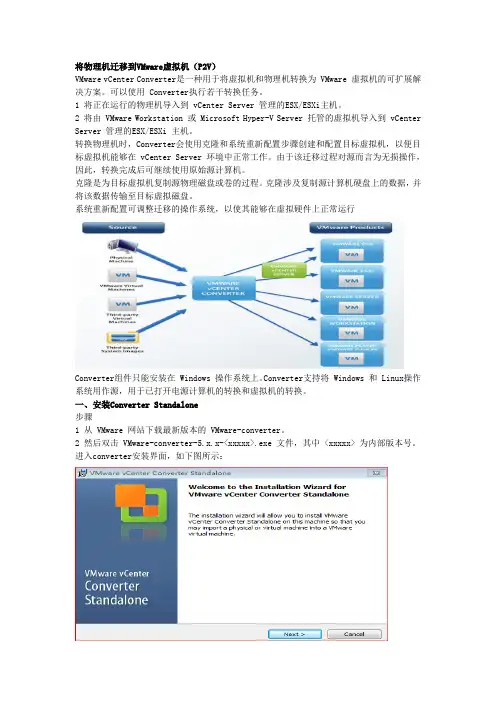
将物理机迁移到VMware虚拟机(P2V)VMware vCenter Converter是一种用于将虚拟机和物理机转换为 VMware 虚拟机的可扩展解决方案。
可以使用 Converter执行若干转换任务。
1 将正在运行的物理机导入到 vCenter Server 管理的ESX/ESXi主机。
2 将由 VMware Workstation 或 Microsoft Hyper-V Server 托管的虚拟机导入到 vCenter Server 管理的ESX/ESXi 主机。
转换物理机时,Converter会使用克隆和系统重新配置步骤创建和配置目标虚拟机,以便目标虚拟机能够在 vCenter Server 环境中正常工作。
由于该迁移过程对源而言为无损操作,因此,转换完成后可继续使用原始源计算机。
克隆是为目标虚拟机复制源物理磁盘或卷的过程。
克隆涉及复制源计算机硬盘上的数据,并将该数据传输至目标虚拟磁盘。
系统重新配置可调整迁移的操作系统,以使其能够在虚拟硬件上正常运行Converter组件只能安装在 Windows 操作系统上。
Converter支持将 Windows 和 Linux操作系统用作源,用于已打开电源计算机的转换和虚拟机的转换。
一、安装Converter Standalone步骤1 从 VMware 网站下载最新版本的 VMware-converter。
2 然后双击 VMware-converter-5.x.x-<xxxxx>.exe 文件,其中 <xxxxx> 为内部版本号。
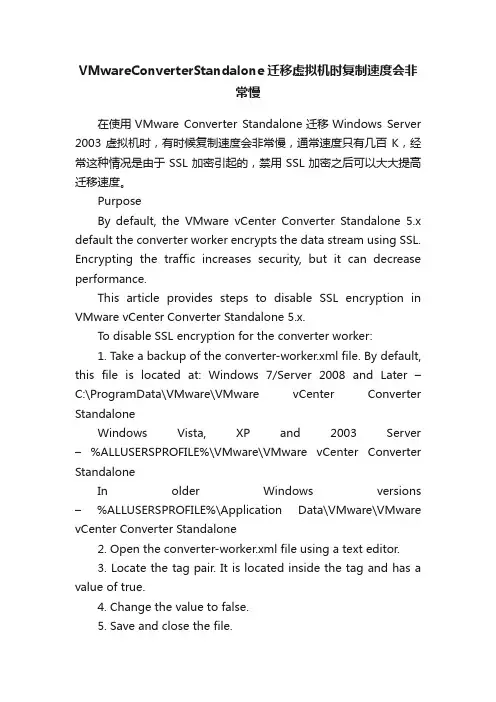
进入converter安装界面,如下图所示:3 按照提示进行操作,直至系统显示“最终用户许可协议”页面。
4 选择我接受许可协议中的条款,然后单击下一步。
5 在“目标文件夹”页面上,选择 Converter Standalone 的安装位置,然后单击下一步。
6 在“安装类型”页面上,选择本地安装,然后单击下一步。
VMwareConverterStandalone迁移虚拟机时复制速度会非常慢
VMwareConverterStandalone迁移虚拟机时复制速度会非常慢在使用VMware Converter Standalone迁移Windows Server 2003虚拟机时,有时候复制速度会非常慢,通常速度只有几百K,经常这种情况是由于SSL加密引起的,禁用SSL加密之后可以大大提高迁移速度。
PurposeBy default, the VMware vCenter Converter Standalone 5.x default the converter worker encrypts the data stream using SSL. Encrypting the traffic increases security, but it can decrease performance.This article provides steps to disable SSL encryption in VMware vCenter Converter Standalone 5.x.To disable SSL encryption for the converter worker:1. Take a backup of the converter-worker.xml file. By default, this file is located at: Windows 7/Server 2008 and Later –C:\ProgramData\VMware\VMware vCenter Converter StandaloneWindows Vista, XP and 2003 Server –%ALLUSERSPROFILE%\VMware\VMware vCenter Converter StandaloneIn older Windows versions –%ALLUSERSPROFILE%\Application Data\VMware\VMware vCenter Converter Standalone2. Open the converter-worker.xml file using a text editor.3. Locate the tag pair. It is located inside the tag and has a value of true.4. Change the value to false.5. Save and close the file.6. Restart the VMware vCenter Converter Standalone Worker service on the machine.To disable SSL encryption:1. Take a backup of the converter-worker.xml file. By default, this file is located at:1. Windows 7/Server 2008 and Later –C:\ProgramData\VMware\VMwarevCenter Converter Standalone2. Window Vista, XP and 2003 Server - %ALLUSERSPROFILE%\VMware\VMwarevCenter Converter Standalone3. In older Windows versions –%ALLUSERSPROFILE%\ApplicationData\VMware\VMware vCenter Converter Standalone2. Open the converter-worker.xml file using a text editor.3. Locate the tag pair . It is located inside the tag and has avalue of true.4. Change the value to false.5. Save and close the file.6. Restart the VMware vCenter Converter Standalone Worker service on the machine.。
VMware Converter 迁移物理机到 esxi 虚拟机(即P2V)

VMware Converter 迁移物理机到esxi 虚拟机(即P2V) VMware Converter 是一款能将物理电脑系统、VMware其他版本虚拟机镜像或第三方虚拟机镜像转化为一个虚拟机映像文件的工具,而且生成的映像可以在该公司的VMware虚拟机软件中使用。
组件功能vCenter Converter服务器端:实现整个迁移过程的核心组件,执行虚拟机格式装换和重新配置等关键任务;vCenter Converter客户端:用户操作界面,用于连接服务器端执行相关任务;vCenter Converter Agent:在迁移过程中安装在源机器上,用于数据抓取和传送,迁移结束后会自动卸载;下载地址https:///tryvmware/?p=converter使用测试迁移Llinux,测试环境 rhel 5.4 32bit1 需要root 权限,输入源系统(被迁移)ip 地址,用户名密码2 输入目的系统 (esxi),ip 地址,用户名密码3 输入名称默认即可4 下一步5 此时可以根据实际情况,调整虚拟机配置参数,例如硬盘网卡 cpu 内存等等6 虚拟机信息,单机下一步开始迁移7 任务栏进度条8 linux 系统迁移完成,对比迁移windows 系统简单很多!迁移windows,测试环境windows xp 32bit1 下载并且安装converter软件2 安装3 这里要说明下vmware vCenter Converter 服务端已经安装在 64位 2k3 server上了,而这次将只安装 converter client,选择本地安装,点击几次next将完成安装!4 安装后将进入 converter client 界面,这里选择转换计算机,源系统,然后选择此本地计算机,单击详细信息可以看到本地计算机配置信息。
5 目标系统,填入ESXI 的 ip地址,用户名,密码6 物理机将要迁移到ESXI上,需要填入一个名称7 选择目标ESXI 存储8 重要在此处编辑虚拟磁盘信息,可以选择高级自定义信息9 确认无误后单击几次 next后,开始迁移此时显示迁移任务信息10 我晕 91% 处失败了,无法为源卷创建 vss 快照开始google11 经历了17次失败,终于把windows 迁移到ESXI上了,太TM蛋疼了,比起迁移 linux 真是太恶心了!12 总结迁移 windows 失败的原因,竟然是精简版的 windows 没有 VSS 服务,所以使用converter 迁移windows 之前,请先查下 vss服务!结束迁移linux 非常顺利,拥有root权限通过ssh即可,迁移windows 实在太TM恶心了,写了这么多希望对准备用 vmware converter 迁移的朋友有些帮助吧!。
VMware vCenter Converter Standalone [V5.0]-EN14-08-28
100% Pass英语版的试题是红色为正确答案,正确率100%,保证一次通过What problem could you encounter as a result of importing a machine with an OEM licenseA:The applications and data filesSome hardware-dependent driversThe operating system configurationUser accountsQ:What is a linked clone?A:A virtual machine that shares its parent disk with another virtualmachineA physical machine that shares its parent disk with a virtualmachineA physical machine that is linked to other physical machines witha network connectionA virtual machine that shares its parent disk with a physical machineQ:What problem could you encounter as a result of importing a machine with an OEM license?A:The license is attached to the machine and, by license, does notallow migration to new hardwareVMware does not support the OEM operating systemOEM licenses can only be migrated to hosted products likeVMware FusionThere are no issues with OEM licensesQ:What action should you take when your destination isVMware DRS cluster?A:Set VMware DRS Power Management to manualDisable VMware HA.Set the VMware DRS cluster to automaticxxxxxxxxxxxxxxxxx Disable VMware Fault ToleranceQ:What is the primary difference between a Windows hot clone and a Linux hot clone?A:Converter cannot hot clone a Linux machineNo agent is deployed the source machineThe agent runs on the source machine rather than the destinationmachinexxxxxxxxxxxxxxxxxxxxxxxxxThe conversion requires VMware Site Recovery Manager to be installed on the sourceQ:Which three types of data cloning operations does Converter Standalone support? (Check 3) A:123错Volume-based cloningMemory-based cloningDisk-based cloningLinked-cloningInfiniband-based cloningQ:What happens to Windows dynamic volumes duringVolume-based cloning?A:They are all converted to ext3 volumesOnly the free space gets copiedThey are converted to basic volumesIf the source volume is formatted FAT they first are converted to NTFS then imported as dynamic volumesQ:Which of the following is a requirement of cold cloning?A:The source must be running its operating systemThe destination must be powered offxxxxxxxxxxxxxxVMware Professional Services must come onsite to perform thecold cloneVMware Cold Clone CDROM or a bootable CDROM withConverter software installed.Q:Which of the following is a prerequisite for a local installation of Converter Standalone?A:Converter Standalone must be installed on a Linux machine Converter Standalone 3.X agent must be installed on WindowsVista prior to installationAdministrator privilegesThe Converter Standalone vCenter Server plug-in must be installedxxxxxxxxxxxxxxxxxxxxxxxxxQ:Which of the following options if selected in the conversion wizard would result in disk-based cloning?A:Copy all disksSelect volumes to copyxxxxxxxxxxxxxxxxxxxxxxLinked clonexxxxxxxxxxxxxxxxxxxxClone this disk with disk based cloningxxxxxxxxxxxxQ:When would synchronization occur during the cloning process?A:During hot cloning before the initial copy of blocks aretransferredxxxxxxxxxxxxxxxDuring cold cloning only after the destination has shut downDuring hot cloning after the initial copy of blocks are transferred During hot cloning after the source and destination are shut down Q:What happens to the Converter agent on a Windows source after a hot clone is performed?A:Converter does not support hot cloning Windows machinesIt is uninstalled by default but you can override that optionThe agent begins an operation to completely erase the source The agent decommissions the server and emails an administrator to come pull the server out of the rackQ:Which of the following is a valid source for Converter Standalone to import?A:Baan BShell virtual machinexxxxxxxxxxxxxxxxMicrosoft Hyper-V serverFreeBSD JailsxxxxxxxxxxxxxxxxxxxxxxxxxxxxxxxxxxxAIX Workload PartitionsQ:Which of the following is a prerequisite for a Windows hot clone conversion?A:SSH must be installedTurn on simple file sharingThe source must be registered in the vCenter Server system. Turn off firewall applications at the source。
如何将物理机系统迁移转换为vmware虚拟机系统(pv)
如何将物理机系统迁移转换为vmware虚拟机系统(pv)如何将物理机系统迁移转换为VMware虚拟机系统(P2V)VMware Converter P2V转换⼯具及安装操作步骤⼀、需求环境情况如图将“服务器①”内运⾏的Windows Server2008 系统(hostname: Server1)迁移转换到“服务器②”成为虚拟机(VMware vCenter Infrastructure virtual machine环境)。
SERVER 1VM Infrastructure virtual machinevCenter IP: 192.168.0.201ESXi IP: 192.168.0.195⼆、迁移转换⽹络拓扑情况与操作原理说明安装部署VM vCenter Converter Standalone转换⼯具到“服务器③”,“服务器③”可以是1台独⽴物理机服务器,也可以是虚拟环境中的1台虚拟服务器,或者安装于vCenter服务器系统上,本次采⽤的⽅式为在个⼈电脑内的VMware Workstation 上的虚拟机部署1套Windows Server 2008 并安装⼀套VM vCenter Converter Standalone转换⼯具作为Converter Server。
SERVER 1VM Infrastructure virtual machinevCenter IP: 192.168.0.201ESXi IP: 192.168.0.195服务器①(IP : 192.168.0.201):源服务器(待转换服务器),系统Windows Server 2008VCenter(IP : 192.168.0.170):⽬标环境,转换后虚拟机会添加在VCenter 管理的ESXi主机内服务器③(IP : 192.168.0.171):转换⼯具所在服务器设备,Converter 服务器基本原理:在“服务器③”系统中运⾏Converter⼯具,依照向导输⼊被转换服务器的IP与管理员⽤户与密码(源服务器需要暂时关闭防⽕墙与杀毒软件),Converter⼯具将会远程⽅式在源服务器上部署代理程序(Agent),部署完成后Converter⼯具将通过代理程序提取源服务器系统⽂件,通过VCenter Server注⼊到虚拟机环境,并建⽴对应的虚拟服务器。
Vmware Converter 操作手册(完整详细篇)
VMware Converter 操作手册(P2V)目录一、Windows P2V (3)Step 1. 停止系统服务 (3)Step 2. Select Source Type (3)Step 3. 选择安装成功后自动卸载Agent (4)Step 4. Deloying agent部署agent中 (4)Step 5. Select destination type (5)Step 6. 输入迁移后的VM名称 (6)Step 7. 选择要存放的 ESXi 主机、Datastore 及 Virtual MachineVersion (7)Step 8. 对将要迁移的配置进行修改 (8)Step 9. 显示配置概览信息 (11)Step 10. 迁移进行中 (11)Step 11. 迁移成功 (12)Step 12. 安装vmware tools (13)Step 13. 停止HP驱动相关服务 (16)Step 14. 卸载原有的HP驱动程序 (17)二、Linux P2V (18)Step 1. 关闭oracle服务 (18)Step 2. Select Source Type (19)Step 3. 安全警告 (20)Step 4. Select Destination Type (20)Step 5. 输入迁移后的VM名称 (21)Step 6. 选择要存放的 ESXi 主机、Datastore 及 Virtual MachineVersion (22)Step 7. 对将要迁移的配置进行修改 (23)Step 8. 显示配置概览信息 (26)Step 9. 迁移进行中 (27)Step 10. 迁移成功 (27)Step 11. 安装vmware tools (28)Step 12. 配置IP (33)Step 13. 配置DNS (35)Step 14. 启动oracle listener监听 (37)Step 15.启动oracle服务 (38)一、Windows P2VStep 1. 停止系统服务Step 2. Select Source Type·Powered-on manchine:转换任何已打开电源的物理机或虚拟机·Vmware Infrastructure virtual machine:从Vmware VirtualCenter或Vmware ESX Server转换虚拟机·Vmware Workstation or other Vmware Vitrual machine:从Vmware Workstation、Vmware Player、Vmware Fusion或其他Vmware产品转换虚拟机·Backup image or third-party virtual machine:转换备份映像或第三方虚拟机·Hyper-V Server:从Microsoft Hyper-V Server转换虚拟机这里选择Powered-on manchine输入要转换的计算机的IP、用户名、密码及选择操作系统的类型【注】:这里的用户需要有administrator 的权限Step 3. 选择安装成功后自动卸载AgentStep 4. Deloying agent 部署agent 中Step 5. Select destination type·Vmware Infrastructure virtual machine:创建用于Vmware Infrastructure 产品的新虚拟机·Vmware Workstation or other virtual machine:创建于Vmware Workstation、Vmware、Vmware Fusion或其他Vmware产品的新虚拟机这里选择Vmware Infrastructure virtual machine【Vmware Infrastructure server deatil】:选择迁移后虚拟机存放的位置这里可以选择vCenter的地址或ESXi的地址输入Vcenter地址后可以选择由vCenter管理的ESXi服务器输入ESXi的地址则指定了P2V后的VM存放的ESXi服务器由于环境由vCenter管理,这里选择输入vCenter的地址并输入目标目标服务器的用户名及密码Step 6. 输入迁移后的VM 名称Step 7. 选择要存放的ESXi 主机、Datastore 及Virtual Machine VersionStep 8. 对将要迁移的配置进行修改磁盘的修改:可以选择要P2V 的磁盘和选择P2V 的磁盘的大小设备选项中:可以设定P2V 的机器的Memory 和CPU 的个数网络设置选项:可以设置网卡的数量及网卡要连接到的网络类型高级选项设置:在post-conversion 中Reconfigure destination virtual machine 一定要选择,否则P2V 后VM 启动不了,默认是选择的.Step 9. 显示配置概览信息Step 10. 迁移进行中Step 11. 迁移成功Step 12. 安装vmware toolsStep 13. 停止HP 驱动相关服务Step 14. 卸载原有的HP 驱动程序二、Linux P2VStep 1. 关闭oracle 服务以oracle 用户身份登录到系统,停止oracle 服务Step 2. Select Source Type·Powered-on manchine:转换任何已打开电源的物理机或虚拟机·Vmware Infrastructure virtual machine:从Vmware VirtualCenter 或Vmware ESX Server 转换虚拟机·Vmware Workstation or other Vmware Vitrual machine:从Vmware Workstation、Vmware Player、Vmware Fusion 或其他Vmware 产品转换虚拟机·Backup image or third-party virtual machine:转换备份映像或第三方虚拟机·Hyper-V Server:从Microsoft Hyper-V Server 转换虚拟机这里选择Powered-on manchine输入要转换的计算机的IP、用户名、密码及选择操作系统的类型【注】:这里的用户需要有root 的权限,最好为root 用户Step 3. 安全警告Step 4. Select Destination Type·Vmware Infrastructure virtual machine:创建用于Vmware Infrastructure 产品的新虚拟机·Vmware Workstation or other virtual machine:创建于Vmware Workstation、Vmware、Vmware Fusion 或其他Vmware 产品的新虚拟机这里选择Vmware Infrastructure virtual machine【Vmware Infrastructure server deatil】:选择迁移后虚拟机存放的位置这里可以选择vCenter 的地址或ESXi 的地址输入Vcenter 地址后可以选择由vCenter 管理的ESXi 服务器输入ESXi 的地址则指定了P2V 后的VM 存放的ESXi 服务器由于环境由vCenter 管理,这里选择输入vCenter 的地址并输入目标目标服务器的用户名及密码Step 5. 输入迁移后的VM 名称Step 6. 选择要存放的ESXi 主机、Datastore 及Virtual Machine VersionStep 7. 对将要迁移的配置进行修改磁盘的修改:可以选择要P2V 的磁盘和选择P2V 的磁盘的大小设备选项中:可以设定P2V 的机器的Memory 和CPU 的个数网络设置选项:可以设置网卡的数量及网卡要连接到的网络类型和是否开机时启动高级选项设置:在post-conversion 中Reconfigure destination virtual machine 一定要选择,否则P2V 后VM 启动不了,默认是选择的.Helper VM Network:选择手动分配IP(为SSH 通道分配的临时IP),若使用DHCP,P2V 时可能会出现得不到Helper IP 错误。
VMware_物理机迁移到虚拟机
VMware物理机迁移虚拟机P2V(热迁移)以下是成功迁移的注意事项:确保vConverter服务器、ESX Server和源物理服务器三者能相互通讯;在源服务器上,确保Windows Installer、 Workstation、Server、TCP/IP NetBIOS Helper、Volume Shadow Copy service等相关服务启动;尽量关闭服务器防火墙;确保VMware Converter的Windows服务正在运行;确保在源服务器的C盘驱动器上,你至少有200 MB的可用空间;确保所需的在源服务器和VirtualCenter( VC )以及VMware ESX之间的TCP / UDP 端口是开放的;我们可以利用“调度任务”可以实现物理机的迁移。
确认vCenter中存在vCenter Converter插件在vCenter中打开[文件]->[新建]->[已调度任务]选择[导入计算机]调试任务,单击[确定]首先要定义数据源,出现[导入向导]界面,单击[下一步]填写物理机的IP地址、用户名和密码,单击[下一步]提示需要远程安装vCenter Converter Agent并选择成功迁移后删掉此Agent,单击[是]自定义硬盘大小,单击[下一步]还不明白为啥这不能保持其大小下面进行目标虚拟机的设置,单击[下一步]填写虚拟机的名称和清单位置,单击[下一步]选择虚拟机的运行的主机,单击[下一步]为虚拟机选择资源池,单击[下一步]选择虚拟机的数据存放位置,单击[下一步]为虚拟机选择网卡数,单击[下一步]接下来要自定义虚拟机,选择安装VMware Tools、自定义虚拟机的标识并删除系统的还原检查点,单击[下一步]填写[虚拟机的名称]、[所有者名称]和[单位]名称,单击[下一步]输入操作系统的cdkey,选择连接数,单击[下一步]为虚拟机选择正确的时区,单击[下一步]配置虚拟机的网卡,单击[下一步]将虚拟机加入到网络中,单击[下一步]选择调度的时间,单击[下一步]确认设置无误后就可以单击完成后开始转移了此时就可以看到改虚拟机了,在近期任务中可以看到转移的进度。