
Linux下无线网卡驱动的安装
计算机系列教学文档 ------Linux下无线网卡驱动的安装
文件状态: [ ] 草稿 [√] 正式发布 当前版本: V1.0 作 者: 李星华 完成日期: 2014-05-07 个人博客: lixh.org 系列文档-技术文档
1 / 8 作者:lixh
Linux下无线网卡驱动的安装 本来是我的本本比较旧,为了做一些网络实验,需要安装linux操作系统,但系统安装完成后,无线网卡的驱动一直有问题,所以在网络上查找到这篇文章,希望对大家有用。在ubuntu、BT5等linux操作系统上通用。
The Ipw2200 is the Linux driver for the Intel PRO/Wireless 2200BG Mini-PCI Adapter and Intel PRO/Wireless 2915ABG Mini-PCI Adapter found in Centrino laptops. This driver only works on 2.6.x kernels (2.6.4 or newer).
Starting with kernels 2.6.14 the driver is included in kernel. NOTE! Make sure you have installed the firmware! The ipw2200 documentation will tell you where to find these firmware files and where to install those.
Included in mainline Linux kernels, tracking the SourceForge version with about 6 months delay. Packages
Fedora Packages(1): Fedora Core includes the ipw2200-drivers in FC3 (with updates) and FC4. You still need to grab the firmware from http://rpm.livna.org/ Fedora Packages(2): http://www.atrpms.net/name/ipw2200/ Mandriva: The ipw2200 driver modules are included in the stock kernel package; the firmware is included in the commercial distribution or available from http://plf.zarb.org/. Gentoo: The driver is in the portage tree: emerge net-wireless/ipw2200 and net-wireless/ipw2200-firmware Debian Sarge includes the source code for the modules in package ipw2200-source (http://packages.debian.org/ipw2200-source). You additionally need to download firmware manually. Debian Etch includes a version of the modules in its kernel or for a later version install package ipw2200-modules-2.6-486 or ipw2200-modules-2.6-686 or ipw2200-modules-2.6-686-bigmem or ipw2200-modules-2.6-k7 or ipw2200-modules-2.6-amd64; or the source code for them in ipw2200-source (http://packages.debian.org/ipw2200-source) to compile one yourself. You additionally need to download firmware manually.
Status 系列文档-技术文档 2 / 8 作者:lixh
In development, usable, WEP 128bit encryption works, WPA and WPA2 work with drivers >= 1.0.2 using wpa_supplicant, monitor/rfmon is supported as with version >= 1.0.6. Generally works well, but some users experience problems (especially with firmware restarts and with WPA functionality using wpa_supplicant). Passing the hwcrypto=0 module parameter improves reliability for many users.
The ipw2200 driver up to version 1.0.6 (in combination with some newer kernels) had a problem getting DHCP leases (it turned out to be a bug in the broadcasting code). Version 1.0.7 seems to have fixed this.
Older ipw2200 driver versions shipped by many distributions have been reported to freeze a T43 after several minutes of intensive communication. Installing version 1.1.2 of the driver solved the problem.
Latest stable versions: ipw2200 driver: 1.2.0 firmware: 3.0 ieee80211 stack: 1.2.15
Latest development versions: ipw2200 driver: 1.2.2 firmware: 3.1 ieee80211 stack: 1.2.18
Mainline kernels contain older (but mostly functional) versions of ipw2200 and ieee80211, and still require the addition of the firmware files. To get the latest versions you need to separately install the ipw2200 module and ieee80211 stack. Installation Source Code
Download the latest ieee80211 stack and install it: # tar xzvf ieee80211-1.2.15.tgz # cd ieee80211-1.2.15 # make # make install
Download the latest ipw2200 module and install it: # tar xzvf ipw2200-1.2.0.tgz # cd ipw2200-1.2.0 # make # make install 系列文档-技术文档 3 / 8 作者:lixh
Download the matching firmware and install it: # tar xzvf ipw2200-fw-3.1.tgz -C /lib/firmware Debian Sarge # apt-get install ipw2200-source # module-assistant -t build ipw2200-source [is this how module-assistant works in Sarge?] Debian Etch
The kernel includes a version but if you want a more recent version install the module ipw2200-modules-2.6-486 or ipw2200-modules-2.6-686 or ipw2200-modules-2.6-686-bigmem or ipw2200-modules-2.6-k7 or ipw2200-modules-2.6-amd64 depending on your architecture.
The firmware is not distributed with Debian due to licensing reasons, download the matching version 3.0 firmware and install it:
# tar -xvf ipw2200-fw-3.1.tgz -C /lib/firmware # mv /lib/firmware/ipw2200-fw-3.1/* /lib/firmware Debian Unstable Install ieee80211-source: # apt-get install ieee80211-source # module-assistant -t build ieee80211-source
The kernel includes a version but if you want a more recent version install the module ipw2200-modules-2.6-486 or ipw2200-modules-2.6-686 or ipw2200-modules-2.6-686-bigmem or ipw2200-modules-2.6-k7 or ipw2200-modules-2.6-amd64 depending on your architecture.
USB无线网卡的Linux驱动移植

( )增 加 D OP支 持 2 H
操 作 系 统 为 Wid ws Ln x Ma _ 。 n o / iu / c】 ]
1 移 植 要 求
移 植 目 标 是 在 原 有 ARM 监 测 系 统 的 基 础 上 实 现
配置 : ro @ l ah s ts] ma eme u o f o t o lo t e t # c k n c ni g
达 1O Mb s I E 8 2 1 n ; 作 模 式 Ad— Ho 5 p (E E 0 . 1 ) 工 c和
I fa tu te 选 ; 密 特 性 为 6 / 2 nr sr cr 可 加 4 1 8位 W E WP P、 A/
文 件 替 换 完 毕 进 行 内核 编 译 :
ma l ke z mag e
② 修 改 Ma ei 。 k fe l
修 改 第 8行 , 置 可 执 行 文 件 安 装 路 径 : 设
PREF X一 / s/o a/ rls I u r lc lwiees
生 成 内核 zma e 下 载 到 目标 板 。在 内核 编译 的过 I g后 程 中 , 会 出现 许 多 错 误 , 要 是 C O语 法 错 误 、 调 用 还 主 9 所 函 数 数 据 类 型不 匹 配 、 符 号 未 定 义 等 问题 。 主要 的 修 改 段
选 择 [ ei r e]+- ew rigsp ot- [ t D v eD i r- [ t okn u p r] ̄ Ne— c v N - w ri pi s。务 必 选 中“ ak t ok t和 “P: ok got n] n o P c e sc e” I DH—
linux(debian)安装USB无线网卡(tp-linkTL-WN725Nrtl8188eu)

linux(debian)安装USB⽆线⽹卡(tp-linkTL-WN725Nrtl8188eu)1: 台式机家⾥⾯不想再⾛线了。
于是去某东买了个USB⽆线⽹卡。
tp的WN725N USB,⾮常⼩, 和罗技的优联接收器差不多⼤。
2: 驱动能⾃⼰识别是不指望了,既然是usb⽹卡,插⼊USB后,那就lsusb看到新增加了⼀⾏Realtek的 ID 0bda:8179[html]1. root@debian:/# lsusb2. Bus 001 Device 001: ID 1d6b:0002 Linux Foundation 2.0 root hub3. Bus 002 Device 001: ID 1d6b:0003 Linux Foundation 3.0 root hub4. Bus 003 Device 001: ID 1d6b:0002 Linux Foundation 2.0 root hub5. Bus 004 Device 001: ID 1d6b:0002 Linux Foundation 2.0 root hub6. Bus 003 Device 002: ID 8087:0024 Intel Corp. Integrated Rate Matching Hub7. Bus 004 Device 002: ID 8087:0024 Intel Corp. Integrated Rate Matching Hub8. Bus 003 Device 007: ID 0bda:8179 Realtek Semiconductor Corp.9. Bus 003 Device 004: ID 04d9:4545 Holtek Semiconductor, Inc.10. Bus 003 Device 005: ID 050d:0304 Belkin Components FSU304 USB 2.0 - 4 Ports Hub11. Bus 003 Device 006: ID 046d:c52b Logitech, Inc. Unifying Receiver12. Bus 003 Device 008: ID 0781:5567 SanDisk Corp. Cruzer Bladegoogle下了,发现是WN725N_V2看下芯⽚组是Probable Linux driver 8188eu3: 既然拿到了芯⽚组号,那就⾸先去debian官⽹看有⽊有驱动的包, 找到了realtek的固件驱动不过⽀持的列表⾥⾯并没有8188eu,只有8188ce, 8188cu那就只有去realtek的官⽹下了, 在逛了⼀圈,还是没有发现8188eu. ⽆奈去github上逛逛,发现了这个接下来就好办多了。
Ubuntu12.04安装无线网卡驱动

Ubuntu12.04安装无线网卡驱动笔者这几天想在Win7手提电脑(ThinkPad E430C)上安装Linux系统(组成双系统)以便测试一些开源模式代码。
Linux选择的是Ubuntu 12.04LTS 64位版。
在安装完Ubuntu系统后发现手提电脑上的有线网卡能正常识别,但是无线网卡驱动却没有。
于是在网上搜索了一番安装上驱动,并记此篇以做记录。
首先查看网卡状态,终端命令sudo lshw -C network信息如下:•*-network UNCLAIMED•description: Network controller•product: Broadcom Corporation•vendor: Broadcom Corporation•physical id: 0•bus info: pci@0000:03:00.0•version: 01•width: 64 bits•clock: 33MHz•capabilities: pm msi pciexpress bus_master cap_list•configuration: latency=0•resources: memory:e4100000-e4107fff发现无线网卡不能正常工作,并且网卡为博通的网卡。
进一步查询网卡的型号,终端输入sudo lspci -vnn | grep 14e4信息如下:•03:00.0 Network controller [0280]: Broadcom Corporation Device [14e4:4365] (rev 01)由此,网卡型号为博通4365,属于43系列,移步到博通官网下载64位Linux无线网卡驱动/support/802.11/linux_sta.php下载压缩包后,直接终端解压编译,编译成功,生成wl.ko文件。
在编译驱动成功之后,紧接着加载两个模块,终端输入sudo modprobe lib80211sudo modprobe cfg80211安装驱动sudo insmod wl.ko(在编译生成wl.ko文件的目录执行该命令),不出意外系统自动弹出无线识别提示,正常工作。
Ubuntu系统下电脑驱动的安装(wifi无线网卡)

Ubuntu系统下电脑驱动的安装(wifi⽆线⽹卡)今天给⾃⼰的笔记本电脑安装了新的Ubuntu 16.04但是安装之后发现wifi⽆法启⽤。
这⾥特说明解决过程。
⾸先,⽹上的⼤部分教程是选择“系统设置”,点击“软件和更新”点击“附加驱动”,这时候系统会⾃动联⽹监测本机适⽤的附加驱动,其中就包括你的⽆线⽹卡驱动。
但是按照上述步骤,却并没有看到需要安装驱动的硬件。
但是我在⽹上找到了这样的⼀篇博客:⼀.分析:1.使⽤ifconfig命令发现不会显⽰⽆线⽹卡,说明⽆线⽹卡被关闭,笔者输出的信息如下:linuxidc@linuxidc:~$ ifconfigeth0 Link encap:以太⽹硬件地址 16:03:71:93:64:22inet 地址:192.168.100.3 ⼴播:192.168.100.255 掩码:255.255.255.0inet6 地址: fe80::1a03:73ff:fe92:632e/64 Scope:LinkUP BROADCAST RUNNING MULTICAST MTU:1500 跃点数:1接收数据包:295308 错误:0 丢弃:0 过载:0 帧数:0发送数据包:208860 错误:1 丢弃:0 过载:0 载波:0碰撞:0 发送队列长度:1000接收字节:394951279 (394.9 MB) 发送字节:19510963 (19.5 MB)lo Link encap:本地环回inet 地址:127.0.0.1 掩码:255.0.0.0inet6 地址: ::1/128 Scope:HostUP LOOPBACK RUNNING MTU:65536 跃点数:1接收数据包:943526 错误:0 丢弃:0 过载:0 帧数:0发送数据包:943526 错误:0 丢弃:0 过载:0 载波:0碰撞:0 发送队列长度:1接收字节:464924375 (464.9 MB) 发送字节:464924375 (464.9 MB)2.使⽤lshw命令输出信息(只贴出⽆线⽹卡相关的信息)如下:linuxidc@linuxidc:~$ lshw*-network DISABLEDdescription: Wireless interfacephysical id: 2logical name: wlan0 1serial: 92 :31:e3:4a:75:f2capabilities: ethernet physical wirelessconfiguration: broadcast=yes driver=brcmsmac driverversion=4.1.0-78-generic firmware=102.304 ip=192.168.100.131 link=nomulticast=yes wireless=IEEE 802.11bgn从第2点的"*-network DISABLED"这⼀⾏可以明确⽆线⽹卡在硬件上被禁⽌了3.于是打开硬件开关,但尝试了很多次都没成功,通过rfkill的输出信息来判断:linuxidc@linuxidc:~$ sudo rfkill list all[sudo] linuxidc 的密码:0: phy0: Wireless LANSoft blocked: noHard blocked: yes从"Hard blocked: yes"这⼀⾏可以看出⽆线⽹卡在硬件上被block如果是Soft blocked: yes ,可以通过 Fn+f2(笔记本)打开4.通过第3点开始怀疑⽆线⽹卡的驱动是否安装正确⼆.安装⽆线⽹卡驱动:1.卸载之前安装的⽆线⽹卡驱动(如果之前安装了的情况下,否则请⽆视):sudo apt-get purge firmware-b43-installersudo apt-get purge bcmwl-kernel-source2.获取⽆线⽹卡的PCI.ID (笔者的⽆线⽹卡品牌是broadcom,所以指定⼚商代号为14e4)linuxidc@linuxidc$ lspci -nn -d 14e4:09:00.0 Network controller [0280]: Broadcom Corporation BCM4313 802.11bgn Wireless Network Adapter [14e4:4727] (rev 01)从以上信息中获取到关键信息为:[14e4:4727] (rev 01)-nn 选项是只显⽰指定的⼚商代码对应的设备-d 选项是显⽰⼚商代号和设备代号,同时显⽰数字和名称3.更新ubuntu的PCI.IDs列表:3.1sudo apt-get update (⾸先更新软件包索引)3.2sudo update-pciids (如果⼀直没有响应,那就将其中断),直接替换原来的/usr/share/misc/pci.ids⽂件,命令如下: cd /usr/share/misc/ sudo mv pci.ids pci.ids.orig 将下载好的pci.ids⽂件复制到/usr/share/misc/⽬录下(由于笔者认为⽬前的⽆线⽹卡硬件不是很新,因此⽆线⽹卡的信息在原来的pci.ids ⽂件中是存在的,因此并没有⼿动去更新pci.ids⽂件)4.安装对应的⽆线⽹卡驱动,从下表即可获得对应驱动的软件包名PCI.ID 16.04 LTS 17.10+------------------------------------------------------------------------------------14e4:0576 Special Case #1 UNKNOWN14e4:4301 firmware-b43-installer firmware-b43-installer14e4:4306 firmware-b43-installer firmware-b43-installer14e4:4306 rev 02 firmware-b43-installer firmware-b43-installer14e4:4306 rev 03 firmware-b43-installer firmware-b43-installer14e4:4307 firmware-b43-installer firmware-b43-installer14e4:4311 firmware-b43-installer firmware-b43-installer14e4:4311 rev 01 firmware-b43-installer firmware-b43-installer14e4:4312 firmware-b43-installer firmware-b43-installer14e4:4313 firmware-b43-installer firmware-b43-installer14e4:4315 firmware-b43-installer firmware-b43-installer14e4:4315 rev 01 firmware-b43-installer firmware-b43-installer14e4:4318 firmware-b43-installer firmware-b43-installer14e4:4318 rev 02 firmware-b43-installer firmware-b43-installer14e4:4319 firmware-b43-installer firmware-b43-installer14e4:4320 rev 02 firmware-b43-installer firmware-b43-installer14e4:4320 rev 03 firmware-b43-installer firmware-b43-installer14e4:4321 firmware-b43-installer firmware-b43-installer14e4:4324 firmware-b43-installer firmware-b43-installer14e4:4325 firmware-b43-installer firmware-b43-installer14e4:4328 firmware-b43-installer firmware-b43-installer14e4:4329 bcmwl-kernel-source bcmwl-kernel-source14e4:432a bcmwl-kernel-source bcmwl-kernel-source14e4:432b bcmwl-kernel-source bcmwl-kernel-source14e4:432c bcmwl-kernel-source bcmwl-kernel-source14e4:432d bcmwl-kernel-source bcmwl-kernel-source14e4:4331 firmware-b43-installer firmware-b43-installer14e4:4335 firmware-b43-installer firmware-b43-installer14e4:4350 firmware-b43-installer firmware-b43-installer14e4:4353 Special Case #1 UNKNOWN14e4:4353 rev 01 Special Case #1 UNKNOWN14e4:4357 Special Case #1 UNKNOWN14e4:4358 bcmwl-kernel-source bcmwl-kernel-source14e4:4359 bcmwl-kernel-source bcmwl-kernel-source14e4:4360 bcmwl-kernel-source bcmwl-kernel-source14e4:4365 bcmwl-kernel-source bcmwl-kernel-source14e4:4365 rev 01 bcmwl-kernel-source bcmwl-kernel-source14e4:43a0 bcmwl-kernel-source bcmwl-kernel-source14e4:43ae rev 02 UNKNOWN UNKNOWN14e4:43b1 bcmwl-kernel-source bcmwl-kernel-source14e4:43b1 rev 03 bcmwl-kernel-source bcmwl-kernel-source14e4:43c3 rev 04 UNKNOWN Special Case #214e4:4727 bcmwl-kernel-source bcmwl-kernel-source14e4:4727 rev 01 bcmwl-kernel-source bcmwl-kernel-source14e4:a962 firmware-b43-installer firmware-b43-installer------------------------------------------------------------------------------------4.1从上表中可以看到bcmwl-kernel-source与14e4:4727 rev 01对应,因此安装命令如下:sudo apt-get install bcmwl-kernel-source4.2重新启动个⼈觉得是上述红⾊的字体是主要的。
centos7无线网卡驱动的安装及无线网络的配置详解
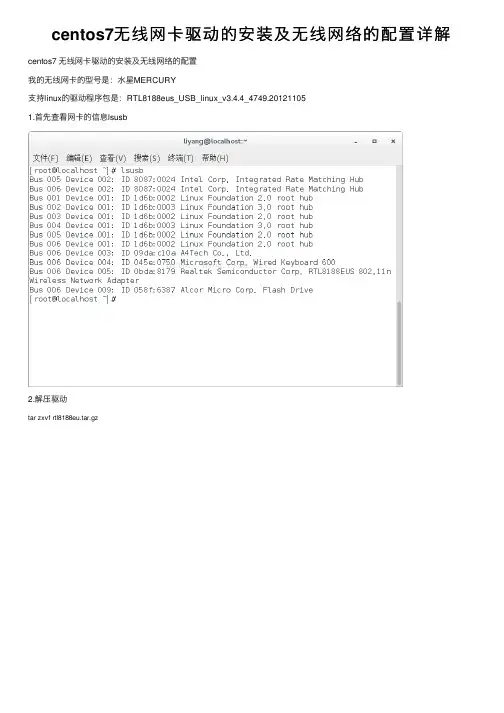
centos7⽆线⽹卡驱动的安装及⽆线⽹络的配置详解centos7 ⽆线⽹卡驱动的安装及⽆线⽹络的配置我的⽆线⽹卡的型号是:⽔星MERCURY⽀持linux的驱动程序包是:RTL8188eus_USB_linux_v3.4.4_4749.201211051.⾸先查看⽹卡的信息lsusb2.解压驱动tar zxvf rtl8188eu.tar.gz3.進⼊rtl8188eu/rtl8188eu-master切換root權限,執⾏make和make iinstall⼀般linux内核会⾃动加载新安装的模块,此处发现并没有加载,那是什么原因呢?原因是这样的,当系统重新安装了驱动模块后,系统⼀般会在重新启动后加载,如果不能加载,我们可以使⽤指令:insmod +具体路径和模块或者直接使⽤modprobe 不需指明路径或将⽣成的8188eu.ko复制到/lib/modules/3.10.0-327.el7.x86_64/kernel/drivers/net/wireless。
下⾯我们重启后,看看系统能否⾃动加载模块(下圖已加載):4.⽤ifconfig查看若沒有⽤ ifconfig -a查看(PS:这是为什么呢?原来是ifconfig查看的是已激活的⽹卡,ifconfig -a 查看的所有的,此时我们只需要将wlp0s29u1u6激活;激活⽤ifconfig wlp0s29u1u6 up)5.進⼊rtl8188eu/wireless_tools我们再次将包拆解到/usr/local/src⽬录下tar -zxvf wireless_tools.30.rtl.tar.gz -C /usr/local/src/进⼊到拆解的⽬录切換root權限,執⾏make和make iinstall我们进⼊/usr/local/sbin⽬录下:6.接着我们使⽤iwlist scanning 列出周围的⽆线⽹络:7.当然光搜素到⽆线⽹络是没有⽤处的,因为这些⽆线⽹络都是加密的,我们必须要验证⼯具来进⾏密钥验证,下⾯我们进⼊到rtl8188eu/wpa_supplicant_hostapd⽬录解压 wpa_supplicant_hostapd-0.8_rtw_20120803.zip 进⼊到/wpa_supplicant_hostapd-0.8/wpa_supplican 执⾏make和make install8.我们进⼊/usr/local/sbin⽬录:此时,我们可以去连接我们的⽆线⽹络了:为了安全起见,我们需要将明⽂密码删除9.现在,我们的驱动模块和密钥⽂件都形成了,现在进⾏⽆线⽹络的连接:复制代码代码如下:wpa_supplicant -i wlp0s29u1u6-c/etc/wpa_supplicant/wpa_supplicant.conf -D wext –B 各参数的含义:-i 指明连接的⽹卡-c 指明密钥⽂件的存放位置-D 指明驱动类型为通⽤型-B 放到后台运⾏我们使⽤iwconfig查看⽆线⽹卡的连接转状态:10.接着重新启动⽹络服务service network restart下⾯看看我们的wlp0s29u1u6能否成功获取Ip地址吧:11.执⾏dhclientdhclient 是直接控制 eth 来进⾏⽹络操作获取 IP。
Linux下Wi-Fi:wireless_tools和wpa_supplicant
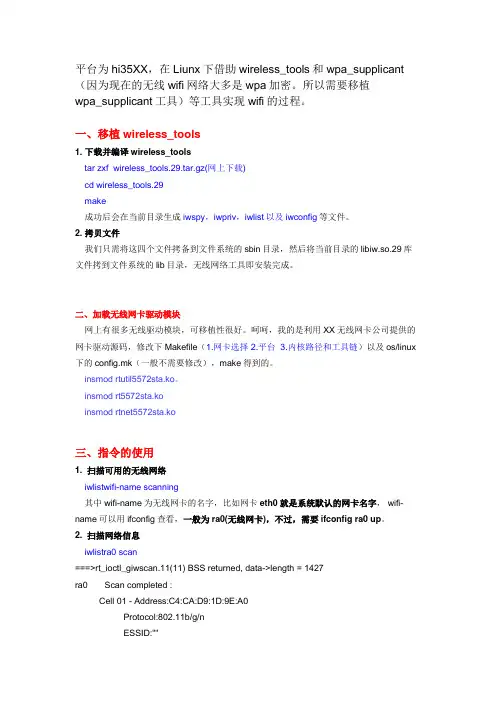
平台为hi35XX,在Liunx下借助wireless_tools和wpa_supplicant (因为现在的无线wifi网络大多是wpa加密。
所以需要移植wpa_supplicant工具)等工具实现wifi的过程。
一、移植wireless_tools1. 下载并编译wireless_toolstar zxf wireless_tools.29.tar.gz(网上下载)cd wireless_tools.29make成功后会在当前目录生成iwspy,iwpriv,iwlist以及iwconfig等文件。
2. 拷贝文件我们只需将这四个文件拷备到文件系统的sbin目录,然后将当前目录的libiw.so.29库文件拷到文件系统的lib目录,无线网络工具即安装完成。
二、加载无线网卡驱动模块网上有很多无线驱动模块,可移植性很好。
呵呵,我的是利用XX无线网卡公司提供的网卡驱动源码,修改下Makefile(1.网卡选择 2.平台 3.内核路径和工具链)以及os/linux 下的config.mk(一般不需要修改),make得到的。
insmod rtutil5572sta.ko。
insmod rt5572sta.koinsmod rtnet5572sta.ko三、指令的使用1. 扫描可用的无线网络iwlistwifi-name scanning其中wifi-name为无线网卡的名字,比如网卡eth0就是系统默认的网卡名字, wifi-name可以用ifconfig查看,一般为ra0(无线网卡),不过,需要ifconfig ra0 up。
2. 扫描网络信息iwlistra0 scan===>rt_ioctl_giwscan.11(11) BSS returned, data->length = 1427ra0 Scan completed :Cell 01 - Address:C4:CA:D9:1D:9E:A0Protocol:802.11b/g/nESSID:""Mode:ManagedFrequency:2.412 GHz(Channel 1)Quality=7/100 Signal level=-87 dBm Noise level=-82 dBmEncryption key:offBit Rates:54 Mb/s如上:ESSID项的值即为无线网络的名字,如上的“TXJ”等。
TL-WDN5200H无线usb网卡在Linux上的使用
TL-WDN5200H⽆线usb⽹卡在Linux上的使⽤买了个TL-WDN5200H⽆线usb⽹卡,但是发现它居然不⽀持Linux,但是我有时需要在Linux上使⽤,这就尴尬了.于是到⽹上搜索资料,终于解决了这个问题.1. ⾸先编译安装:根据它的README⽂档,Ubuntu下可以这样安装:sudo apt-get install dkmsDRV_NAME=rtl8821CUDRV_VERSION=5.2.5.3sudo mkdir /usr/src/${DRV_NAME}-${DRV_VERSION}git archive master | sudo tar -x -C /usr/src/${DRV_NAME}-${DRV_VERSION}sudo dkms add -m ${DRV_NAME} -v ${DRV_VERSION}sudo dkms build -m ${DRV_NAME} -v ${DRV_VERSION}sudo dkms install -m ${DRV_NAME} -v ${DRV_VERSION}# 下载⼯程git clone https:///whitebatman2/rtl8821CU.gitcd rtl8821CUmakesudo make installsudo modprobe 8821cu2. 使⽤lsusb命令观察⽹卡的编号(插拔前后的变化)Bus 002 Device 001: ID 1d6b:0003 Linux Foundation 3.0 root hubBus 001 Device 003: ID 093a:2510 Pixart Imaging, Inc. Optical MouseBus 001 Device 002: ID 04d9:0223 Holtek Semiconductor, Inc.Bus 001 Device 013: ID 0bda:1a2b Realtek Semiconductor Corp.Bus 001 Device 001: ID 1d6b:0002 Linux Foundation 2.0 root hubTL-WDN5200H的编号就是0bda:1a2b.3. 切换usb⽹卡的模式为⽆线⽹卡模式:sudo usb_modeswitch -KW -v 0bda -p 1a2b输出如下:Take all parameters from the command line* usb_modeswitch: handle USB devices with multiple modes* Version 2.5.2 (C) Josua Dietze 2017* Based on libusb1/libusbx! PLEASE REPORT NEW CONFIGURATIONS !DefaultVendor= 0x0bdaDefaultProduct= 0x1a2bStandardEject=1Look for default devices ...found USB ID 1d6b:0003found USB ID 093a:2510found USB ID 04d9:0223found USB ID 0bda:1a2bvendor ID matchedproduct ID matchedfound USB ID 1d6b:0002Found devices in default mode (1)Access device 013 on bus 001Get the current device configuration ...Current configuration number is 1Use interface number 0with class 8Use endpoints 0x0b (out) and 0x8a (in)USB description data (for identification)-------------------------Manufacturer: RealtekProduct: DISKSerial No.: not provided-------------------------Sending standard EJECT sequenceLooking for active drivers ...OK, driver detachedSet up interface 0Use endpoint 0x0b for message sending ...Trying to send message 1 to endpoint 0x0b ...OK, message successfully sentRead the response to message 1 (CSW) ...Response successfully read (13 bytes), status 1 Trying to send message 2 to endpoint 0x0b ...OK, message successfully sentRead the response to message 2 (CSW) ...Response successfully read (13 bytes), status 0 Trying to send message 3 to endpoint 0x0b ...Sending the message returned error -1. Try to continue Read the response to message 3 (CSW) ...Device seems to have vanished after reading. Good. Device is gone, skip any further commands-> Run lsusb to note any changes. Bye!惊喜的发现⽆线可⽤了!。
无线网卡怎么安装
无线网卡怎么安装无线网卡是一种重要的硬件设备,可以让计算机通过无线信号连接到网络,提供便利的网络使用体验。
对于那些缺乏有线网络连接的场合,无线网卡可以发挥关键作用。
但是,很多用户仍然对无线网卡的安装程序感到困惑。
在本文中,我们将提供一个简明扼要的步骤,来指导你如何安装无线网卡。
步骤一:确认系统要求在安装无线网卡之前,首先需要确认计算机的操作系统和硬件配置。
查看电脑的系统要求可以为我们选择正确的网卡型号和驱动程序提供依据。
一般来说,无线网卡支持的操作系统包括Windows、Mac和Linux。
此外,你还需要确保计算机有可用的PCI插槽或USB端口来安装无线网卡。
步骤二:选择合适的无线网卡市面上有多种型号和品牌的无线网卡可供选择。
选择合适的无线网卡需要考虑一些因素,比如网卡的传输速率、信号强度和兼容性等。
根据自己的需求和预算,选择性价比较高的无线网卡。
步骤三:安装无线网卡无线网卡的安装过程分为两个步骤:物理安装和驱动程序安装。
下面我们将详细说明每个步骤的操作。
1. 物理安装:首先,关闭计算机的电源,并确保断开电源线和所有外设的连接。
接下来,打开计算机的机箱,并寻找一个适合无线网卡安装的插槽。
如果你选择的是PCIe网卡,找到一个空闲的PCIe插槽,并小心地将无线网卡插入插槽中。
如果你选择的是USB网卡,只需将无线网卡插入计算机的USB端口即可。
完成插入后,将机箱盖重新安装好,并重新连接电源线和外设。
2. 驱动程序安装:打开计算机,并等待系统完全启动。
然后,将无线网卡的驱动程序光盘插入计算机的光驱,并运行驱动程序安装程序。
如果你没有光驱,可以从品牌官方网站上下载最新的驱动程序。
安装驱动程序可能需要一些时间,请耐心等待。
在安装过程中,系统可能会要求你重启电脑,请按照提示操作。
步骤四:配置无线网卡当无线网卡驱动程序安装完成后,你将需要进行一些配置,以使无线网卡正常工作。
1. 查找无线网络:打开计算机的无线网络设置界面,一般可以在系统托盘的网络图标中找到。
基于Linux操作系统的网卡驱动程序及其安装
基于Linux 操作系统的网卡驱动程序及其安装刘金梅1周 彤1李紫薇2刘立军3(1.北华航天工业学院电子工程系,河北廊坊065000; 2.唐山建龙实业有限公司,河北唐山064200;3.廊坊开发区昂瑞自动化工程有限公司,河北廊坊065000)摘 要:本文介绍了Linux 操作系统中网络设备和驱动程序的工作原理,针对不同的网卡提出了配置T CP/IP 网络参数的方法,并重点对于网卡安装过程中出现的一些问题进行了分析,提出了相应的解决办法。
关键词:L inux ;网卡;驱动程序中图分类号:T P393 文献标识码:A 文章编号:1673-7938(2008)03-0019-04收稿日期:2008-03-28作者简介:刘金梅(1977-),女,助教,硕士,河北秦皇岛人,从事嵌入式系统研究与开发。
随着Linux 的迅速普及和发展,越来越多的企业和个人开始使用Linux 系统,而Linux 以其系统强大的功能、对多用户的支持和运行稳健的特性越来越多的应用在网络方面,很适合为Web Server 或网络数据库管理系统等服务提供操作系统平台[1]。
但网卡驱动程序的加载与配置比较特殊,Linux 的支持函数少,只能依赖内核中的函数,许多操作需要自己编写,而且调试也非常不方便,因此在Linux 下进行网卡的加载和配置的设计就显得十分重要。
1 Linu x 系统网络设备在Linux 系统中有3种类型的设备:字符设备、块设备和网络设备[2]。
其中前两种设备的驱动都是以文件形式存在于/dev 目录下,可以在用户进程中对其进行读写操作。
而网络设备驱动提供的网络界面并未存在于文件系统之中。
在使用网络设备时,用户进程不再是以文件读写的方式对设备进行操作,而是通过针对特定协议的界面与操作系统的网络协议软件进行通信。
首先,网络设备在Linux 下有其不同于其它设备的处理方式[3]。
Linux 对所有的网络设备进行了抽象并定义了一个统一的概念,称之为接口(inter -face)。
Linux网卡驱动的安装
Linux⽹卡驱动的安装⼀。
⽹卡驱动安装的⼀般思路1.⾸先从硬件安装,检查⽹卡本⾝故障2.检查⽹卡芯⽚型号(注意不是硬件品牌)常见的⽹卡芯⽚有Intel RC82545EM/Realtek 8139D/ Broadcom NetXtreme/3Com 3C940/SIS900/VIA VT6105L 通过命令查看本机:lspci3.查看系统是否包含对应型号的⽹卡驱动⽬录:/lib/modules/release/kernel/drivrs/net4.检查⽹卡驱动是否加载lsmod命令查看当前系统加载的模块信息如果⽹卡未加载,使⽤[modprobe 模块⽂件]命令加载insmod/rmmod [选项] 模块名称或模块⽂件载⼊/卸载系统模块,与modprobe功能类似depmod [选项] 模块名称:分析载⼊模块的相关性⼆。
编译安装⽹卡⽅式⼀:RPM/Source RPM驱动包安装⽅式(以IBM X3650服务器Broadcom NetXtreme II⽹卡为例)1. 从IBM官⽹上下载对应服务器型号的⽹卡驱动程序,利⽤U盘等⼯具传到Linux服务器上,接着进⾏编译1. rpm -ivh bnx2-<version>.src.rpm2. cd /root/rpmbuild3. rpmbuild -bb SPECS/bnx2.spec2. 安装编译好的驱动包1. cd /root/rpmbuild/RPMS/X86_642. rpm -ivh bnx2-<version>.x86_64.rpm3. 安装成功后会显⽰在如下路径:/lib/modules/<kernel_version>/extra/bnx2.ko4. 复制⽣成的模块⽂件到⽬录:/lib/modules/<kernel_version>/kernel/drivers/net3. 加载驱动程序1. insmod\2. 或者:modprobe bnx24. 查看⽹卡驱动模块是否加载1. lsmod | grep bnx2 如果命令输出中包含bnx2模块,表明⽹卡驱动编译成功5. 激活⽹卡,查看⽹卡状态1. ifconfig eth0 up (⽹卡设备名,以eth0为例)2. ifconfig -a⽅式⼆:源代码驱动包安装⽅式(以Realtek RTL8168/8111⽹卡为例)1. 从Realtek官⽹上下载源代码包,然后伟到Linux系统上,创建⼀个⽬录,把源代码包解压到此⽬录下。